1C:SSL: Additional Attributes and Information. Part 2. Where the Values Are Stored and How to Read and Write Them

1C:SSL: Additional Attributes and Information. Part 2. Where the Values Are Stored and How to Read and Write Them
Disclaimer: Everything described in this article is accurate for 1C:ERP Prime 2.0.0.35, 1C:SSL version 3.1.10.277, and 1C:Enterprise platform version 8.3.27.1936.
If you are using a different configuration, a different platform version, or a different 1C:SSL version, the overall logic of the mechanism remains the same, but command locations, form names, and some implementation details may differ slightly.
In Part 1, we looked at the Additional Attributes and Information mechanism from the user's perspective.
We added a new field called Delivery priority to the Sales order document and defined four allowed values: Low, Normal, High, and Urgent.
For the user, it was simple enough: open a sales order, find the new field, select the delivery priority, and save the document.
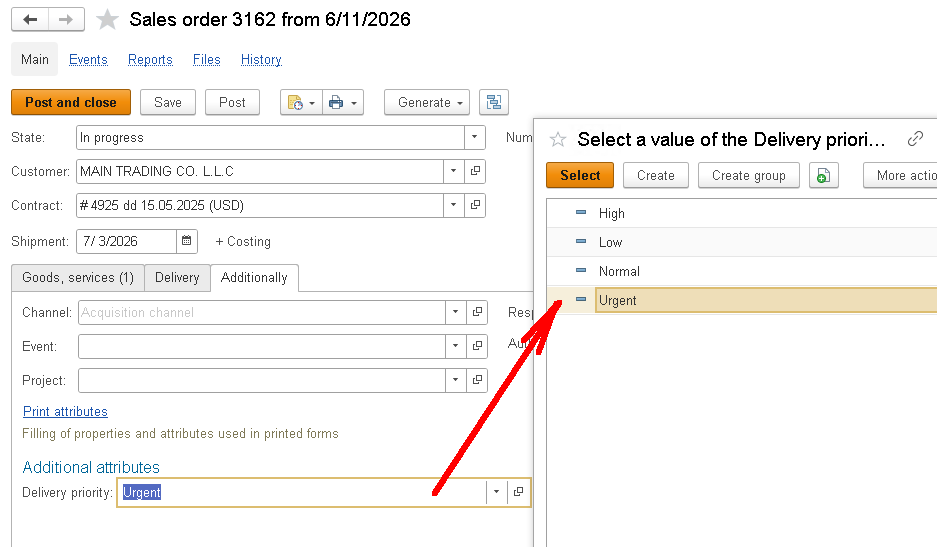
But a developer might have a reasonable question: Where exactly is that value stored? In which table?
After all, we did not add a regular attribute named DeliveryPriority to the SalesOrder document. The document metadata did not change, and no such attribute exists there. Yet the input field appears on the document form, its value is saved, and the value is still there when the document is opened again.
So the system must be storing that value somewhere!
That is what we will explore in this article. We will look inside the Additional Attributes and Information mechanism, find out where its values are stored, learn how to read them from code, and see how to use them in reports.
In Part 1, we introduced two concepts: additional attributes and additional information.
They may look similar to users, but the difference matters to developers.
An additional attribute is a user-defined property. Its value is stored with the object.
In our example, Delivery priority is an additional attribute of the SalesOrder document.
For the SalesOrder document, these values are stored in the AdditionalAttributes tabular section:
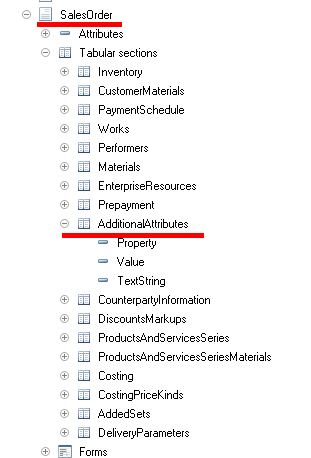
In other words, the additional attribute's value is stored with the object.
Additional information, on the other hand, is data about an object that is stored separately from it.
Suppose you need to store the date of a counterparty's most recent security review. You can use additional information for this. The value will be stored not in a tabular section of the counterparty, but separately, in the AdditionalInfo information register:
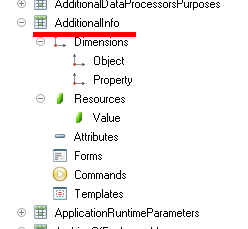
So the first rule for developers is simple: additional attributes and additional information are configured in similar ways, but their values are stored in different places.
For an object's additional attributes, look in its AdditionalAttributes tabular section.
For additional information, look in the AdditionalInfo information register.
Configuration Objects Used by the Mechanism
If we look at the mechanism in the configuration, we will find several key objects.
One of the most important for developers is the AdditionalAttributesAndInfo chart of characteristic types:
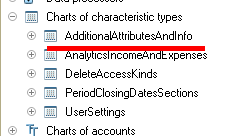
ChartOfCharacteristicTypes.AdditionalAttributesAndInfo
This chart of characteristic types contains the property definitions. For example, our Delivery priority additional attribute is an item in this chart.
Next is the AdditionalAttributesAndInfoSets catalog:
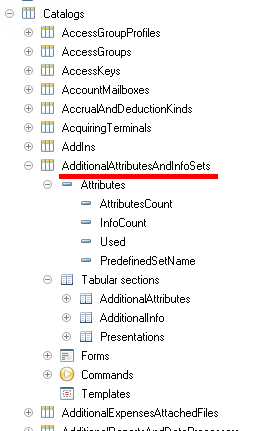
Catalog.AdditionalAttributesAndInfoSets
It defines sets of additional attributes and information, such as the set associated with the Sales order document.
Then there is the ObjectsPropertiesValues catalog:
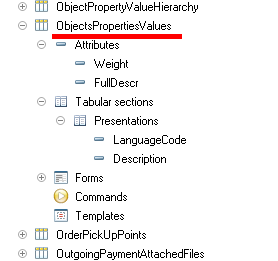
Catalog.ObjectsPropertiesValues
It stores the available values for properties that use a predefined list. In our example, Low, Normal, High, and Urgent are values of this kind.
The AdditionalInfo information register stores the values of additional information items:
InformationRegister.AdditionalInfo
Finally, one of the main 1C:SSL modules used to access additional attributes and information from code is PropertyManager, along with several supporting modules:
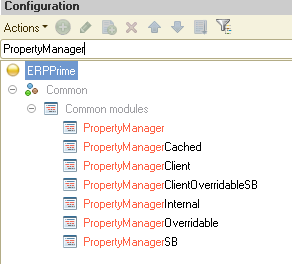
CommonModule.PropertyManager
To sum up the main objects:
- Property definitions are stored in AdditionalAttributesAndInfo.
- Property sets are defined in AdditionalAttributesAndInfoSets.
- Predefined property values are stored in ObjectsPropertiesValues.
- Additional information values are stored in AdditionalInfo.
- To access properties from code, you can use PropertyManager.
Now let's look at a detail that is easy to get wrong.
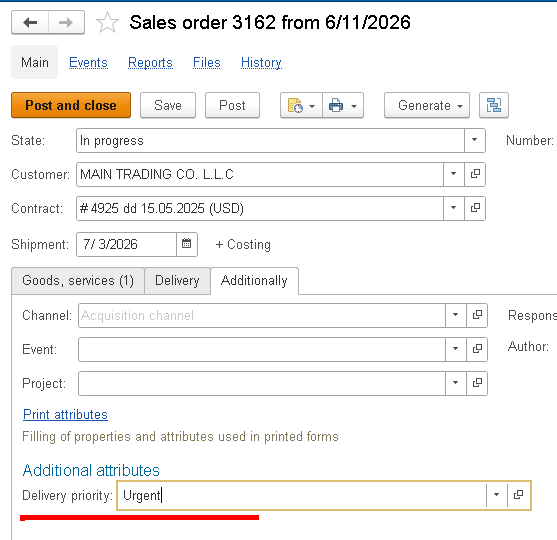
When a user creates an additional attribute, they enter its display name. In our example, that is Delivery priority:
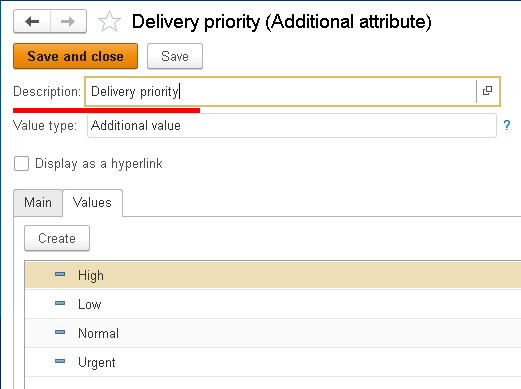
This is the name users see in the interface. When they open a sales order, they see the Delivery priority field:
An additional attribute also has an important field called Name.
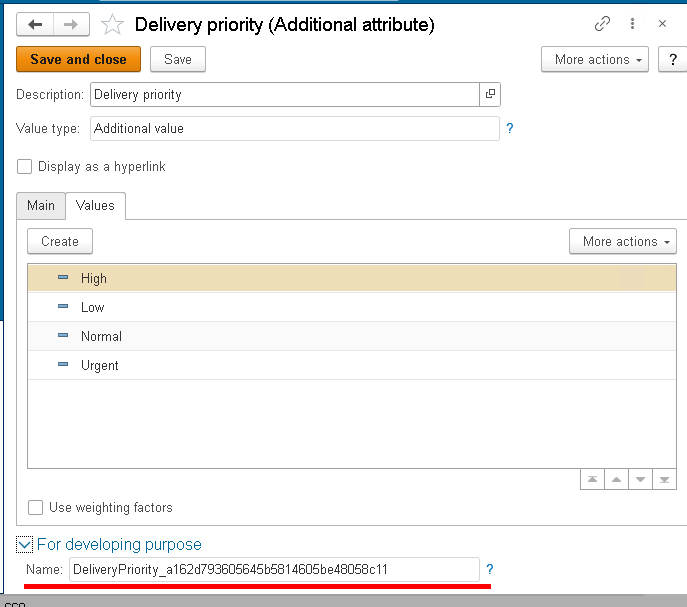
This is the property's internal name.
The additional attribute settings form even explains that this name can be used to access the additional attribute or additional information from code.
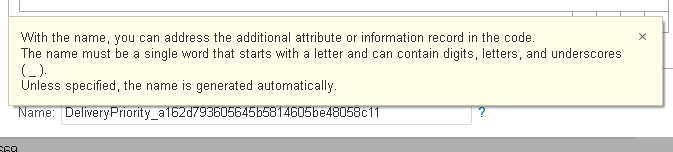
So Description and Name serve different purposes. Description is the name shown to users, while Name is the internal name used by developers.
Why is Name important?
We use it to find the required item in the AdditionalAttributesAndInfo chart of characteristic types.
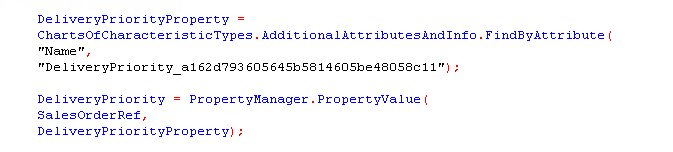
First, we find the additional attribute by its internal name. Then we retrieve its value by calling PropertyManager.PropertyValue(), as shown here:
You can also search by Description. The screenshot below shows FindByDescription in the list of available methods, while the code still uses FindByAttribute with Name.
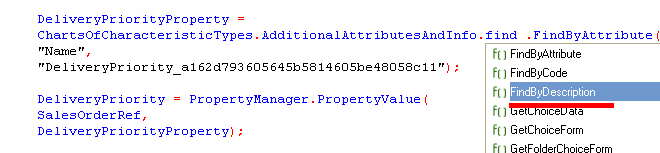
The problem is that a user can change Description, and the same description may be used for more than one property. Name, on the other hand, is intended for developers, and the system automatically ensures that it is unique.
For this reason, I strongly recommend looking up additional attributes by their internal Name, rather than their user-facing Description.
Moving on! Let's find out where the value of our additional attribute is actually stored.
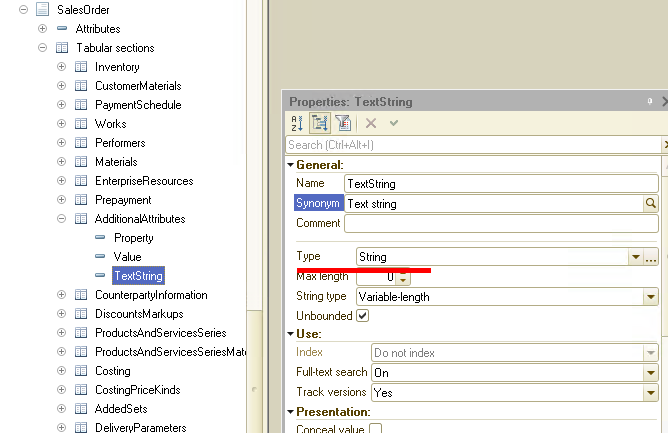
As we saw earlier, the SalesOrder document has no regular attribute named DeliveryPriority. Instead, additional attributes are stored in a dedicated AdditionalAttributes tabular section:
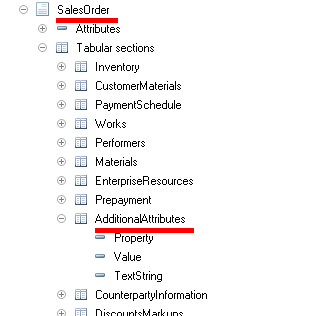
Document.SalesOrder.AdditionalAttributes
We are mainly interested in three fields in this tabular section:
- Property
- Value
- TextString
Property is a reference to a property definition in the AdditionalAttributesAndInfo chart of characteristic types:
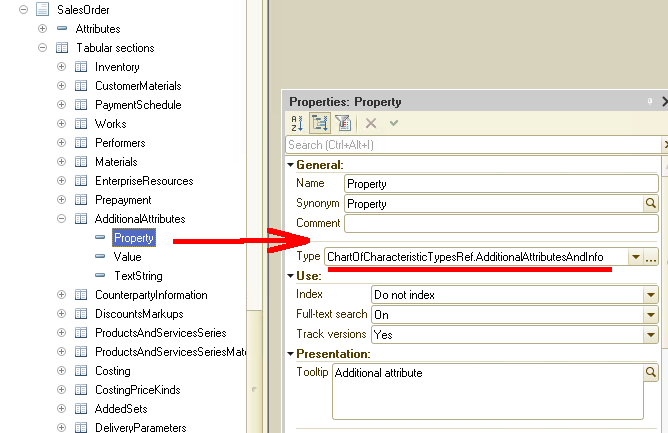
Value stores the additional attribute's value:
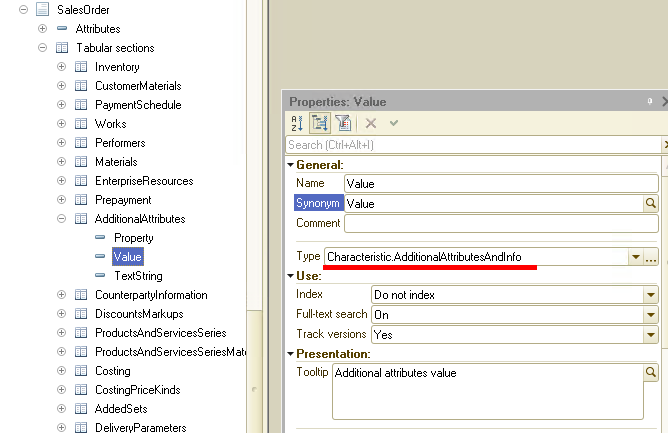
TextString is a separate field for long string values:
For our example, we can think of it like this:
Property = Delivery priority
Value    = Urgent
But this is only a simplified illustration.
The Property field does not actually contain the text "Delivery priority". It contains a reference to an item in the AdditionalAttributesAndInfo chart of characteristic types.
In our example, Urgent is the value displayed to the user. For an additional attribute of type Additional value, the stored value is a reference to an item in the ObjectsPropertiesValues catalog.
As you have probably guessed, an additional attribute does not automatically appear on an object form.
For the mechanism to work on a document form, the form must call the standard 1C:SSL procedures.
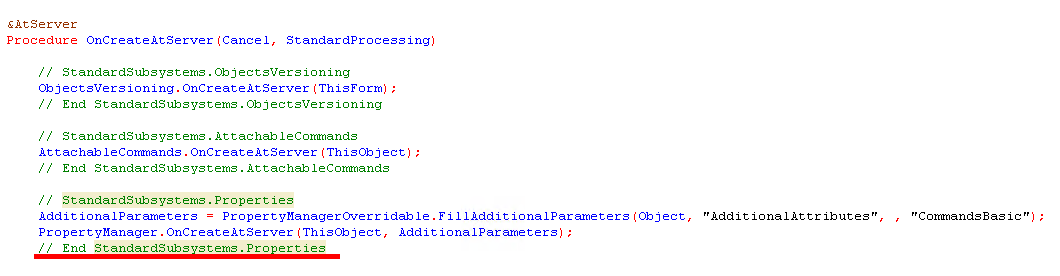
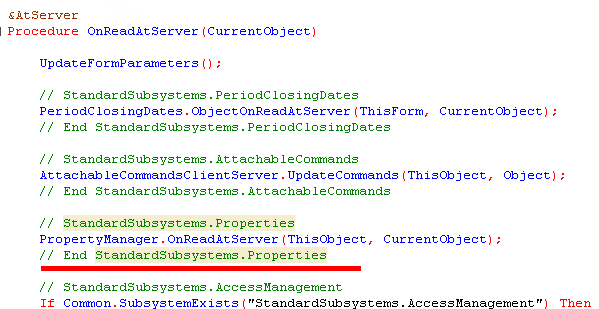
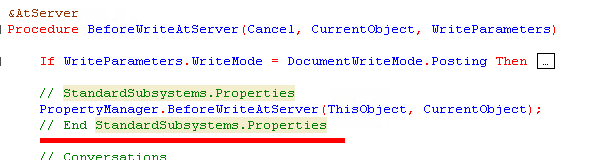
For example, the SalesOrder document form uses them at the following points.
When the form is created:
When the object is read:
Before the object is written:
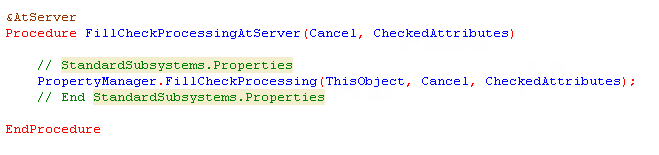
When the form checks whether required fields are filled in:
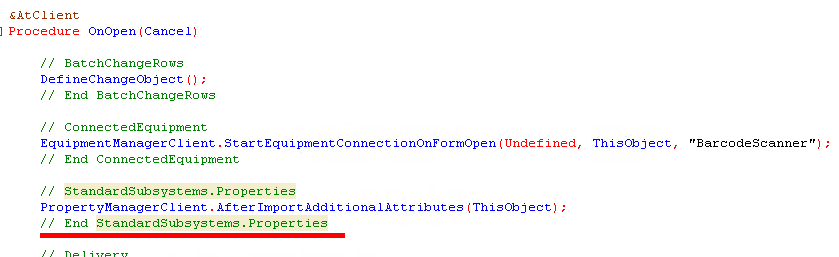
When the form opens:
The form also uses client-side calls:
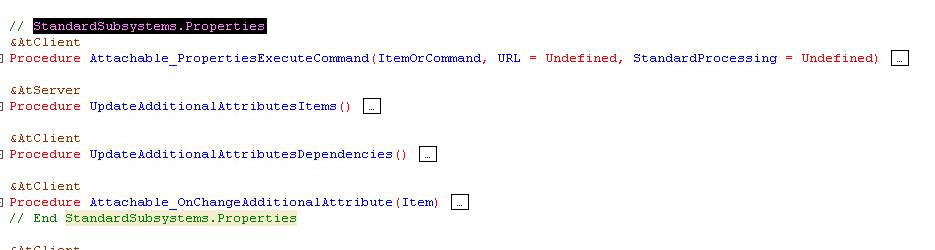
In simple terms:
- OnCreateAtServer prepares the form to use additional attributes.
- OnReadAtServer reads their values when the object is opened.
- BeforeWriteAtServer transfers the values before the object is written.
- FillCheckProcessing takes part in checking whether the required fields are filled in.
- UpdateAdditionalAttributesItems updates the form items used for additional attributes.
So if an object is connected to the mechanism but its additional attributes do not appear on the form, check not only the settings but also how the form uses PropertyManager.
Let's continue.
There are several ways to read an additional attribute's value. There are three main ways to read a value:
- Use PropertyManager.
- Read the object's AdditionalAttributes tabular section.
- Use a query.
The first option is useful when you need one value for a specific object.
The second helps you understand how the mechanism stores its data.
The third is useful for reports and reading values from many objects at once.
Let's start with PropertyManager.
Suppose we have a sales order and need to read its Delivery priority value.
First, find the additional attribute in the AdditionalAttributesAndInfo chart of characteristic types.
Search by its internal Name, not by the user-facing Delivery priority label:

Then read its value:

Here, DeliveryPriorityProperty is a reference to an item in the AdditionalAttributesAndInfo chart of characteristic types.
That reference is passed as the second parameter to PropertyManager.PropertyValue().
The selected value, such as Urgent, is returned in the DeliveryPriority variable.
Now let's look at the second option. This one helps explain where the value is actually stored.
If we have a reference to a sales order, we first get the object:

Then find the property by its internal name:

Now we can find the row in the AdditionalAttributes tabular section:
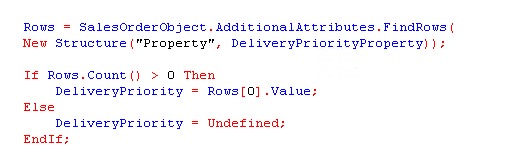
This makes the internal structure clear.
The value of an additional attribute is stored in a row of the object's AdditionalAttributes tabular section.
The Property column contains the reference to the property definition, while the Value column contains its value.
This approach is useful for one object. But if you need the values for a long list of sales orders, calling GetObject() for every order is not a good idea. For reports and reading many additional attributes, queries are usually a better choice.
How Do You Read an Additional Attribute With a Query?
Let's write a query that returns a list of sales orders together with their Delivery priority values.
We need to join SalesOrder to its AdditionalAttributes tabular section.
The query can look like this:
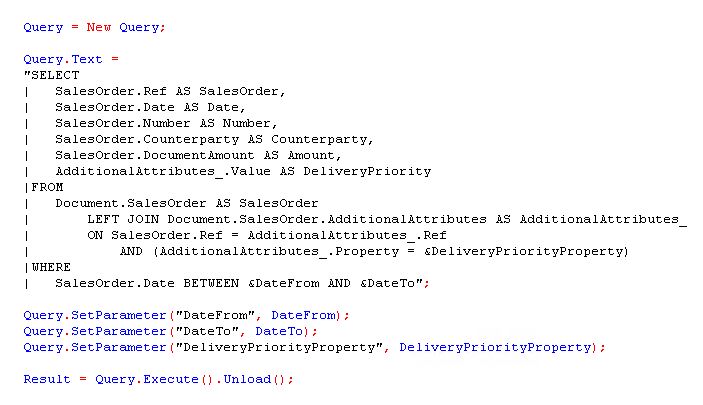
There are two important details here.
The first is the alias for the tabular section. I deliberately use AdditionalAttributes_ (with a trailing underscore), not AdditionalAttributes.
This avoids potential errors caused by an alias that matches or conflicts with the AdditionalAttributes tabular section name.
It is a good idea to give the tabular section a distinct alias in queries like this. AdditionalAttributes_ is the alias used in our example.
Second, the property condition belongs in the LEFT JOIN, not in the WHERE clause:
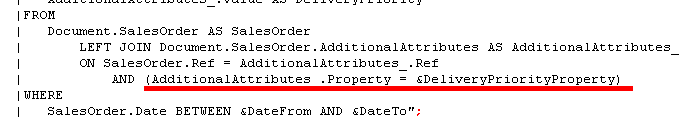 This matters too.
We are selecting all sales orders for a period. But the AdditionalAttributes tabular section can contain several rows for one order, because an order may have several additional attributes.
We do not need every row. We only need the one for Delivery priority.
If we move the property condition to WHERE, orders with no matching row for Delivery priority may disappear from the result.
In a report, it is often useful to see those orders as well.
So the query works like this:
- SalesOrder: select all orders for the specified period.
- AdditionalAttributes_: join the row for Delivery priority, if one exists.
If an order has no matching row for Delivery priority, it still appears in the result. The value returned from the joined tabular section is NULL.
Let's try a simple example.
We have already added the Delivery priority attribute to sales orders.
The next logical step is to create a simple report that groups orders by priority.
For example, a sales manager may want to see how many orders have low priority, how many have normal priority, and so on.
We'll use the Data Composition System for the report, with a slightly modified version of our previous query:
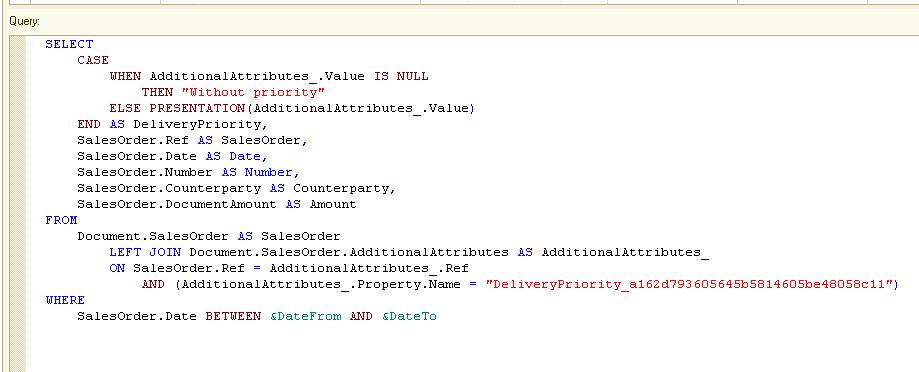
There are several things worth noting.
First, we use LEFT JOIN to include both orders with a matching row for Delivery priority and orders without one.
Second, we join only the row for the required additional attribute, not every row in AdditionalAttributes:

Here we use the property's internal Name, which we discussed earlier, rather than its user-facing label, Delivery priority.
Third, we replace a NULL value from the join with a readable label.
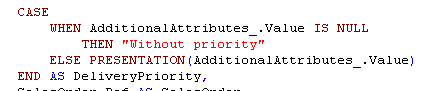
In this example, the report uses Without priority for orders that have no matching additional attribute row.
The result can look something like this:
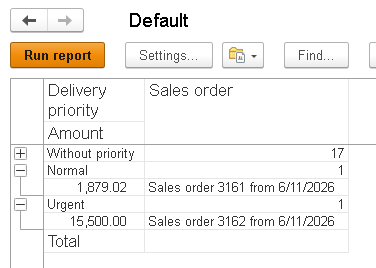
In this simple example, the property's internal name is written directly in the query. That is fine for a demonstration report, because the user does not need to select a technical property on the report form.
In a more complex report, you could create a hidden Data Composition System parameter, find the property by its Name in code, and pass the reference to the query. But for this example, using Property.Name directly in the query is simpler and easier to follow.
Now let's return to the other part of the mechanism: additional information.
Additional information is stored differently. Its values are not kept in an object's tabular section.
Instead, they are stored in the AdditionalInfo information register:
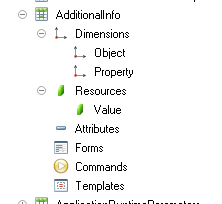
The register has three main fields: Object, Property, and Value.
- Object identifies the object the additional information belongs to.
- Property identifies the additional information item.
- Value stores its value.
For example, if we store a counterparty's last security review date, the data would look roughly like this:
Object   = Counterparty
Property = Last security review date
Value    = 08/15/2026
Technically, Property is once again a reference to an item in the AdditionalAttributesAndInfo chart of characteristic types.
How Do You Read Additional Information With a Query?
As you may have guessed, to read additional information, we query the AdditionalInfo register rather than a tabular section of the object.
For example:
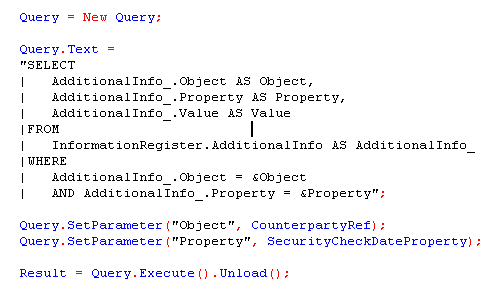
It is worth repeating the difference:
- An additional attribute of SalesOrder is read from Document.SalesOrder.AdditionalAttributes.
- Additional information is read from InformationRegister.AdditionalInfo.
These are different storage locations. If you look for the value in the wrong place, your code won't find it.
Now let's look at how to write a value from code.
Instead of using Delivery priority again, let's take an example involving additional information.
Create an additional information item named Project for the Sales order document:
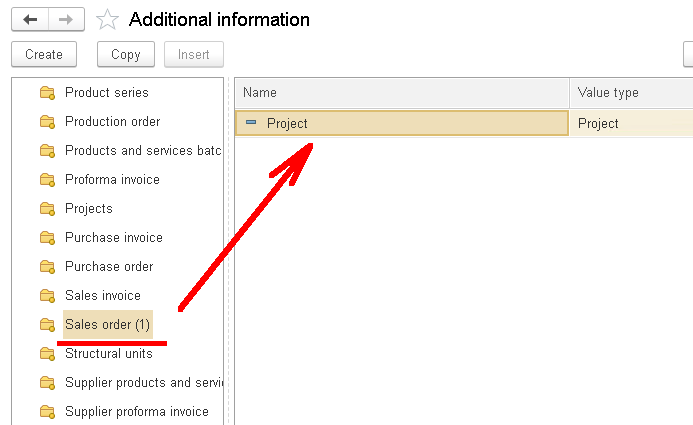
This additional information item is separate from the Project field already shown on the sales order form. We will not go through all the setup steps. Creating additional information is very similar to creating an additional attribute, which we covered in Part 1.
This time, we are interested in writing a value from code, not configuring the field in the interface.
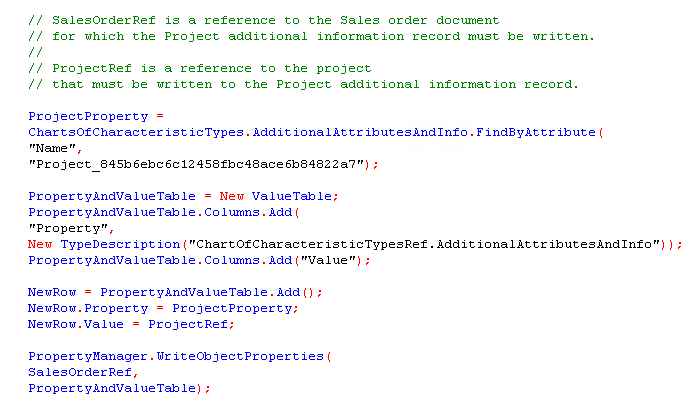
Suppose we have a sales order and want to write the Project additional information value for it. We also have a project reference that we need to store.
Our code uses two references: SalesOrderRef refers to the Sales order document, and ProjectRef refers to the project.
First, find the Project additional information item by its internal Name.
In our infobase, this name is Project_845b6ebc6c12458fbc48ace6b84822a7.
The code looks like this:
What happens here?
First, we find the Project property definition in the AdditionalAttributesAndInfo chart of characteristic types.
Then we create a value table and add a row to it:
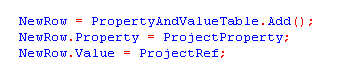
Next, we call:
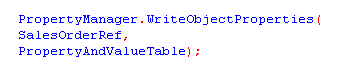
The standard 1C:SSL mechanism then writes the value to the correct storage location.
Since Project is additional information, the value is written to the AdditionalInfo information register, not to the SalesOrder document's AdditionalAttributes tabular section.
The sales order must already exist in the infobase at the time of writing, because the AdditionalInfo record is linked to the object's reference.
This example shows why it is better to use PropertyManager.WriteObjectProperties() instead of writing directly to a tabular section or register.
If the property is an additional attribute, 1C:SSL writes its value to the object's AdditionalAttributes tabular section. If it is additional information, 1C:SSL writes the value to the AdditionalInfo register. The mechanism handles the difference for you.
Let's recap the main ways to read and write these values.
If you need one value for one object, use:
PropertyManager.PropertyValue(...)
For example, you might use it in a data processor, validation routine, or another piece of application logic.
If the object is already loaded and you need to inspect its contents, you can look at its tabular section:
Object.AdditionalAttributes
But this is not the best way to read a large number of values.
If you need values for a list of objects, a report, or a similar task, use a query.
For document additional attributes, query the AdditionalAttributes tabular section. For additional information, query the AdditionalInfo information register.
To write a value, use:
PropertyManager.WriteObjectProperties(...)
This way, we follow the standard 1C:SSL logic instead of reimplementing what the subsystem already provides.
Now let's briefly look at some common mistakes when accessing additional attributes and information from code.
1. Treating an Additional Attribute as a Regular Document Attribute
A developer tries to access something like:
SalesOrder.DeliveryPriority
But the document has no such regular attribute.
Delivery priority is an additional attribute, so its value is stored in the AdditionalAttributes tabular section.
2. Using Description Instead of Name
The user sees the field as Delivery priority, but code should use the internal Name.
Description is the user-facing name.
Name is the internal name used by developers.
3. Confusing Additional Attributes with Additional Information
An object's additional attributes are stored in its tabular section.
Additional information is stored in the AdditionalInfo information register.
You won't find that additional information value in AdditionalAttributes.
4. Forgetting About TextString
If an additional attribute contains a long string, its value may be stored in the TextString field.
PropertyManager.PropertyValue() handles this detail automatically.
If you read the data directly with a query, remember to check the TextString field for long string values. This is another reason to use the standard procedures provided by the mechanism whenever appropriate.
5. Putting the Property Condition in WHERE
If you put the property condition in WHERE, sales orders without a value for that property may disappear from the result.
For reports, it is often better to put the property condition in the LEFT JOIN.
6. Writing Values Directly
Technically, you can get the object, find a row in AdditionalAttributes, change its Value, and save the object.
But when PropertyManager.WriteObjectProperties() is available, it is better to use it.
This way, your code follows the standard 1C:SSL logic.
7. Building Large Reports Without Checking Performance
Additional attributes are convenient, but they are not regular document attributes. Additional attribute values are stored in the object's AdditionalAttributes tabular section, while additional information values are stored in the AdditionalInfo information register.
If you create large reports that use many additional attributes, pay close attention to the queries, joins, and amount of data being processed.
Additional attributes work well for simple analysis.
But if an additional attribute becomes a key dimension in a large management report, it may be worth considering whether a regular attribute in the configuration would be a better choice.
Summary
Additional Attributes and Information is useful precisely because it lets you extend an object's data without changing the structure of its metadata object.
But developers need to understand how the mechanism stores this data.
In our example, Delivery priority is not a regular attribute of the SalesOrder document.
It is an additional attribute, and its definition is stored in AdditionalAttributesAndInfo.
Its value is stored in the document's AdditionalAttributes tabular section.
Additional information is stored separately, in the AdditionalInfo information register.
When accessing a property from code, use its internal Name, not the user-facing Description.
To read a single value, use:
PropertyManager.PropertyValue()
For reading many values or building reports, use queries to AdditionalAttributes or AdditionalInfo.
To write property values, call PropertyManager.WriteObjectProperties().
The main point is simple: Additional Attributes and Information is not magic, and it is more than just fields that appear on a form. It is a standard 1C:SSL mechanism with its own storage structure and API. Once you understand where the data is stored and how to access it, you can use the mechanism not only in the interface, but also in code, reports, and data processors.

Writen by
1C Developer
20+ years of experience in the software industry in Russia, UAE and Germany. My main fields of expertise are developing and implementation of business applications (Retail, CRM, WMS, and Accounting) and integration of software with POS equipment and web portals.


