1C:Standard Subsystems Library. Period-Closing Dates

SSL: Period-Closing Dates. What They Are, Why You Need Them, and How to Set a Dedicated Closing Date for a Specific Document
Disclaimer: Everything described in this article is accurate for 1C:ERP Prime 2.0.0.35, SSL version 3.1.10.277, and 1C:Enterprise platform version 8.3.27.1936.
If you are using a different configuration, platform version, or SSL version, the overall logic remains the same, but command locations, form names, and some implementation details may differ slightly.
Let’s look at a common real-world scenario.
The documents in the system have been reviewed. The accounting period has been closed. Cost has been calculated, so the company’s profit for the period is known. The figures have already been sent to management, the tax authorities, and so on. Everything seems fine.
Then a user opens a document from, say, last quarter and changes something in it: the date, the amount, the list of goods, or some other detail.
To the user, that may seem perfectly harmless:
I just fixed an error! What’s the big deal?
From an accounting perspective, however, it is a very different story. Data from a closed period has changed. Balances and settlements may have changed as well. Cost may have changed, and so may the profit on which the company may already have paid taxes. A seemingly minor correction can therefore trigger a chain of very unpleasant consequences for the accountant.
This is exactly the kind of situation the SSL Period-Closing Dates feature is designed to prevent.
In SSL, this feature is called Period-Closing Dates.
The idea is simple: the system prevents users from changing infobase data dated before a specified cutoff date.
And it is not limited to documents. It can be applied to documents, catalog items, register records, and other infobase data.
For example, an administrator can configure a closing date so that users cannot modify documents dated before yesterday, the end of last month, or a specific date.
In practical terms, it answers a simple question:
Can this user change this data for this date right now?
If not, the system can prevent the object from being saved or deleted, or open it in read-only mode.
The basic idea is this: the system determines the applicable closing date and prevents the user from changing data dated before that date.
Before we continue, there is one important point to keep in mind.
The Period-Closing Dates feature can look different across 1C configurations. That depends on the SSL version, the configuration version, and the extent of customization.
For example, AccountingSuite lets you set a closing date and optionally specify a password. An authorized user, such as an administrator, can use that password to make changes even in a closed period.
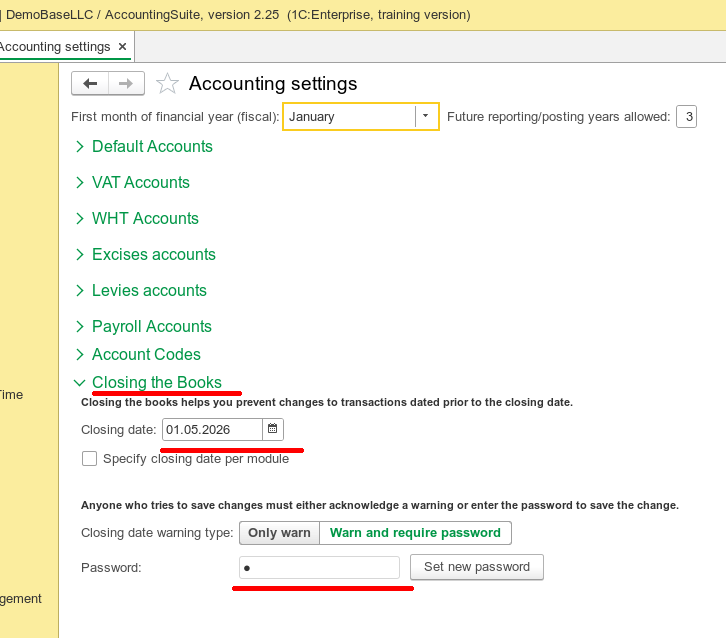
The form may look different, but the purpose is the same: to prevent changes to data from closed periods.
In this article, we will use a different configuration, ERP Prime, and walk through a real client case that required customizing this feature.
So, let’s get started!
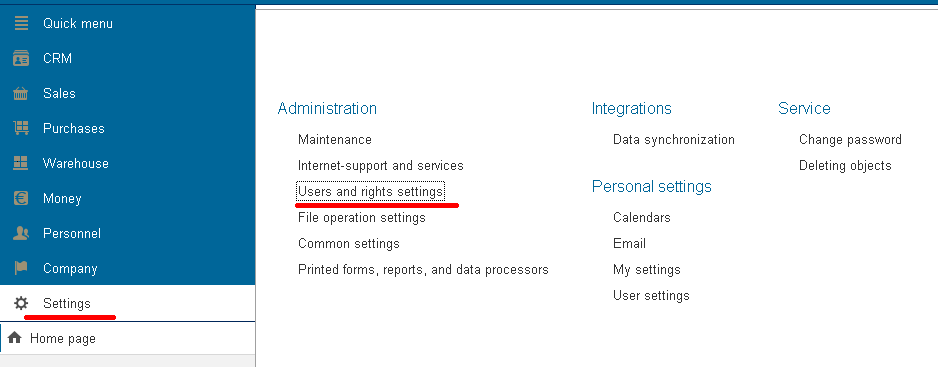
You will find the settings under Users and rights settings:
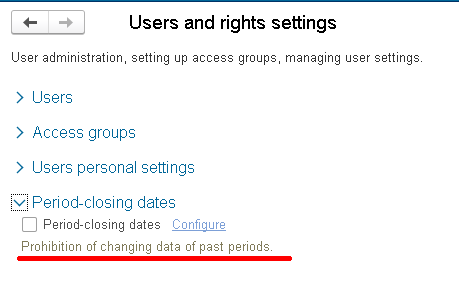
By default, Period-Closing Dates is disabled.
The setting is visible, but the Configure link is unavailable.
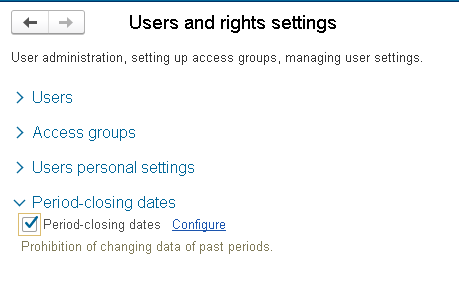
To enable the feature, select the Period-closing dates checkbox. The Configure link then becomes active.
Click Configure to open the Period-end closing dates form.
At this point, the form is very simple.
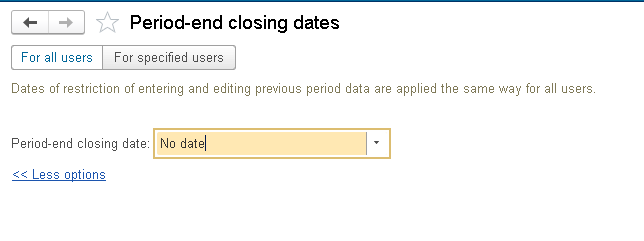
The administrator can set a specific closing date:
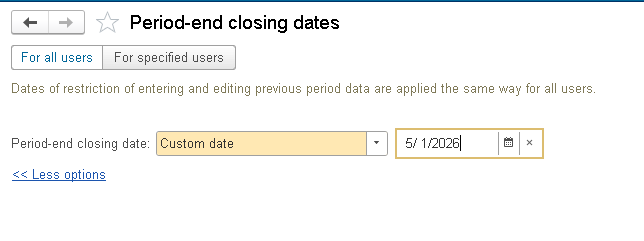
Or select one of the predefined relative dates:
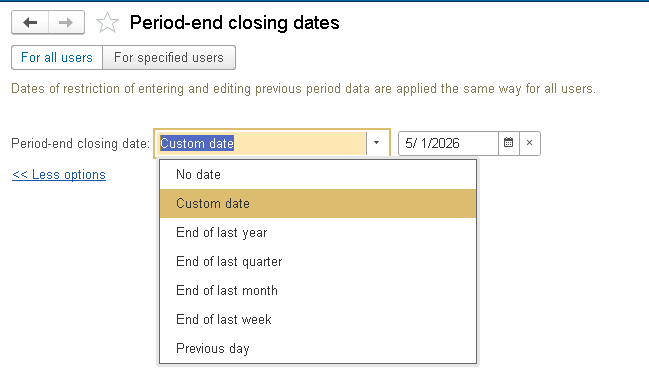
For example, with Previous day, the closing date is calculated relative to the current date.
So the actual date changes from day to day.
This is useful when you want to define the rule once instead of updating the closing date manually every day.
Another useful option is to set different closing dates for individual users.
The settings form has a For all users tab.
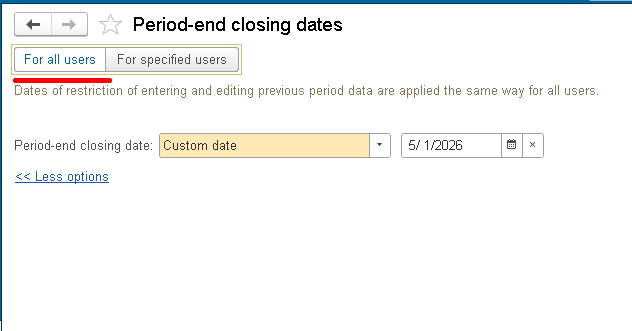
This tab defines the rules that apply to everyone.
For example, if you select Previous day, users will not be able to change data dated before the previous day.
In a real-world system, most users may need to be blocked from changing older data while an administrator or another authorized specialist still needs to make occasional corrections.
That is what the For specified users tab is for:
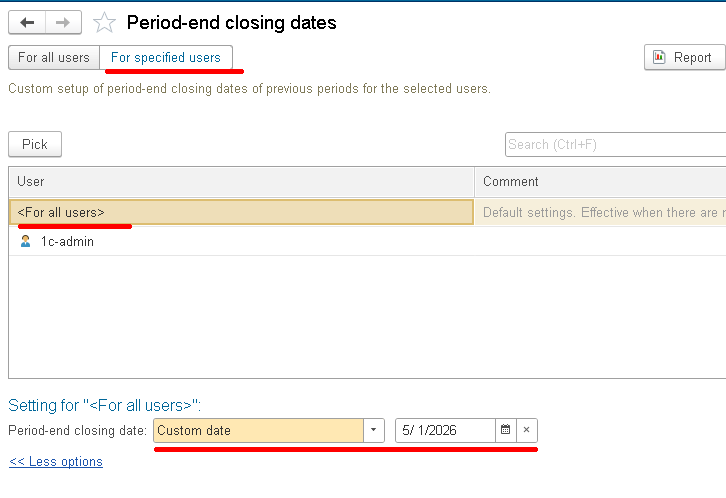
Here you can select a specific user and assign a separate closing date to that user.
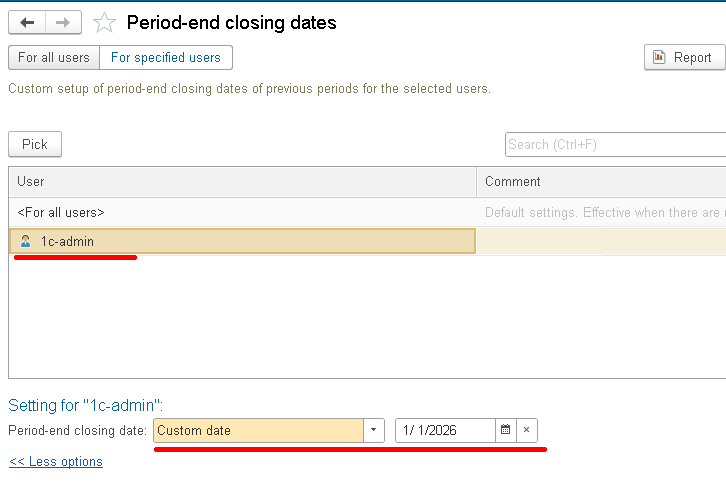
In the screenshots, the closing date for all users is May 1, 2026, while the closing date for 1C-admin is January 1, 2026.
This way, regular users remain restricted, while the administrator can temporarily use an earlier closing date.
That means you do not have to disable the restriction for everyone just to make a single administrative correction.
What Other Setup Options Does SSL Provide?
The simplest setup is one common closing date for the entire infobase. That is the option we have just looked at.
SSL also supports more flexible setups:
- One common date for the entire infobase.
- Separate dates by section.
- Separate dates by object.
- Separate dates by section and object.
A section is an accounting area or logical group of data that can have its own closing date. By default, no sections are defined, but you can add them yourself. We will see how to do that a little later.
For example, you might create separate sections for inventory accounting, financial accounting, or production. That lets you use one closing date for inventory documents and another for financial documents.
You can also create a dedicated section for a particular document, such as Proforma Invoice, if that document needs its own restriction rules.
Here, an object means a specific infobase object. A common example is a system that keeps records for several companies.
In that case, you may want a different closing date for each company: one date for the first company and another for the second.
You can use the same approach for warehouses. In that case, the object is a specific item in the Warehouses catalog.
The fourth option combines sections and objects, giving you the most flexibility: you can set separate closing dates for individual sections and specific infobase objects.
Now let’s return to our example.
A little earlier, I mentioned that you can create a dedicated section for a specific document, such as Proforma Invoice.
That is the approach we will use here.
Recently, one of my clients who uses ERP Prime asked me to set up a dedicated closing date for the Proforma Invoice document.
We do not want Proforma Invoices to use only the common closing date that applies to all other data. They need their own setting.
The administrator should be able to set a dedicated closing date for Proforma Invoices, preventing changes to documents dated before that date.
In other words, we want to move from this:
All data → common closing date
to this:
All data → common closing date
Proforma Invoice → its own closing date
Create a Dedicated Period-Closing Dates Section
First, create a new section for Period-Closing Dates.
Open the PeriodClosingDatesOverridable common module and find the OnFillPeriodClosingDatesSections procedure. This procedure defines the sections used by the SSL Period-Closing Dates feature.
Add a new section:
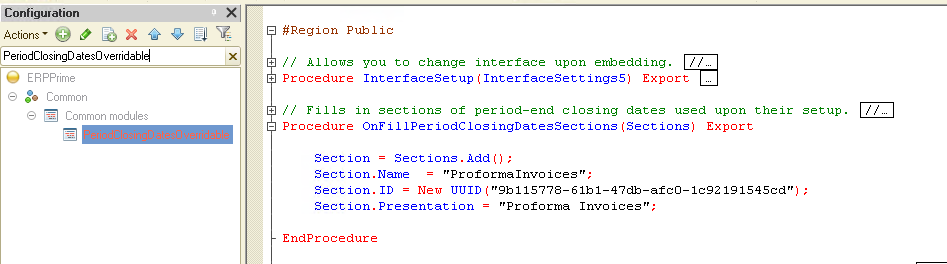
Here are the important fields:
Section.Name
This is the section’s internal name. We will use it later when we register the data source for the check.
Section.ID
This is a unique identifier for the section. It must not change once the section is in use.
Section.Presentation
This is the user-facing name of the section. In our example, it is Proforma Invoices.
Now update the configuration and launch ERP Prime in 1C:Enterprise mode. Then open the Period-end closing dates form. What do we see?
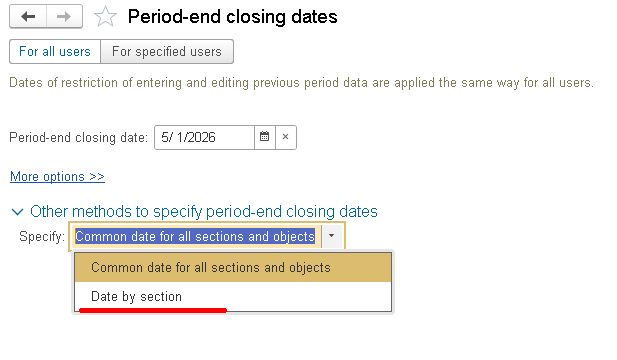
The form now lets the user configure not only one common closing date, but also a dedicated closing date for the section we added.
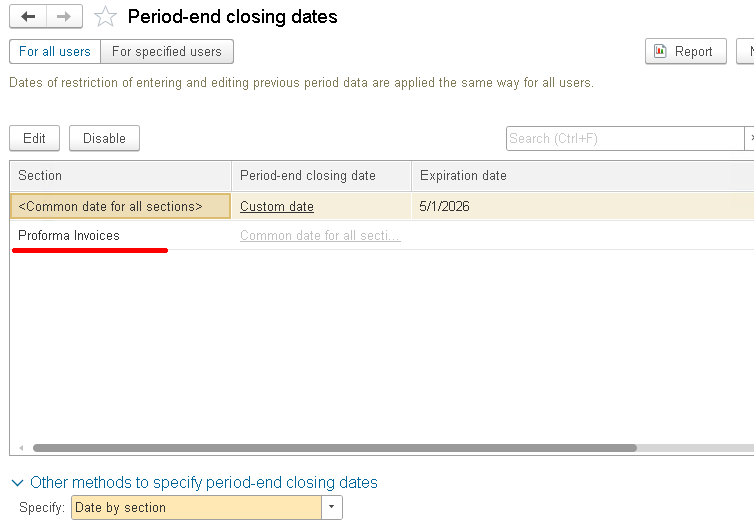
Before we added any sections, only one common date was available. Once a section exists, the form exposes per-section settings.
Now we have a dedicated Proforma Invoices section. The next step is to tell SSL which data belongs to it.
Go back to Designer. First, check whether Proforma Invoice is already covered by the default Period-Closing Dates check. If it is, remove it.
Open the procedure that populates the data sources for the Period-Closing Dates check.
The procedure is called FillDataSourcesForPeriodClosingCheck.
Find this line:
DocumentsWithCompanyField.Add("Document.ProformaInvoice");
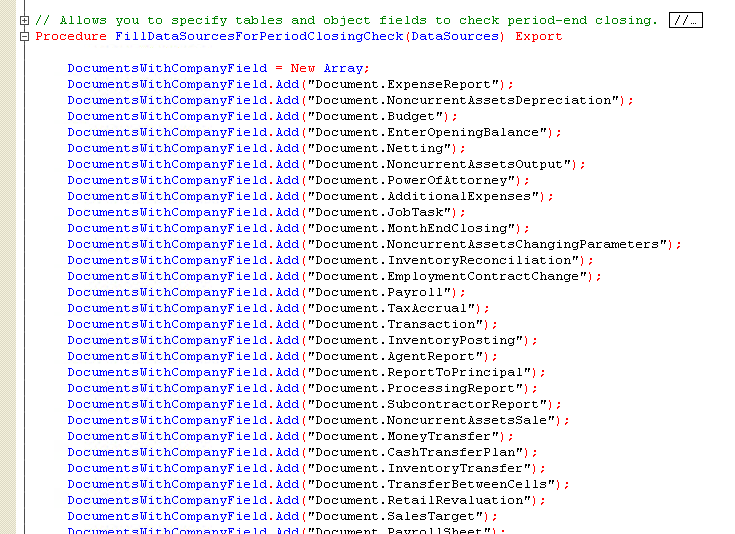
Comment it out:
//DocumentsWithCompanyField.Add("Document.ProformaInvoice");
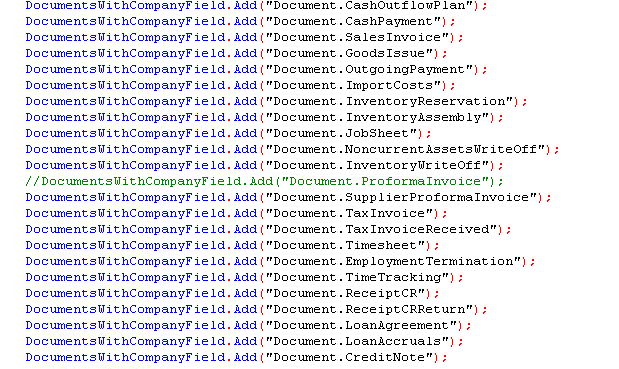
Why do we need to do this?
Because Proforma Invoice is going to use its own closing-date section. If it remains in the default check as well, two different rules may apply to the same document.
Otherwise, the user could set a dedicated date for Proforma Invoices and still have the document blocked by the common setting.
This would be confusing for users.
The mapping should be unambiguous:
Regular data → common closing date
Proforma Invoice → Proforma Invoices section
Next, register Proforma Invoice as a data source for the new section.
Again, add the following line at the end of FillDataSourcesForPeriodClosingCheck:
PeriodClosingDates.AddRow(DataSources, "Document.ProformaInvoice", "Date", "ProformaInvoices");
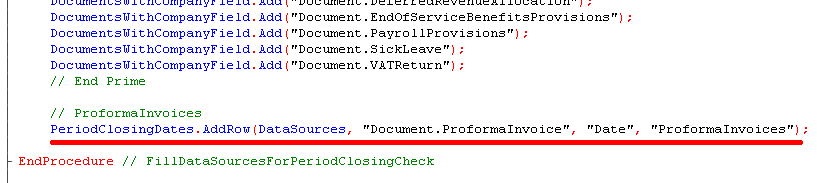
This tells SSL three things:
- Check Document.ProformaInvoice.
- Use the document Date for the check.
- Use the closing date configured for the ProformaInvoices section.
With this in place, Proforma Invoice uses its own period-closing dates section instead of the default check.
There is still one more piece. Defining the section and the data source does not automatically invoke the check when a document is written or deleted.
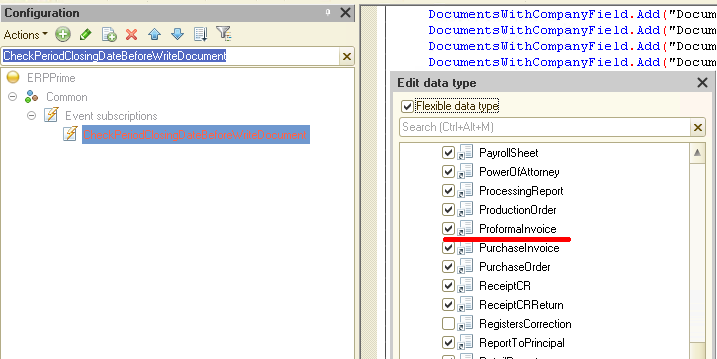
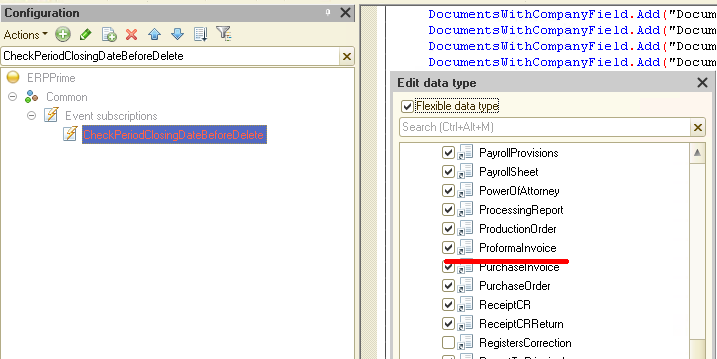
To enforce the restriction during write and delete operations, Proforma Invoice must be included in the appropriate event subscriptions.
In this configuration, check the following subscriptions:
EventSubscription.CheckPeriodClosingDateBeforeWriteDocument
EventSubscription.CheckPeriodClosingDateBeforeDelete
The first subscription checks the document before it is saved.
The second checks it before deletion.
This step is important.
If you add the section and the row to FillDataSourcesForPeriodClosingCheck but forget to add the document to the event subscriptions, the setting will appear in the interface, but the restriction will not be enforced when the document is saved.
Make sure the ProformaInvoice document type is included in both event subscriptions.
Next, add the required check to the document form.
The event subscriptions protect the data when the document is written or deleted. From the user’s perspective, however, it is better if a document from a closed period opens in read-only mode immediately.
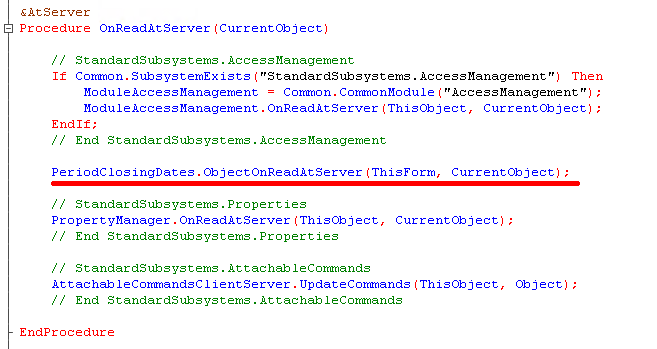
To do that, add the following line to the OnReadAtServer procedure in the Proforma Invoice document form:
PeriodClosingDates.ObjectOnReadAtServer(ThisForm, CurrentObject);
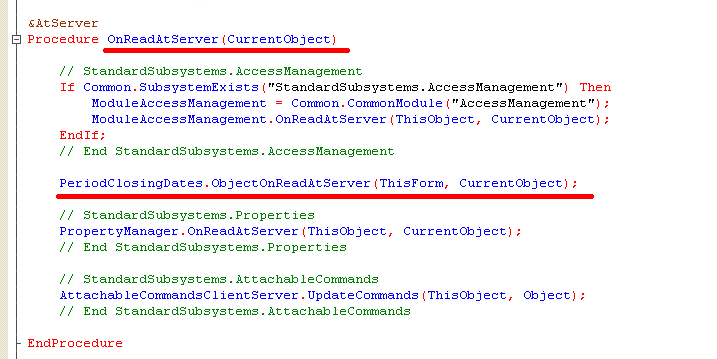
Now, when the document opens, the form checks the closing date. If editing is not allowed, the document opens in read-only mode.
This way, the user can see immediately that the document is read-only, rather than discovering it only when they try to save it.
Now update the configuration and launch ERP Prime in 1C:Enterprise mode.
Open the Period-end closing dates form.
The form should now show the dedicated Proforma Invoices section:
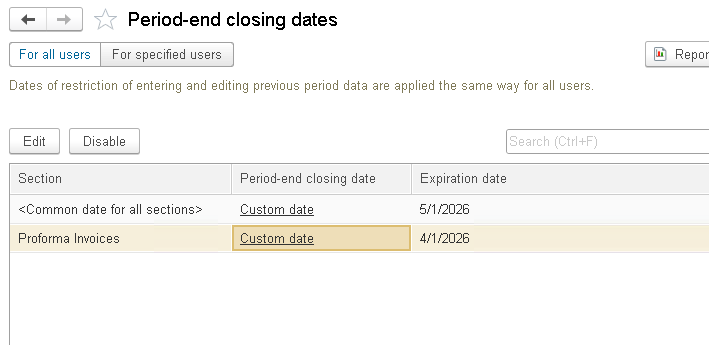
Set its closing date to April 1, 2026, for example.
Then open a Proforma Invoice dated before April 1, 2026.
Let’s test three scenarios.
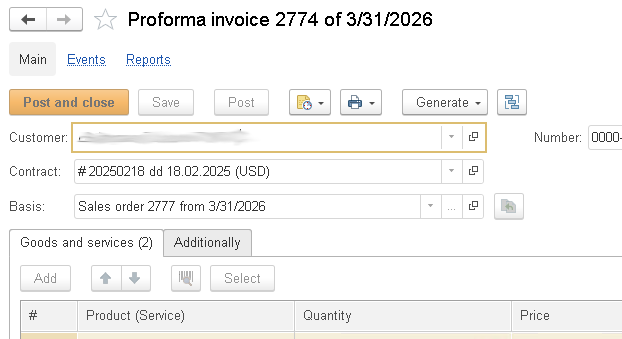
Scenario 1: Open the document
The document opens in read-only mode: the Save and Post buttons are disabled.
Scenario 2: Save the document
To test the write and delete restrictions independently of the form-level check, temporarily comment out this line:
PeriodClosingDates.ObjectOnReadAtServer(ThisForm, CurrentObject);
in the OnReadAtServer procedure:
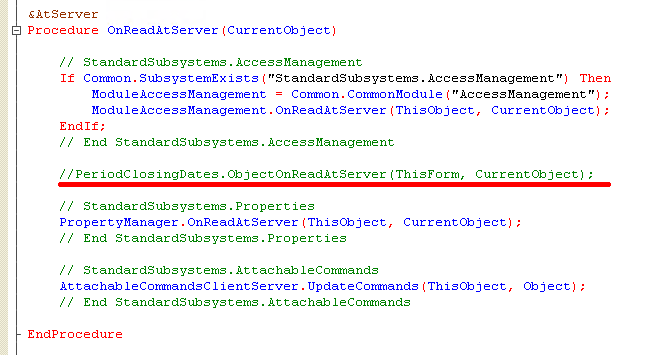
Update the configuration (and remember to restore the line afterward), then launch ERP Prime in 1C:Enterprise mode. Open a Proforma Invoice from the closed period. With the form-level check disabled, the buttons remain active. But when you try to save the document, an error message appears:
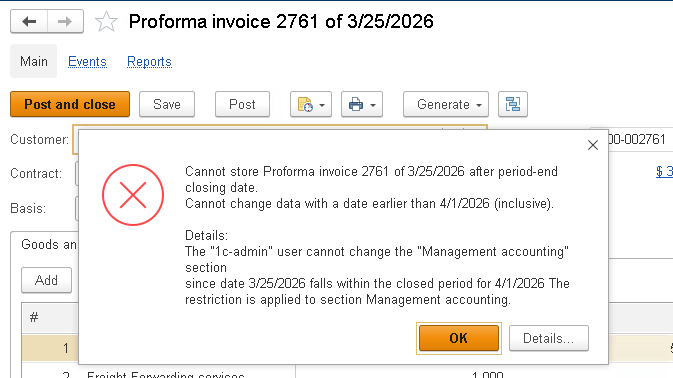
That confirms that the write restriction is working.
Scenario 3: Mark the Document for Deletion
Try marking the document for deletion. The same error message appears:
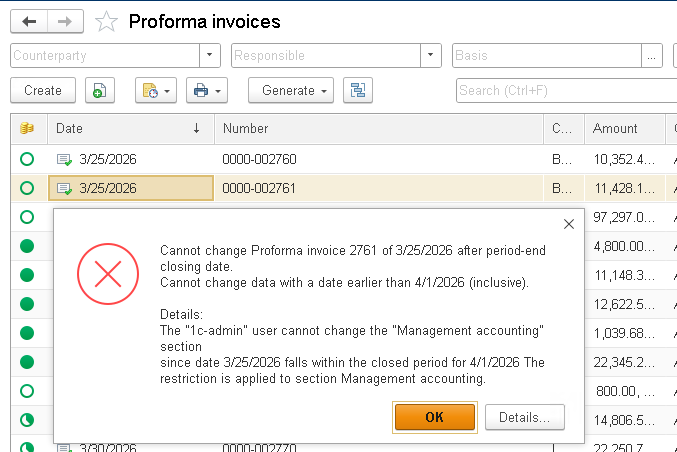
Everything is working as expected. After the test, uncomment the line in the OnReadAtServer procedure:
Common Implementation Mistakes
The section was added, but the document was not connected
The section appears in the settings form, but the document is not checked against it because SSL does not know which data belongs to that section.
The data source was added, but the event subscriptions were not updated
The section exists and the data source is registered, but the write or delete check never runs.
As a result, the restriction is not enforced.
The document-form check was not added
The back-end restriction may still prevent the document from being saved, but the user can edit the form and only learns about the restriction when they click Save.
It is much better for the document to open in read-only mode from the start.
Section.ID was changed
The section ID must remain unchanged.
Changing it after the section is already in use can break the association with previously saved period-closing date settings.
The document remained in both the default check and the dedicated section
In this case, more than one closing-date rule may apply to the document.
The user may see one setting in the interface while a different date is actually blocking the document.
If Proforma Invoice has its own section, remove it from the default check.
Let’s wrap up.
The SSL Period-Closing Dates feature is more than just one date that prevents changes to older data. It gives you a flexible way to restrict changes by user, section, and object, and to adapt the standard behavior to specific business requirements.
In our example, we gave the Proforma Invoice document its own closing date.
To do that, we:
- Enabled Period-Closing Dates.
- Reviewed the basic setup with a single closing date for all data.
- Added a ProformaInvoices section.
- Removed ProformaInvoice from the default check.
- Mapped the document to the new section.
- Verified the write and delete event subscriptions.
- Added the form-level read-only check.
- Tested the result in 1C:Enterprise mode.
The main takeaway is simple:
If a specific document needs its own closing date, you do not need to build a custom restriction mechanism from scratch. You only need to integrate the document correctly with the standard SSL Period-Closing Dates feature.

Writen by
1C Developer
20+ years of experience in the software industry in Russia, UAE and Germany. My main fields of expertise are developing and implementation of business applications (Retail, CRM, WMS, and Accounting) and integration of software with POS equipment and web portals.


