1C:Standard Subsystems Library. Object Versioning. How to Track Who Changed What and When

Disclaimer: Everything described in this article is accurate for AccountingSuite version 2.26.1.17, 1C:SSL version 3.1.11.143, and 1C:Enterprise platform version 8.3.27.1508.
If you are using a different configuration or a different 1C:SSL version, the overall logic of the mechanism remains the same, but the location of commands, form names, and some interface details may differ slightly.
Let's dive straight in and imagine a very real-world scenario.
A large number of users work in the system: sales managers, accountants, warehouse staff, department heads. Each of them is entering, changing, posting, reposting, correcting, and adding details.
And at some point, you suddenly discover that an important attribute has changed in an item card, for example, the SKU, category, manufacturer, or some other parameter that affects financial reports, supplier purchasing, or other business processes.
Or another situation: someone changed the quantity of goods in a Sales Order. The order was recalculated: the amount, VAT, and total all changed. And a few days later, the accounting department notices that the figures in the document no longer match the originals.
And then the familiar back-and-forth begins:
- Who changed it?
- I didn't change it.
- I didn't either.
- I don't even have access.
- It must have changed itself.
Of course, you could launch an internal investigation, question all the users, give them a stern look, and try to reconstruct events from memory.
But we're engineers, IT developers, and professionals! So in situations like these, I suggest using a tool built specifically for this.
Yes, 1C:SSL has a built-in Object Versioning mechanism. That's what we're going to talk about now.
Starting with the Basics: What Is 1C:SSL Object Versioning?
Object versioning is a mechanism that saves the state of 1C:Enterprise objects whenever they change.
In simple terms, the system can store versions of catalogs, documents, and certain other objects. Later, we can open the change history and see:
- who changed the object;
- when it happened;
- which versions of the object were saved;
- which attributes changed;
- what the object looked like before the change;
- what it looks like after the change.
This is very useful for auditing, troubleshooting, and restoring previous data states.
It's important not to confuse this mechanism with the Event Log.
The Event Log tells you: "Such-and-such user performed such-and-such action at such-and-such time."
Object Versioning tells you something more practical: what exactly changed inside the object.
For example, the Event Log can show that a user saved a catalog item in Items. But by itself, that doesn't tell us what exactly they changed.
The versioning mechanism, on the other hand, pinpoints that the item's SKU attribute changed and shows the old value and the new value side by side.
And that's a completely different level of detail.
The Next Question: Which Objects Can Be Versioned?
In AccountingSuite, versioning is configured through the standard 1C:SSL form Change history storage settings.
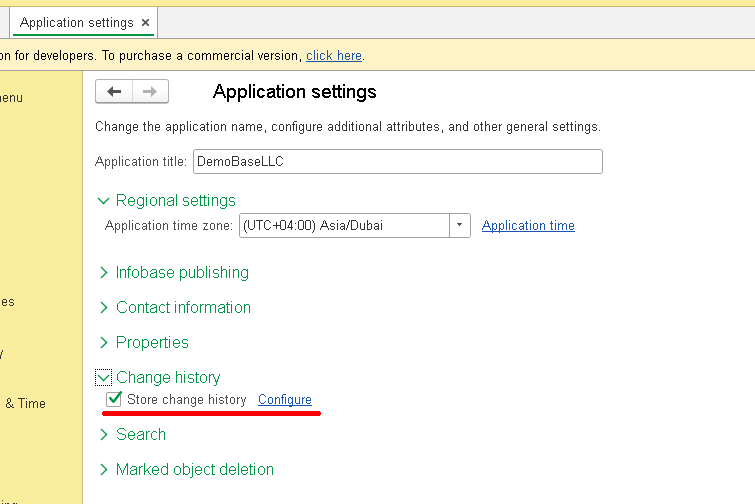
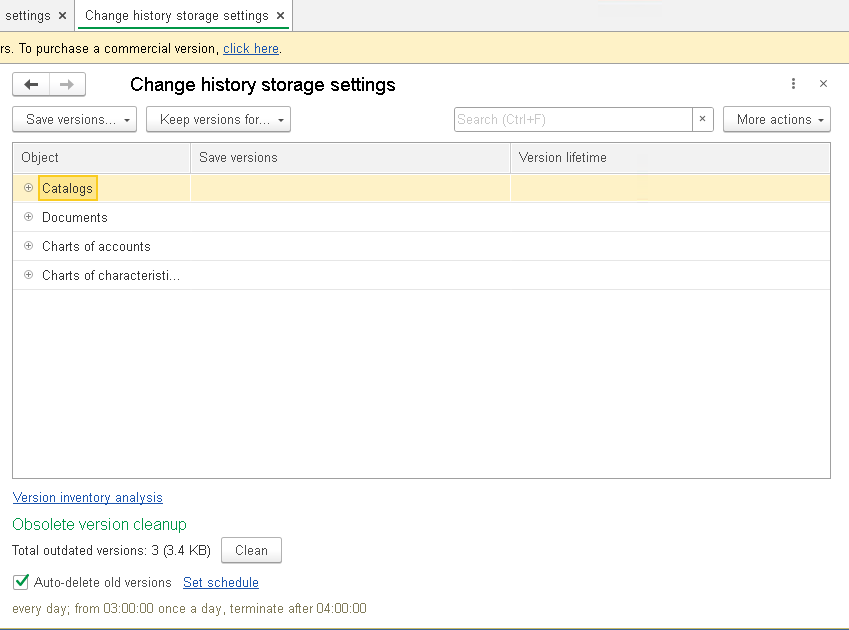
On this form, you can see that the mechanism is available not only for catalogs and documents.
Versioning can be enabled for the following object groups:
- Catalogs
- Documents
- Charts of Characteristic Types
- Charts of Accounts
One important thing to note here.
For catalogs, charts of characteristic types, and charts of accounts, a version is created on the object save event.
That is, when you write the object, the system saves a new version.
For documents, the logic is a bit more flexible: you can choose when exactly to save the version, on save or on posting.
Note that the way versions are saved doesn't change. Only the trigger event is different.
For example, if a document is configured to save versions On save, the version is created when the document is saved.
If On post is selected, the version is created when the document is posted.
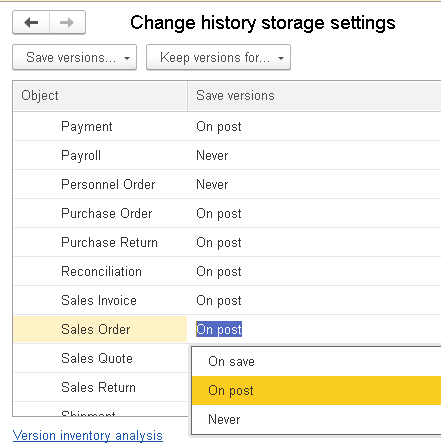
This is especially important for documents, because a document can stay in a draft state for a long time. The user might change the tabular section, date, counterparty, comment, or some additional attributes several times. And we don't always need to save every intermediate state.
Sometimes it's more important to capture the moment when the document was posted and started affecting the accounting records.
That's why choosing when to save versions matters for documents.
Alright, we've covered the general idea. Now let's put this into practice and enable versioning for a specific object.
We'll use the Items catalog as an example.
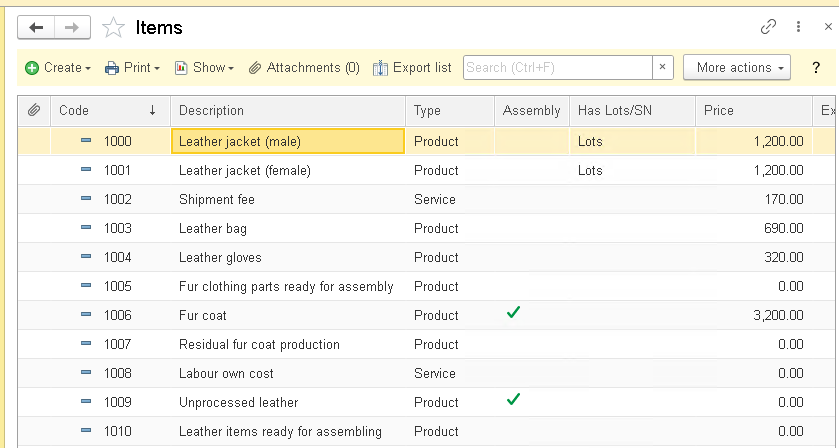
Go back to the Change history storage settings form and find the Items catalog:
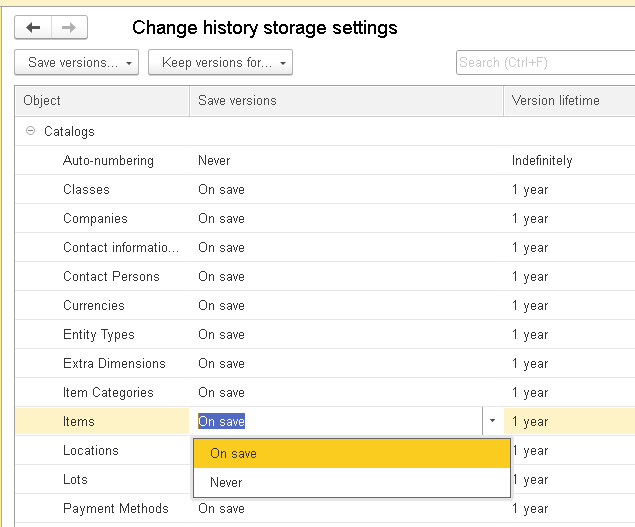
In the Items row, we're interested in two columns: Save versions and Version lifetime.
In the Save versions column, select On save.
This means that a new version of the catalog element will be created every time the element is saved.
For catalogs, this is the most natural option: the element is changed and saved, and the system stores a new version.
In the Version lifetime column, specify how long to keep versions. For our example, let's leave it at 1 year.
That completes the basic configuration for the Items catalog.
The system will now save the change history for elements of this catalog. But before we test this on a real item, let's talk about version retention periods.
Yes, versioning is a very convenient mechanism, but it comes with a specific cost: saved versions consume infobase space.
That's why the Change history storage settings form has a Version lifetime column.
It determines how long the system will keep old versions of an object.
AccountingSuite offers the following options:
- 1 week
- 1 month
- 3 months
- 6 months
- 1 year
- Indefinitely
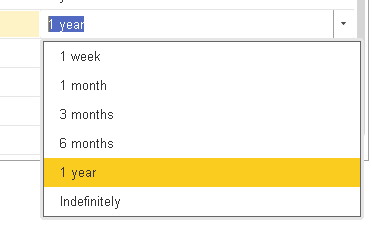
At first glance, it might seem like the best option is always Indefinitely (keeping versions forever).
But you need to be careful here.
If you enable indefinite version retention for one small catalog, nothing terrible will likely happen. But if you enable versioning for a large number of documents with large tabular sections, the infobase size will start growing steadily.
And it will grow not because something is broken, but because the system is just doing what we asked: saving previous states of objects.
So the retention period should be chosen deliberately.
For example:
- for catalogs with important business data, you can keep 1 year;
- for less critical objects, 1 month or 3 months;
- the Indefinitely option is best used only where the history truly needs to be kept permanently.
In our example, for Items, we'll keep the retention period at 1 year. That's enough to see the change history over a substantial period without storing versions indefinitely.
Since we're on the topic of versions taking up infobase space, let's take a look at another useful tool.
The change history settings form has a link: Version inventory analysis.
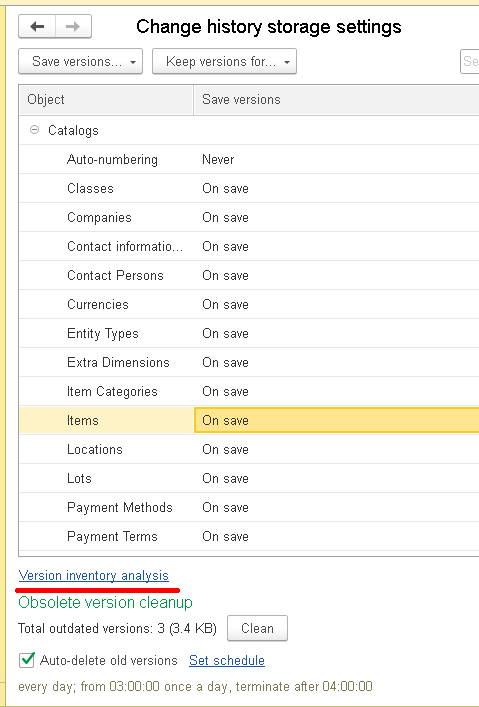
This link opens the Version inventory analysis report.
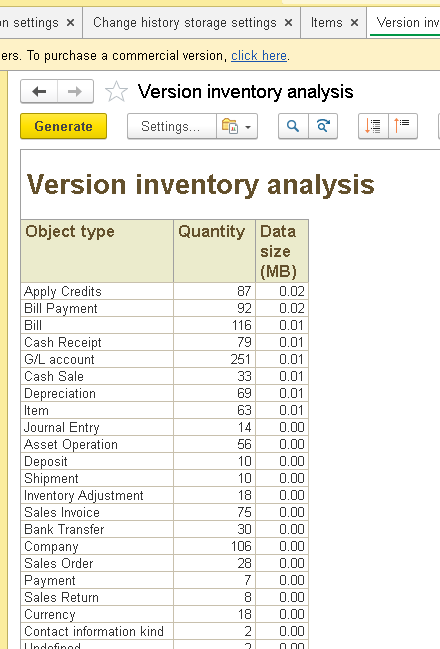
In this report, you can see:
- which objects already have saved versions;
- how many versions are stored;
- how much infobase space they take up.
This report is a lifesaver for infobase administrators and developers responsible for system maintenance.
For example, if versioning was enabled a year ago and then forgotten, this report will help you understand which objects are generating the most stored versions.
The same area contains the Obsolete version cleanup block.
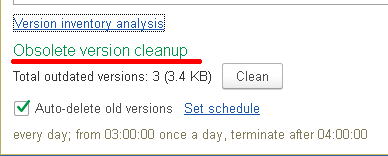
It shows how many obsolete versions can already be deleted according to the configured retention period.
Cleanup can be done manually by clicking the Clean button.
Or you can enable automatic deletion of old versions (Auto-delete old versions) and set up a schedule.
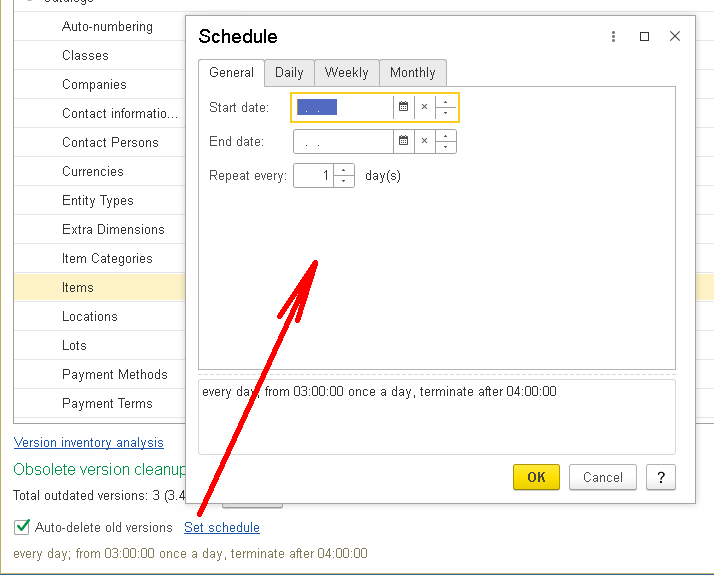
Don't skip this step.
If you enable versioning for more than just one or two objects, cleaning up old versions should be part of routine infobase maintenance. Otherwise, after a while, you might be surprised at why the infobase has grown noticeably larger.
Well, it looks like we've completed all the settings. Let's test this now.
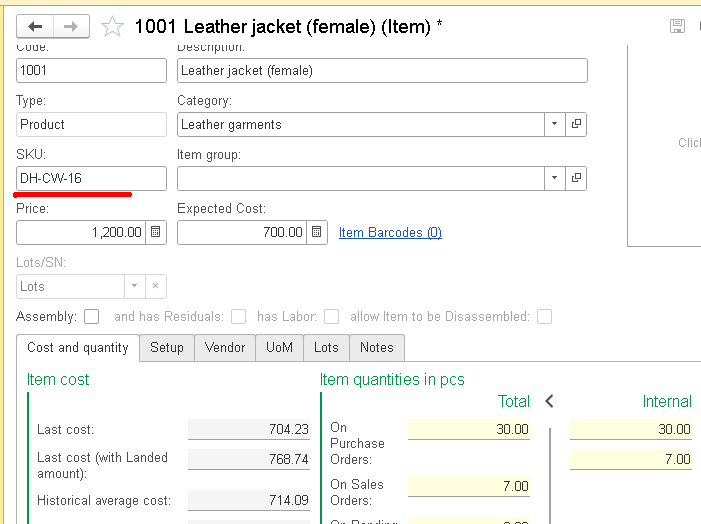
Let's open a catalog item in Items. For our example, we'll take the item "1001 Leather jacket (female)" and change the SKU value from "DH-CW-16"
to "DH-CW-16-32":
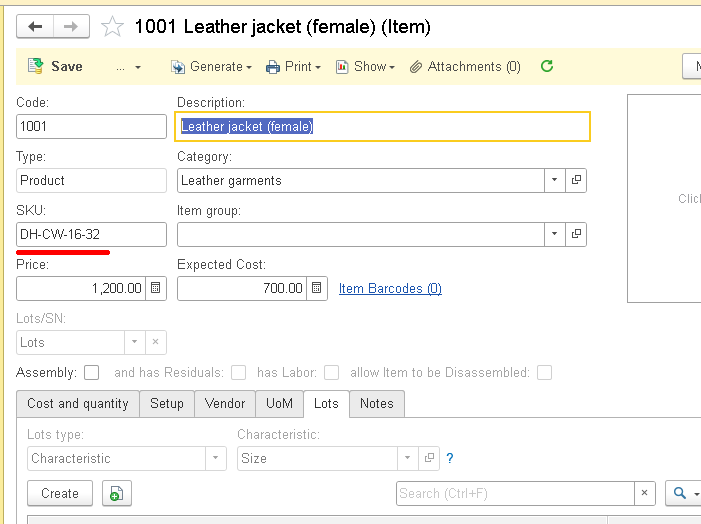
And then save the catalog element.
Since we enabled Save versions = On save for the Items catalog, the system should have saved a new version of the object when the element was saved.
Now let's check whether that actually happened. To do this, we need to open the change history. You can do this right from the item card.
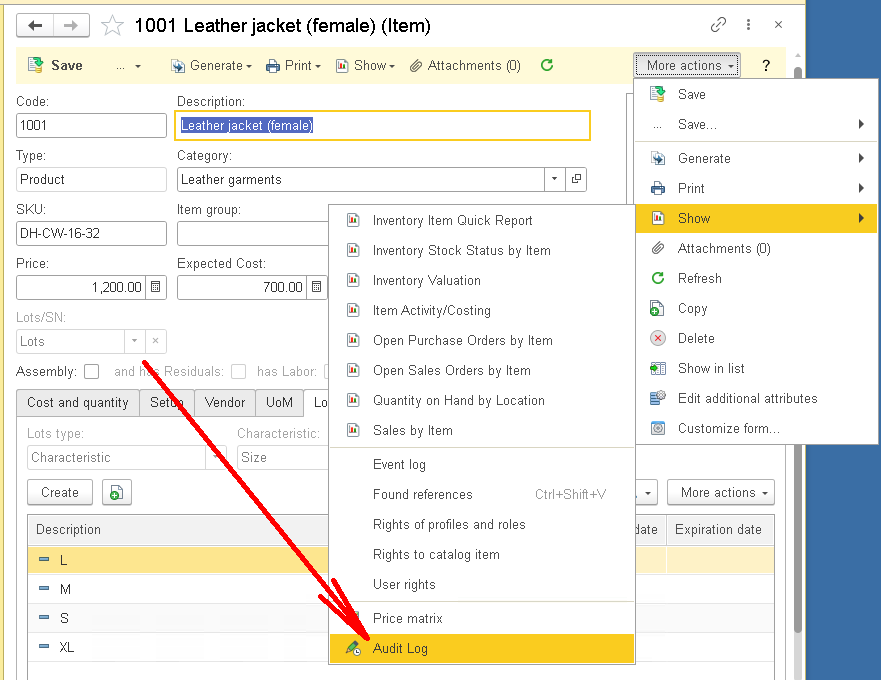
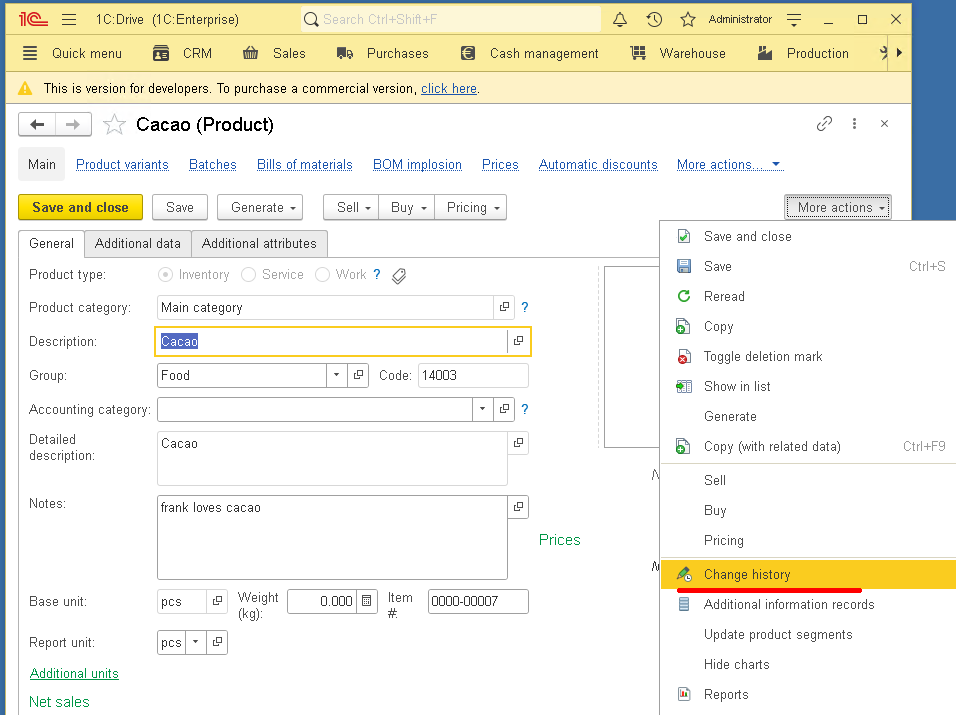
Note that in different 1C configurations, this menu item may be named slightly differently. For example, here's a screenshot from an item card in the 1C:Drive configuration:
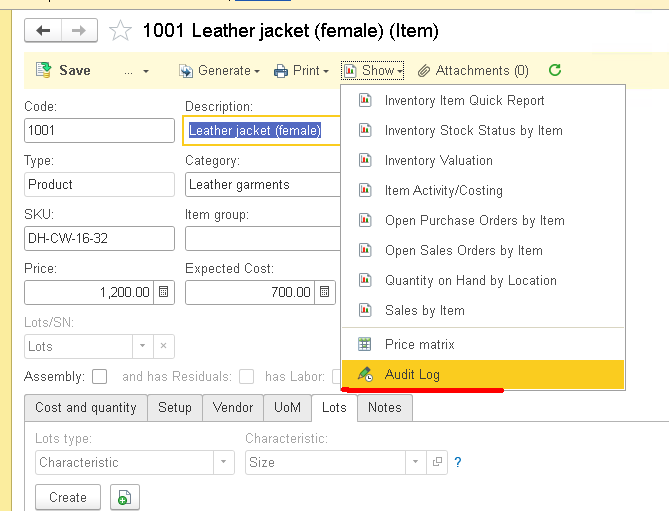
The change history can also be opened in the following way:
After clicking, the object change history form opens.
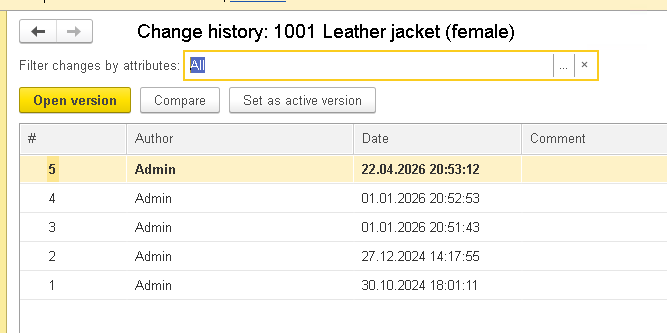
The form shows a list of saved object versions. Each version includes:
- version number;
- user;
- date of change;
- comment.
This is usually the moment of truth. As you can see, the system shows that the object was indeed changed, when it happened, and which user created the version.
In our case, we can see that the item was last changed by user Admin on April 22 (Lenin's birthday?! Coincidence?! I don't think so :-) ). Our test system actually has only one user (Admin), so we only see their actions. In a real system, this form would show the actions of all users who ever modified the item card.
No more guessing games. You can simply open the history and look at the facts.
But the best part? We can compare the current version of the object with any of the previous ones.
Select version number 4 in the list (that's the last version before we changed the item's SKU), and click the Compare button:
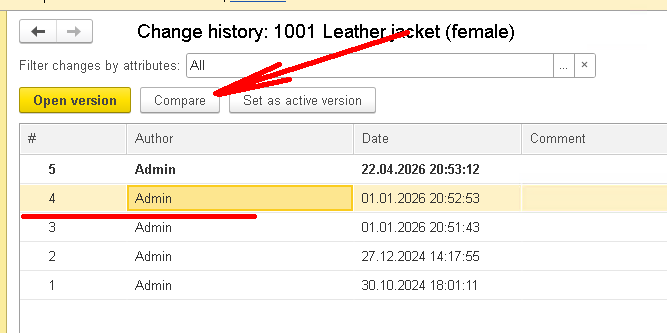
Clicking the button generates a report showing exactly what data changed between the selected versions:
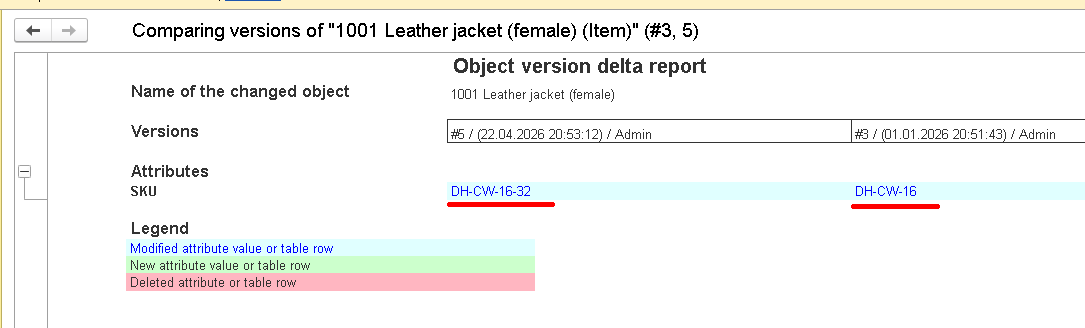
As the report shows, the SKU attribute changed. That's exactly what we wanted to find out!
We didn't just see that a catalog element was saved. We saw exactly what changed inside the object.
This is the fundamental difference between versioning and just knowing the object was saved.
The Event Log would tell us: "the object was changed." Versioning tells us: "the SKU attribute changed, the old value was this, the new value is that."
For troubleshooting, you have to admit, this is much more useful.
Can You Restore an Old Version of an Object?
The change history form has a command: Set as active version.
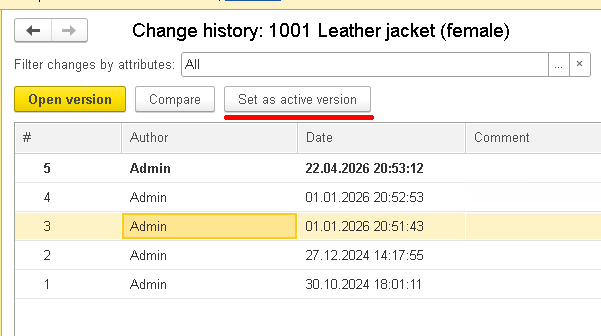
It lets you make a selected saved version the active one.
In other words, the versioning mechanism can be used not only for auditing but also for restoring a previous object state.
But a word of caution.
Before restoring a version, you need to understand exactly what will be changed. This is especially true if you're dealing not with a simple catalog, but with a document that has tabular sections, or an object that affects other business processes.
In a production infobase, such actions should be performed by users with appropriate access rights and an understanding of the consequences.
In any case, the feature itself is very useful: if an important attribute is changed accidentally, you can restore the previous version from the saved history rather than trying to figure it out from memory.
Alright, we've covered catalogs, and everything is straightforward there: the element is changed and saved, and a new version is created.
With documents, the situation is a bit more interesting.
As we mentioned earlier, for documents you can choose the trigger event: On save or On post.
That is, a version can be created either when the document is saved or when it is posted.
And this is a key point.
A document in 1C often goes through several stages. It might be created, then changed several times, then approved, then posted. And we don't always need to store every intermediate state of the document.
Sometimes it's more useful to capture the changes that occurred by the time the document was posted.
Let's see this with the Sales Order document as an example.
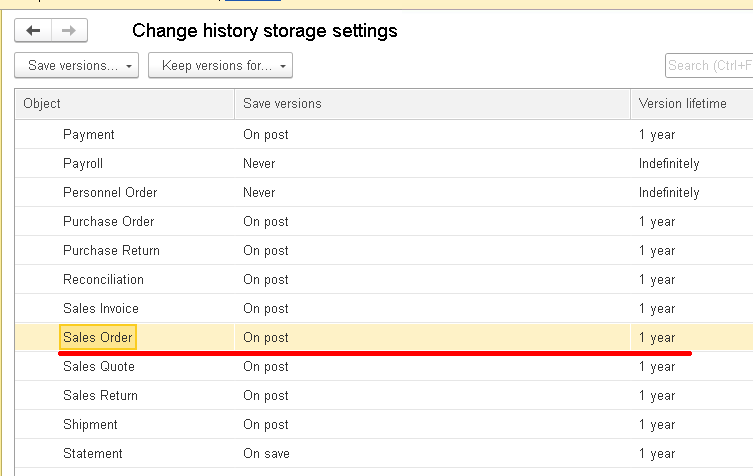
Note: only the trigger event changes, not how versions are saved.
If you select On save, the version is created when the document is saved.
If you select On post, the version is created when the document is posted.
In our example, we'll use the second option.
Now let's open any Sales Order and change the quantity in the tabular section, for example, from 1 to 2:
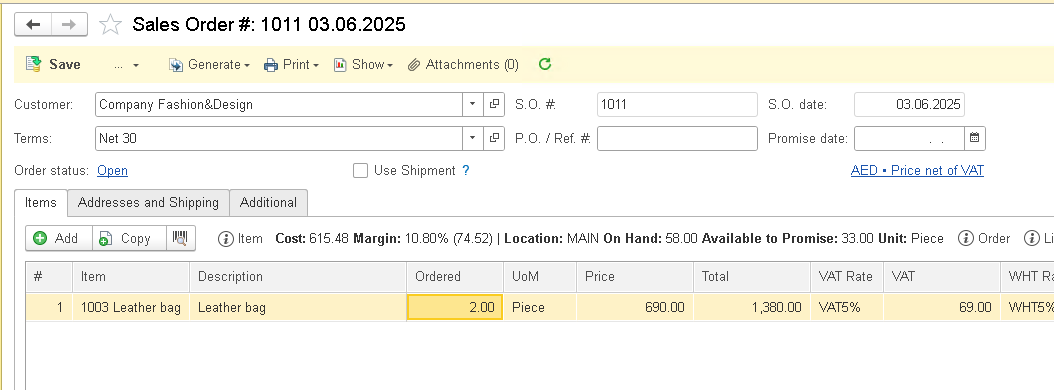
After that, post the document. Since we configured version storage for Sales Order with the On post event, a new version is created after the document is posted.
Now let's open the change history for the order. This is done the same way as for the Items catalog:
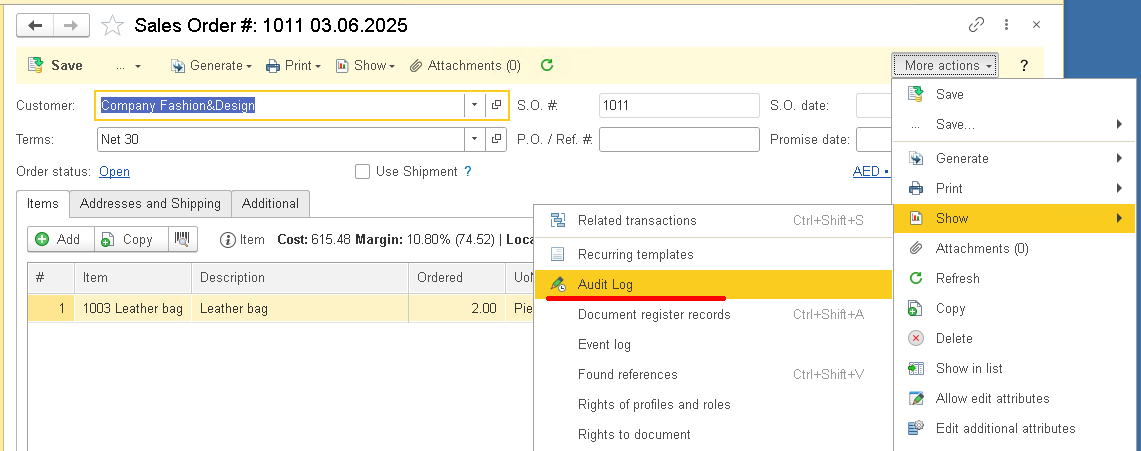
The document change history form opens.
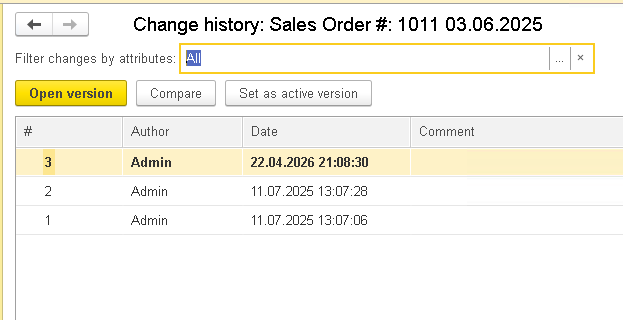
Here we can see the saved versions of the order. Now we can select the versions we need and compare them.
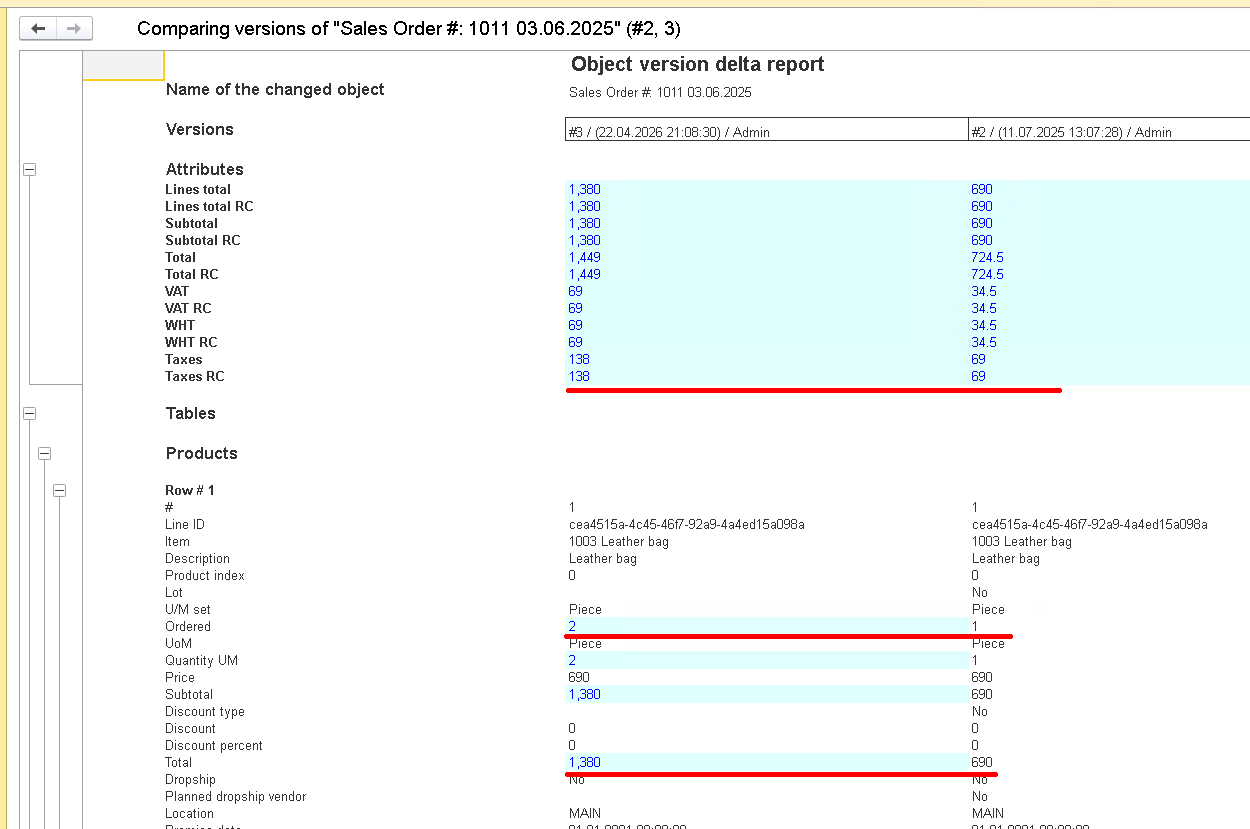
And here you can clearly see how useful the versioning mechanism can be specifically for documents.
In our example, the user changed only the quantity of goods in the order's tabular section.
But after the quantity changed, the system automatically recalculated other document values:
- line amount;
- order total;
- VAT;
- subtotal;
- total;
- other calculated values.
So the change history shows not only the field the user changed manually, but also every consequence of that change within the object.
This is a crucial point.
If the user changed the quantity and the system then recalculated the order total and VAT, the version comparison shows us the entire chain of changes. And this helps enormously when resolving disputes.
For example, a user might say: "I only changed the quantity, I didn't touch the amount."
And technically, they'd be right. But the system shows that changing the quantity led to a change in the document total, VAT amount, and other document values.
That's exactly why document versioning is useful not just for tracking individual field changes, but as a tool for analyzing changes to the entire object's state.
Alright, we've covered standard objects that are already built into the system. But what if we add our own object, for example, a new document or catalog? Can we also keep a change history for that? Will the standard 1C:SSL mechanism work?
The short answer is yes, we can, and yes, it will. But the object needs to be properly connected to the versioning mechanism.
Let's walk through a simple example.
We add a new catalog to our configuration with a single attribute, and let's make it an SKU as well:
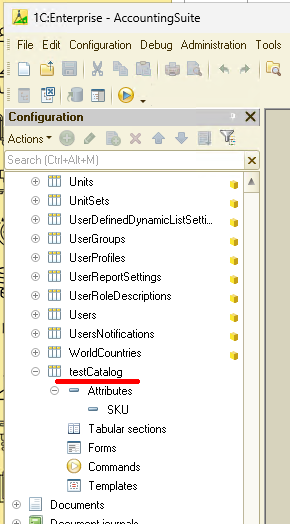
So, the catalog is created. But that's not enough yet to see its change history.
If you simply update the configuration and open the change history settings, our new catalog won't appear there as an object available for versioning.
A couple more steps are needed. First, find the defined type VersionedData in the configuration tree, and then add our new catalog to this type:
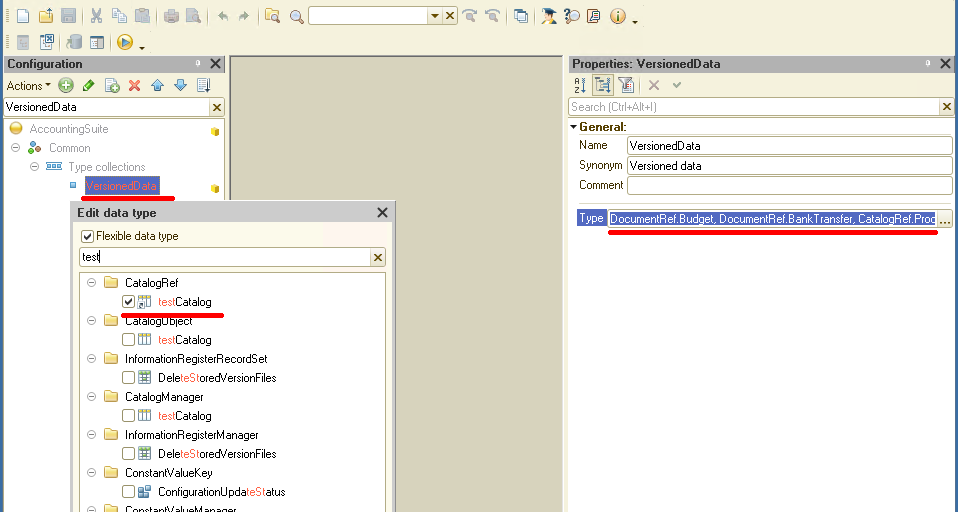
Note: in VersionedData, we add a reference to the catalog.
That is, not the object itself, but the reference type: CatalogRef.testCatalog.
That was step one. In step two, we do something similar for the defined type VersionedDataObject. But here we add not the reference, but the catalog object itself, CatalogObject.testCatalog:
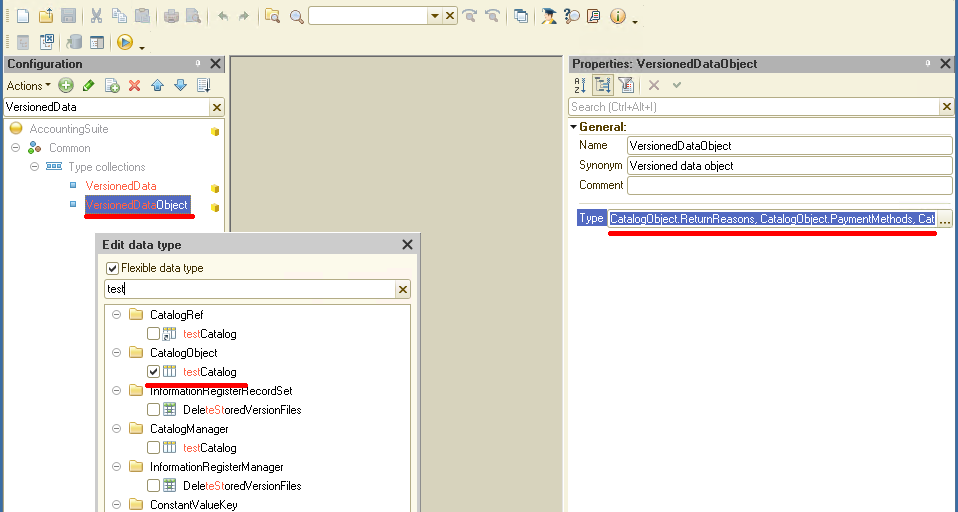
One last reminder: in the defined type VersionedData, we specify a reference to our new catalog, while in the defined type VersionedDataObject, we specify the catalog object itself. This is a critical detail. Without it, nothing will work!
After these steps, update the database configuration and launch AccountingSuite in 1C:Enterprise mode.
Now let's check whether the new catalog has appeared in the versioning settings:
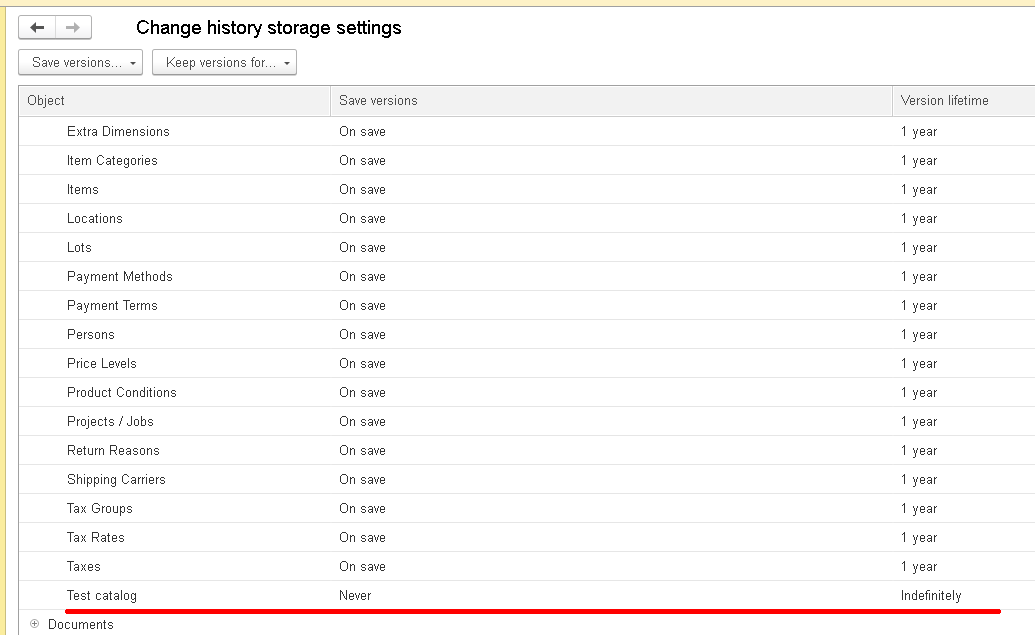
By default, the new object shows: Save versions = Never and Version lifetime = Indefinitely. This means the change history for this catalog isn't being saved yet. Let's change the settings, like this:
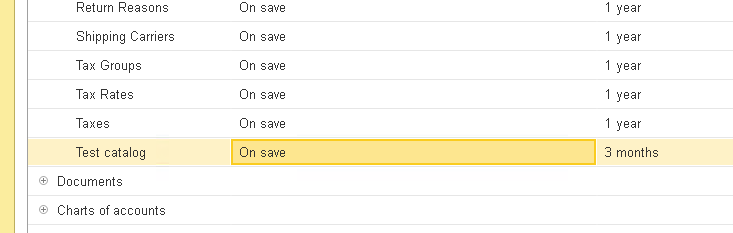
Note that the settings take effect immediately after you set them. There's nothing else you need to save!
Now all that's left is to verify that it all actually works.
Open the catalog we created and create a new element:
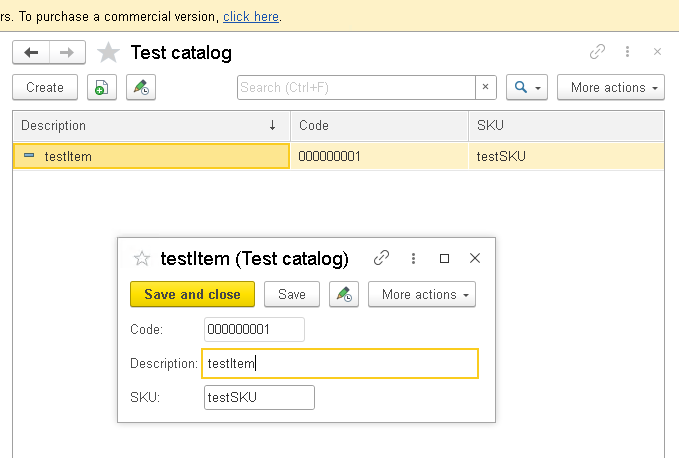
Save this element, and then immediately change its name:
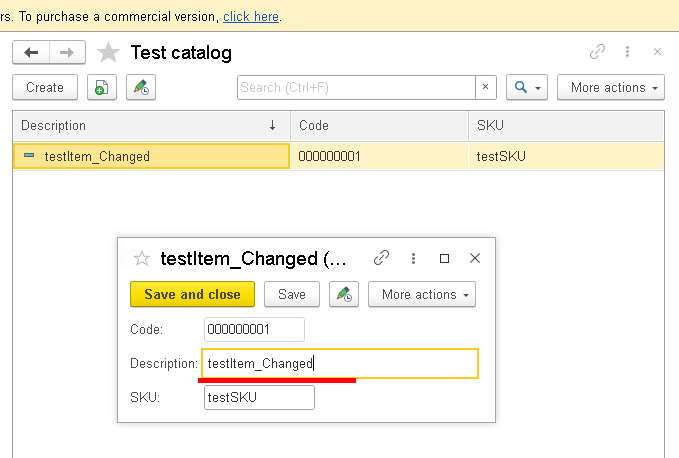
and save it again.
Since we enabled Save versions = On save for this catalog, a new version of the object should appear after saving.
Open the change history for the catalog element.
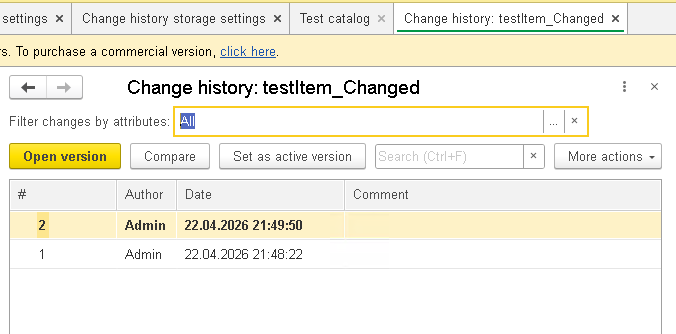
We can see that the mechanism works exactly the same way as it did earlier for the standard Items catalog.
Versions are saved for the element, you can view the change date, the user, and then compare versions.
Let's open the version comparison.
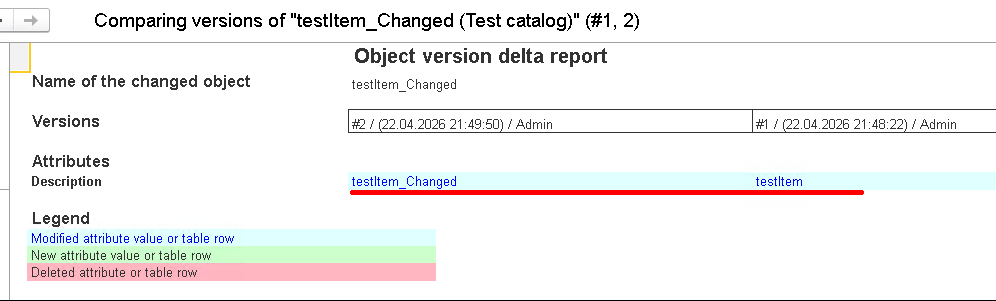
The report shows that the Description attribute was changed.
So the catalog we just created is now fully participating in the 1C:SSL versioning mechanism.
Excellent! We didn't write our own audit mechanism, didn't create separate registers for storing history, and didn't build object save handlers. We simply connected the object to the standard 1C:SSL mechanism and configured version storage in 1C:Enterprise mode.
And that's usually the correct approach: if 1C:SSL already has a ready-made mechanism, it's better to use it rather than reinvent the wheel with your own change log.
On a simple catalog, everything looks pretty easy: you change one attribute, save the object, look at the history.
But in real configurations, objects are often more complex.
A document might have:
- tabular sections;
- composite data types;
- references to other objects;
- automatically calculated attributes;
- service attributes that the user doesn't change directly.
And all of this must be considered.
We already saw this with the Sales Order example. The user changed only the quantity in the tabular section, but along with that, the line amount, document total, VAT, and other values changed automatically.
On one hand, this is very convenient: the version history shows not only the manual change but also its consequences.
On the other hand, if the object is large and changes frequently, the saved versions start taking up more and more space.
This is especially true for documents with large tabular sections. If a document has hundreds of lines and users frequently resave or repost it, then versioning such an object becomes not just a convenient audit feature, but also a factor in infobase growth.
So versioning should definitely be used deliberately.
Another important question: which objects should be versioned, and which shouldn't? Versioning is useful, but that doesn't mean it should be enabled for everything.
Good candidates for versioning:
- the Items catalog;
- the Counterparties catalog;
- contracts;
- key documents, such as Sales Order or Sales Invoice;
- certain important settings;
- custom objects that affect business processes.
I would not recommend enabling change history for every single object.
Why?
The reason is simple: every saved version takes up space in the infobase. If an object changes frequently and the retention period is set too long, the data volume will keep growing.
Be especially careful with:
- high-frequency transactional documents;
- documents with large tabular sections;
- technical objects;
- objects that are changed automatically and frequently;
- objects where the history has no practical value.
A simple rule applies here: we only version the data where someone might really ask who, when, and why it was changed.
If no one will ever need that answer, you probably don't need to store versions of that object.
I'd also like to mention access rights for the versioning mechanism. The change history itself is fairly sensitive information.
It reveals:
- who changed the object;
- when they changed it;
- what the data was before the change;
- what the data became after the change.
And if the user has access to the version restore command, they don't just view the history, they can also change the current state of the object by reverting it to an old version.
So when enabling versioning, it's essential to check user access rights.
Not every user should be able to:
- view the change history;
- compare versions;
- set an old version as the active one.
Typically, these rights make sense for administrators, developers, support consultants, or authorized users who are actually involved in sorting out disputed situations.
Otherwise, the opposite can happen: a mechanism created to monitor changes becomes a source of new unexpected changes.
In general, two roles handle access to the versioning system: Read object version data and Read object versions.
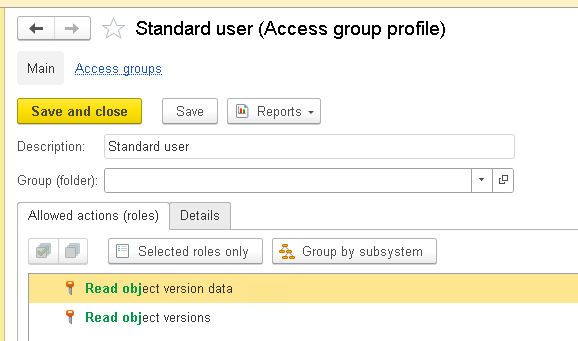
But we'll cover managing access rights in more detail in one of the upcoming articles.
It's probably about time to wrap up.
So, we've covered the 1C:SSL Object Versioning mechanism using AccountingSuite as an example.
First, we enabled change history storage and configured versioning for the standard Items catalog. We verified that everything works: the system saved a version of the object and showed the specific change.
Then we looked at an example with a Sales Order document. The key point here is that for documents, you can choose the trigger event: on save or on post. In our example, the version was created when the document was posted.
We also saw that when comparing document versions, the system shows not only the field that the user changed manually, but also the dependent values that changed automatically: document total, VAT amount, totals.
We also looked at configuring the version retention period, the Version Inventory Analysis report, and obsolete version cleanup. This is a vital part of the mechanism, because change history is only useful as long as it doesn't turn into uncontrolled infobase growth.
And finally, we connected our own catalog to versioning. To do this, we added it to the VersionedData and VersionedDataObject defined types, after which it appeared in the standard change history settings form and started working like any other versioned object.
So, if mysterious data changes keep appearing in your infobase and users all say "it wasn't me,"1C:SSL Object Versioning is the surest way to replace guesswork with verifiable facts.

Writen by
1C Developer
20+ years of experience in the software industry in Russia, UAE and Germany. My main fields of expertise are developing and implementation of business applications (Retail, CRM, WMS, and Accounting) and integration of software with POS equipment and web portals.