What Is 1C:Analytics? Installation and Creating Your First Report

Over time, every production accounting system, whether it is 1C or another platform, inevitably turns into a digital junkyard containing thousands of documents, millions of register records, and gigabytes of data. This information accumulates, yet even a simple question such as “What is happening with our regional sales?” can confuse almost any employee, regardless of experience. Standard built-in reports are often either too limited or lack the speed we need.
Is there a way out of this situation? Yes, and that solution is a BI (Business Intelligence) system.
What is a BI system? It is not merely a collection of “beautiful charts” or colorful dashboards. It is a specialized tool capable of aggregating, filtering, and visualizing large data sets dramatically faster than standard reports. If an accounting system like 1C answers the question “What happened?”, a BI system answers the questions “Why did it happen?” and “What will happen if…?”.
This is exactly what 1C:Analytics, a new platform component, brings to the 1C ecosystem. It transforms raw accounting data into interactive, visual, and, most importantly, fast analytical reports.
1C:Analytics is not simply another reporting module within 1C. It is a fundamentally new interface for interacting with data, available as a web application accessed through a browser.
The core philosophy of the system:
● Analyze live data. There are no exports, conversions, or nightly data loads into external databases. You analyze data directly in your production infobase in real time.
● Instant interactivity. Change a filter and the report updates immediately.
● Deep understanding of 1C logic. The system natively recognizes catalog hierarchies, data types, and the relationships between documents and registers.
Technically, 1C:Analytics runs as a separate server that interacts with the 1C:Enterprise server cluster. The user accesses the Analytics web interface, which generates an analytical query and sends it to the 1C cluster.
One of the primary components of 1C:Analytics is the Data Accelerator, which is the main source of the system’s speed. The Data Accelerator is an in-memory DBMS that stores a copy of key analytical data. All heavy analytical queries run inside this accelerator without loading the main database.
The real “magic” of 1C:Analytics lies in its bidirectional interaction. If you see a suspicious sale or a strange product in a summary report, a single click on the line opens the corresponding document or item form in the main 1C application in a new browser tab. This goes beyond mere report viewing; you can inspect the document and, if necessary, edit it. Analytics ceases to be a passive observer and becomes a full participant in the operational workflow.
What distinguishes 1C:Analytics from its closest competitors? The BI market is full of powerful tools. What can 1C:Analytics offer compared to, for example, Power BI?
The key difference is that 1C:Analytics occupies a unique niche. It is the ideal tool for analyzing data inside the 1C ecosystem.
Other BI systems require lengthy and expensive data preparation (ETL processes), manual configuration of relationships and hierarchies, and the setup of a separate access control system. Furthermore, their data is almost always outdated compared to live operations.
In contrast, 1C:Analytics runs directly on up-to-date data, fully understands your configuration metadata, and uses the same access control system as 1C. For example, if a user is restricted from viewing documents for a certain department in 1C, they will not see them in analytical reports either.
Most importantly, 1C:Analytics allows you not only to view numbers but also to act immediately by opening the source documents. For companies that run their operations on the 1C platform, this dramatically lowers the complexity and cost of owning an analytical tool.
Now let’s move from theory to practice, install 1C:Analytics, and create our first report. The example is simple, but it clearly demonstrates the power of the system.
To use 1C:Analytics, we naturally need data stored in our 1C application. If your 1C application is not yet published on a web server, now is the time to do so. When publishing, ensure you enable the Publish 1C:Analytics checkbox:

After that, we can proceed to the installation of Analytics. Launch the installer and you will see the standard setup screens:
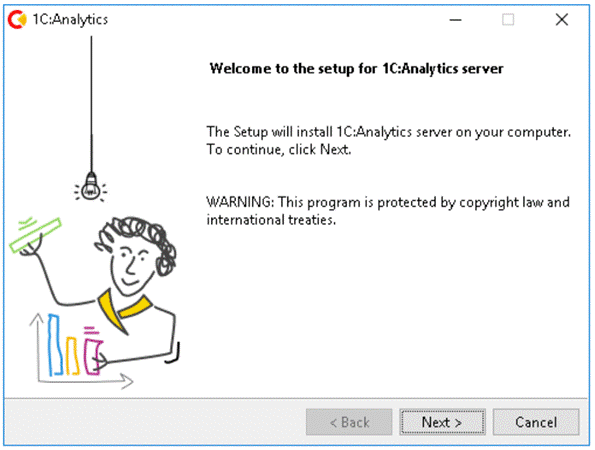
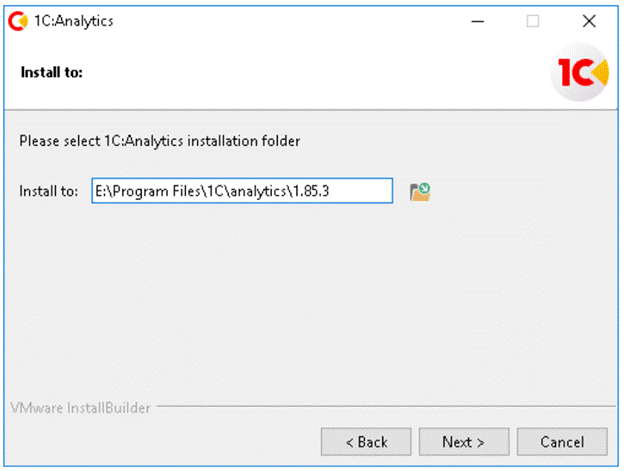
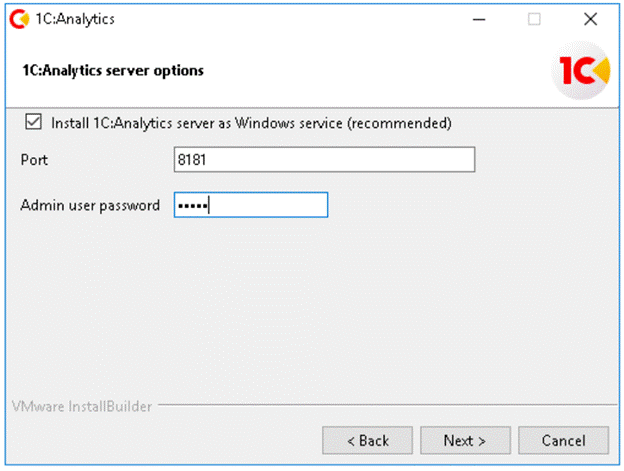
At this stage, you can select the port on which Analytics will run and set the administrator password:
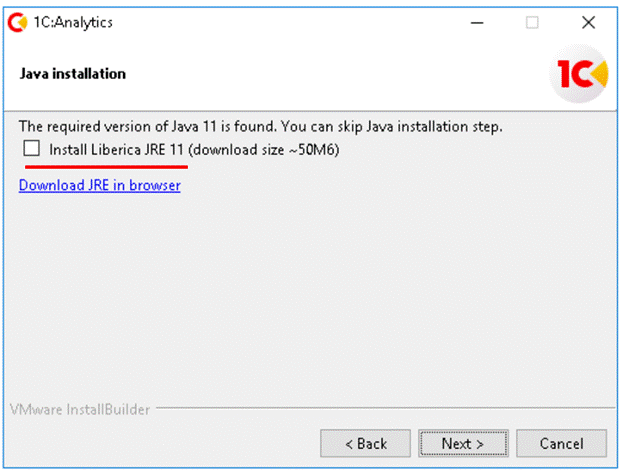
Analytics also requires a Java environment. 1C recommends using Liberica JRE. It is already installed on my server, so I will skip this step.
Installation begins:

When the installation completes, a final screen appears. Pay attention to the Open the server control panel after installation option:
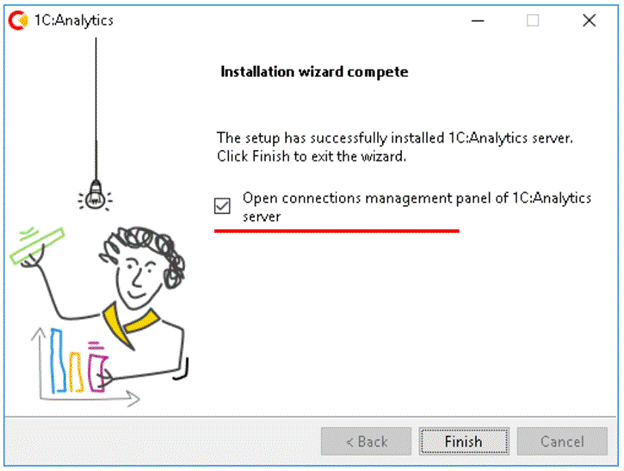
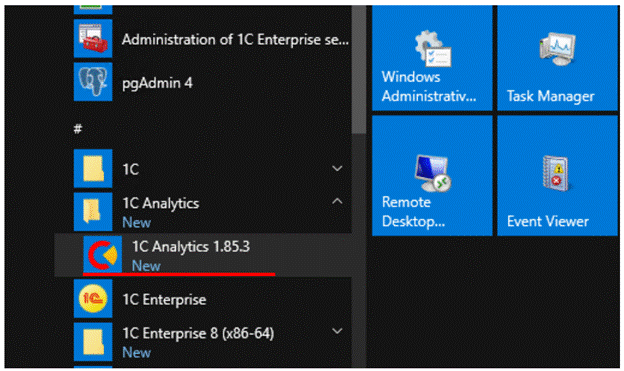
If this option is enabled, the browser should open automatically with the control panel. However, this does not always occur; in my case, the browser did not open. No problem. We can launch the 1C:Analytics control panel from the Windows Start menu:
The control panel looks like this:
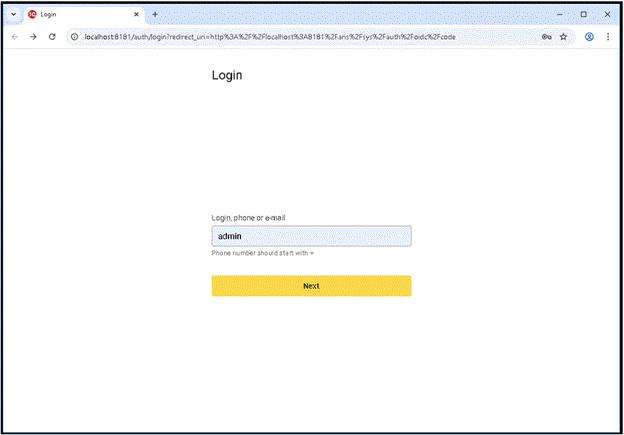
The administrator username is filled in by default. Click Next to continue:
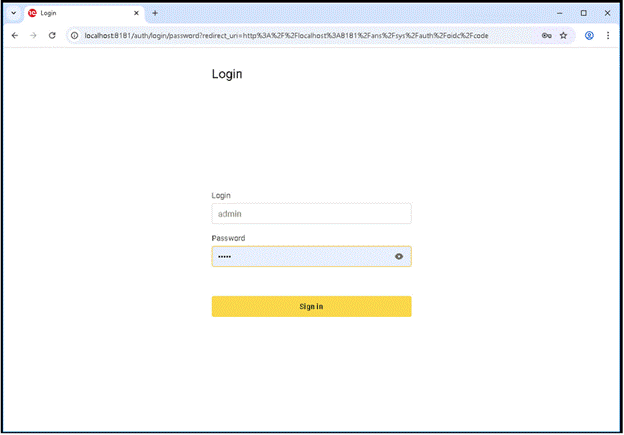
Enter the password you specified during installation and click Sign In. After logging in, you will see the main screen:
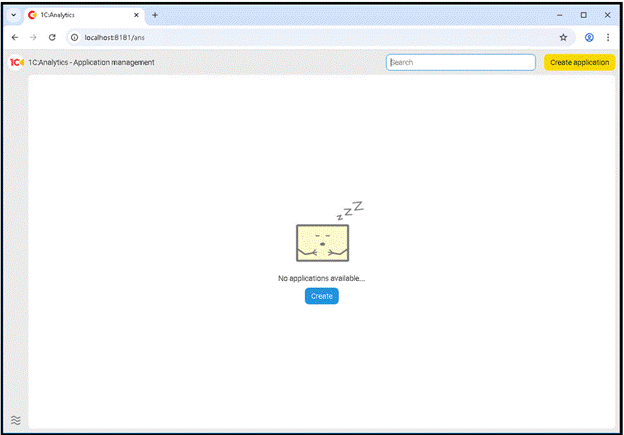
As you can see, it is empty for now. We need to add our 1C application, meaning we must link it to 1C:Analytics.
Click the Create button in the center or the yellow Create Application button in the upper right corner:
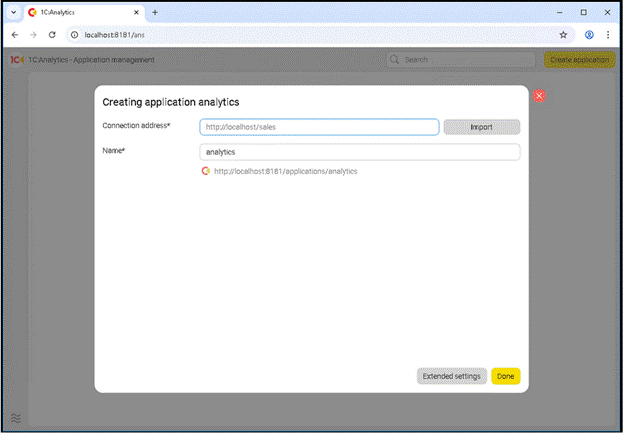
A dialog opens where we must fill in the Connection Address field. What address should we enter?
To clarify this, look at the following screenshot where the Analytics interface and our 1C application are open side by side:
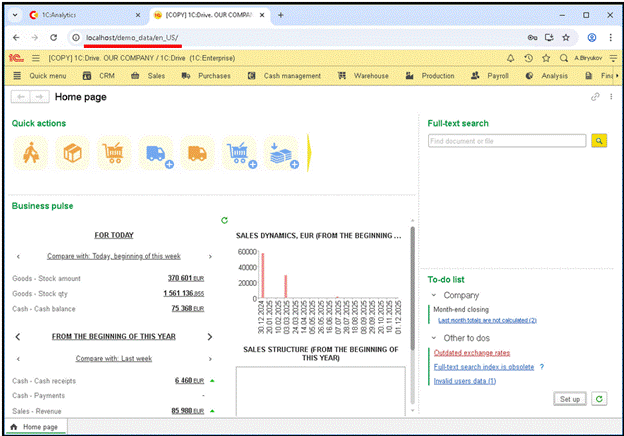
The Connection Address is simply the web publication address of our 1C application. In our case, it is: http://localhost/demo_data Do not forget to give the connection a meaningful name:
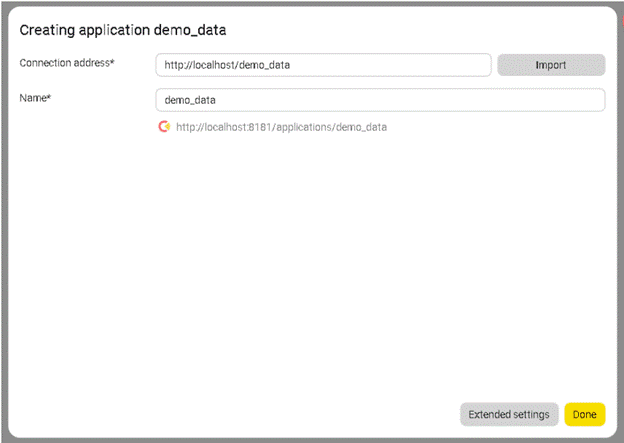
Click Done and you will see the following screen:
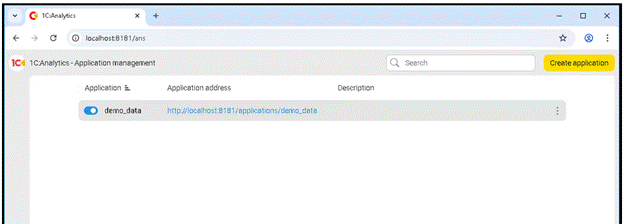
We can see one active connection. It is also clear that 1C:Analytics can connect to multiple infobases.
Now the magic begins. Click the link and the following form appears:
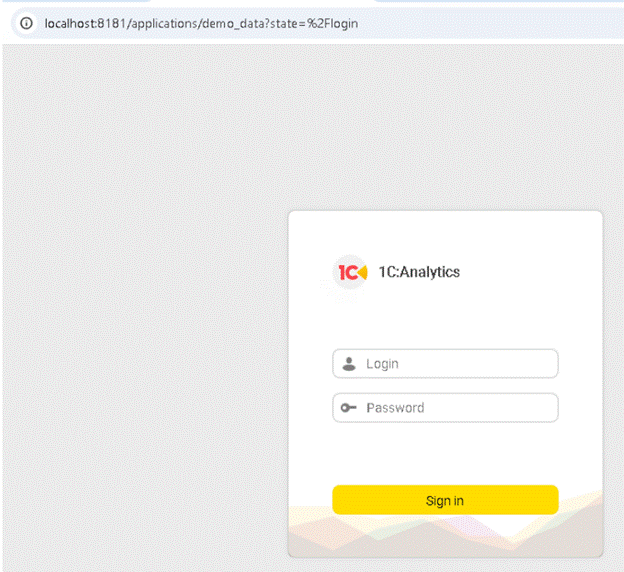
What username and password do we enter here?
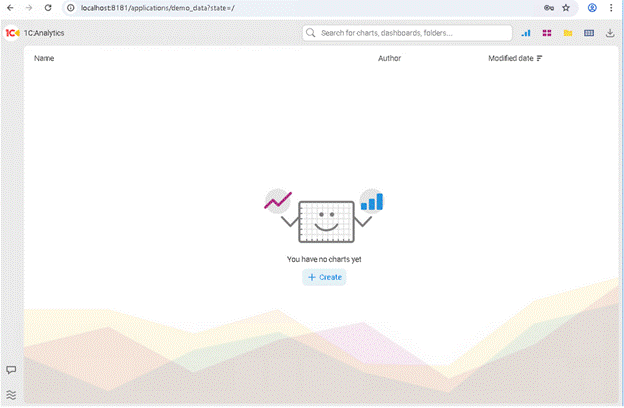
The answer is simple: enter your 1C application username and password. After doing so, Analytics opens a new screen and immediately suggests creating your first report (chart):
Take a look at the 1C:Analytics menu:
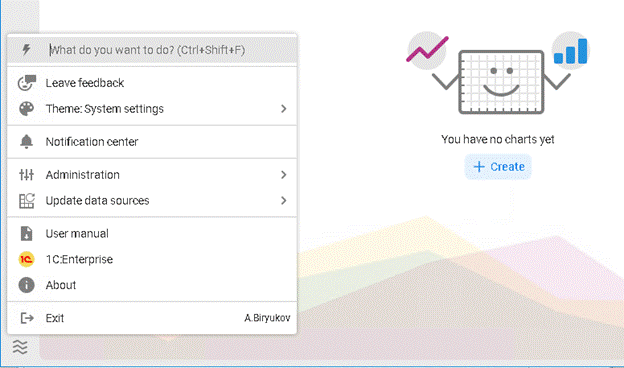
From here, you can open the 1C application:
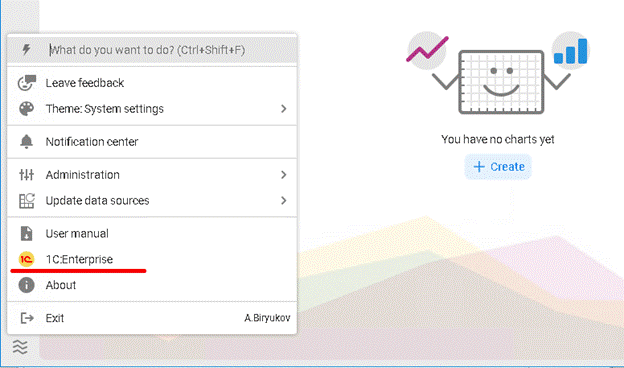
But right now, we need another menu item:
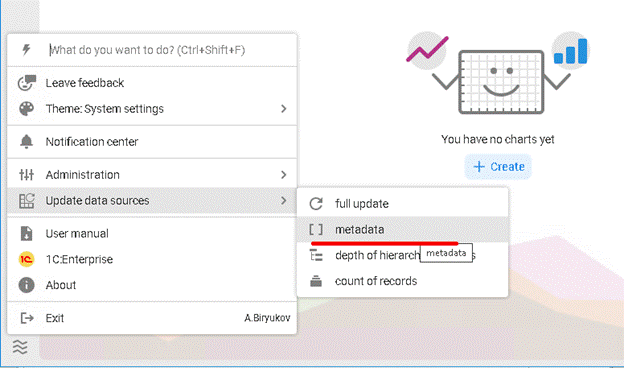
We need to update metadata from our 1C application. Only after this operation completes can we create our first report.
Click Create and another dialog opens:
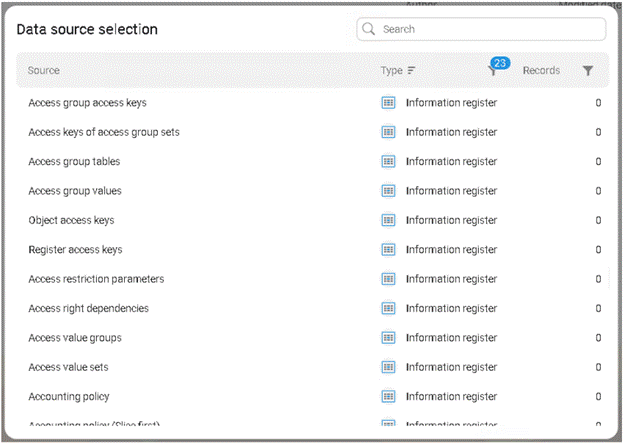
If you are a 1C developer, you will recognize these immediately. Yes, these are the configuration objects from our 1C application, and we can now use them to build reports.
To keep things simple, let’s create a basic report using the Sales accumulation register:
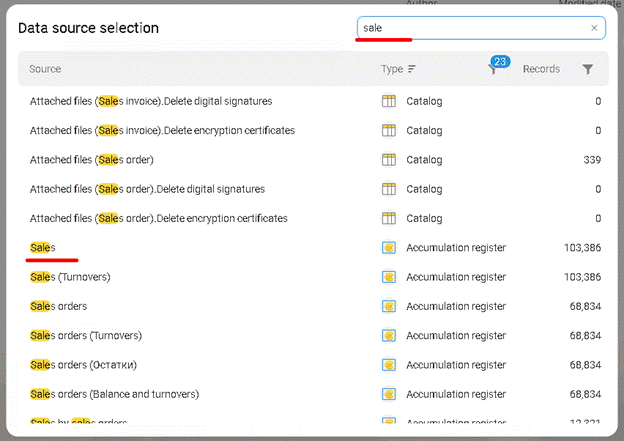
Click the register and you will see:
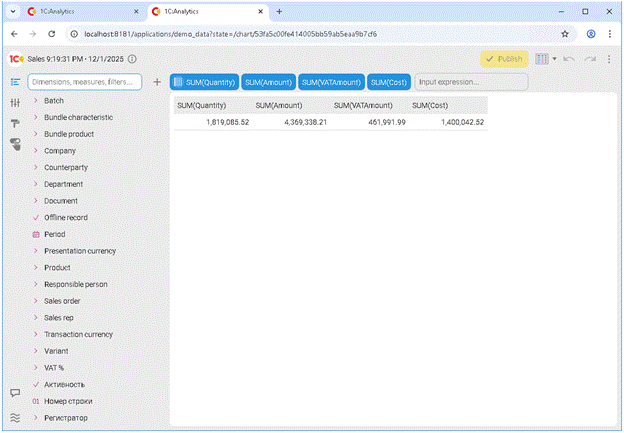
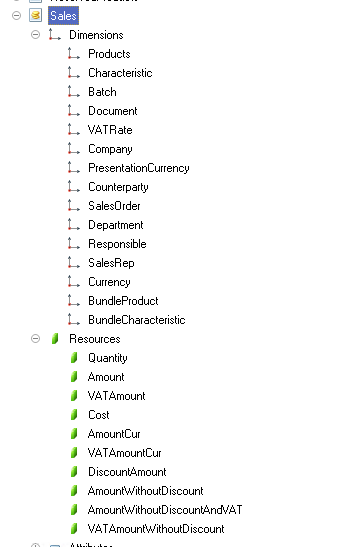
The screenshot shows the dimensions and resources of the Sales register on the left, and in the center, the SUM function is already applied to some resources. The structure of the Sales register looks like this:
Let’s add a dimension to our chart, for example, Product Category. You might point out that the Sales register does not have such a dimension. It has Product, but no category.
Here we immediately see the advantage of 1C:Analytics over other BI systems. Since 1C:Analytics “sees” all the metadata in our application, it knows that the Product dimension has an attribute called Product Category. We can aggregate data not by the Product itself, but by its attribute. Fantastic, isn’t it?
See the screenshots. First, expand the Product dimension:

Find the Product Category attribute and drag it into the chart workspace:

A few seconds later, our data is grouped the way we need:
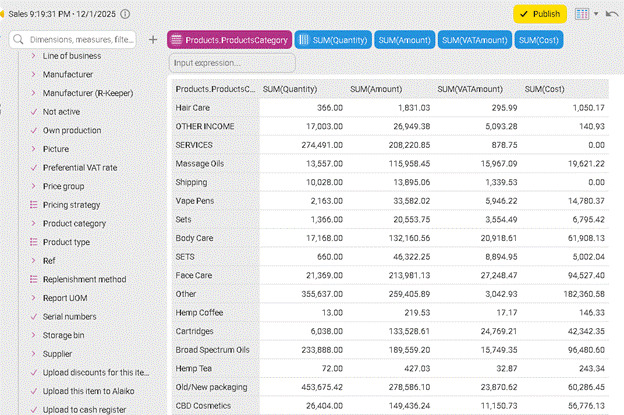
Did you notice how fast it is? I am impressed. A similar report built directly inside 1C would take much longer to generate. This is the power of a true BI system.
Now let’s summarize. 1C:Analytics is not “just another feature” but a major leap forward for companies that use 1C. It closes the painful gap between accumulated information and the ability to analyze it quickly and clearly to make informed decisions.
In the next article, we will go further, learn how to build complex reports that combine data from different registers and catalogs, configure dashboards for managers, and much more.

Writen by
1C Developer
20+ years of experience in the software industry in Russia, UAE and Germany. My main fields of expertise are developing and implementation of business applications (Retail, CRM, WMS, and Accounting) and integration of software with POS equipment and web portals.