1C:Standard Subsystems Library. Integrating an External Data Processor into a Standard 1C Configuration

Fetching Exchange Rates from the UAE Central Bank Website
Disclaimer: everything described in this article applies to AccountingSuite version 2.26.1.17, 1C:Subsystems Library (1C:SSL) version 3.1.11.143, and 1C:Enterprise platform version 8.3.27.1508.
The 1C Subsystems Library (SSL) hardly needs an introduction to most 1C developers. (https://1c-dn.com/developer_tools/1c_subsystems_library/)
The library is well documented, and there is also a dedicated training course.
That said, the documentation mostly focuses on the internal structure of SSL, while the training course tends to rely on simplified examples that are not especially close to real-world use cases.
In this article, we're going to do two things. First, we'll see how to properly integrate an external data processor into a standard 1C configuration using the 1C:SSL mechanism. Second, we'll build a practical, real-world example and implement it as an external data processor.
Before we begin: we'll be using the AccountingSuite configuration with 1C:SSL version 3.1.11.143 already built in (https://accountingsuite.io). The principles described below apply to any other 1C configuration, whether it's an off-the-shelf product or one built from scratch. The only requirement is that the configuration uses SSL.
Let's get started!
The Business Problem
Recently, one of my clients asked me to automate the calculation of exchange rate differences in their 1C application.
What are exchange rate differences, and how do they arise? Here is a simple example. Imagine a company based in Dubai that keeps its books in UAE dirhams. Its business partners are in Europe and pay for goods in euros. When a euro payment arrives in the company's UAE bank account, the bank converts it to dirhams. But the conversion rate used by the bank does not match the official rate set by the UAE Central Bank. This small gap is called an exchange rate difference. These differences can be calculated per transaction or at the end of the month when closing the accounting period. The resulting difference is posted to the Profit and Loss account.
That is the basic idea, and it immediately shows why accurate, up-to-date exchange rates matter. The natural source is the official central bank rate.
Finding the Data Source
Let's visit the UAE Central Bank website (https://www.centralbank.ae/en). At first glance, there is no publicly available API for retrieving exchange rates. The rates are displayed on the page at:
https://www.centralbank.ae/en/forex-eibor/exchange-rates/
We can view the rates and even select a specific date, but there is no documented API or similar interface for programmatic access.
Let's use what we have and try to pull the data directly from the website. After analyzing the site structure, we can find the following endpoint:
https://www.centralbank.ae/umbraco/Surface/Exchange/GetExchangeRateAllCurrency
This returns exchange rates for the current date. Digging further, we can also find this endpoint:
Here, the dateTime parameter lets us specify the date for which we want the rates. This is exactly what we need.
Part 1: Building the Data Processor
Time to start writing code.
Remember, our goal is to integrate this data processor into a standard configuration using the 1C:SSL mechanism. Let's split the task into two parts: first, we'll build the exchange rate retrieval mechanism; then, we'll integrate the data processor into the configuration.
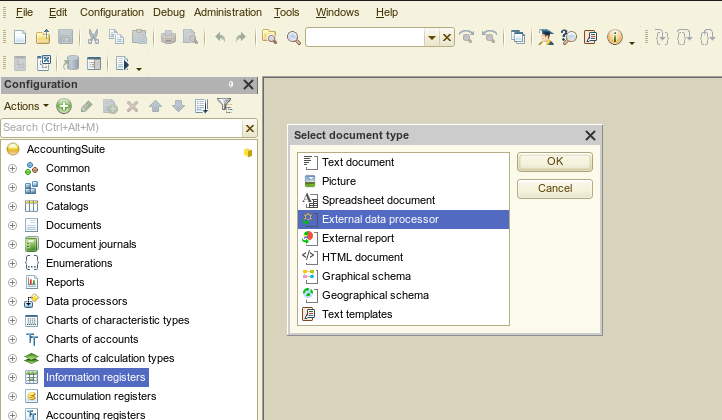
Open Designer and create a new external data processor:
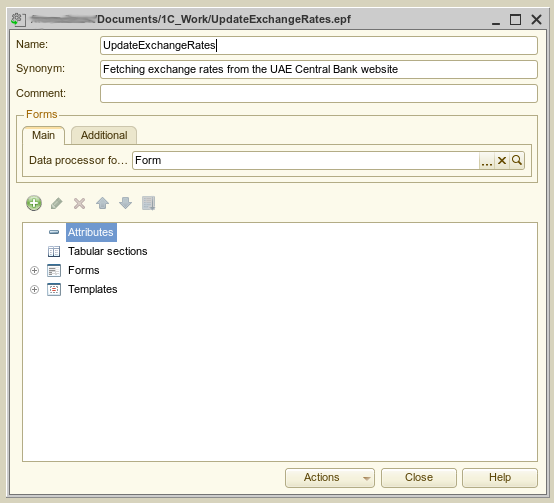
Give it a name:
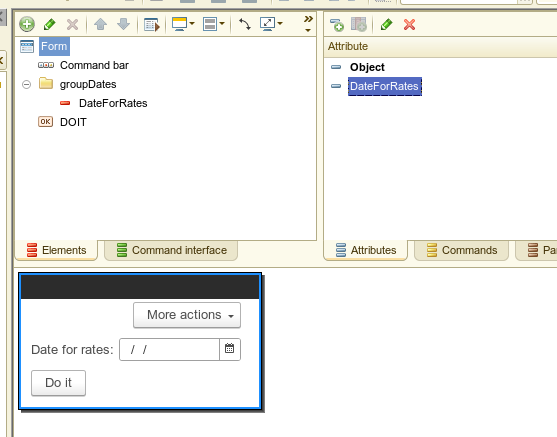
Create the main form and add a minimal set of attributes:
Before we start coding, let's look at the structure of the configuration we're using. We're interested in the Currencies catalog. Here is its structure:
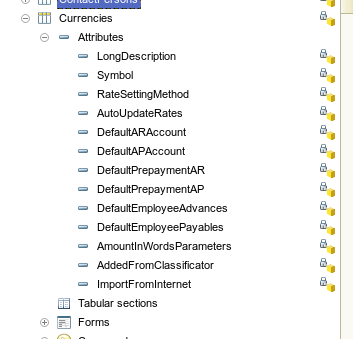
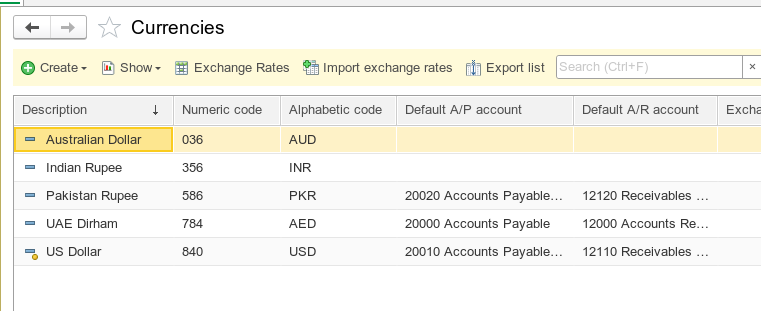
And here is how it looks in 1C:Enterprise (aka user) mode:
We're also interested in the Exchange Rates information register, which stores the exchange rates:
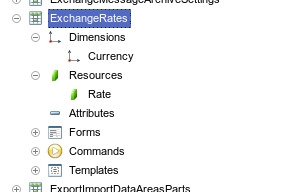
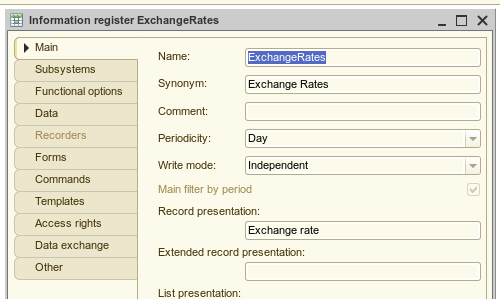
As the screenshot shows, its structure is simple: a currency and its rate. The register's periodicity is set to Day, meaning exchange rate data is stored separately for each day:
Let's go back to the central bank website and open the following link:
The site returns a list of currencies and their rates. Unfortunately, the response only includes the currency name and the rate. It does not return the currency code.
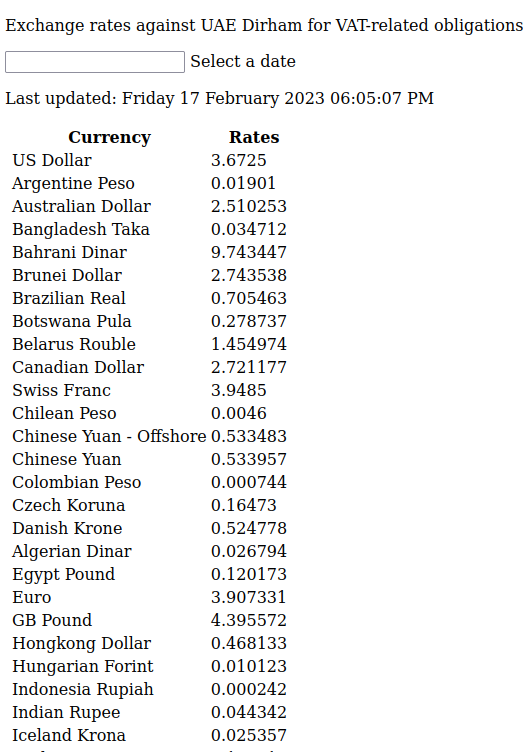
Because of this, we need to make sure the currency names in the Currencies catalog in 1C match the names returned by the website. In other words, if the website returns "US Dollar", the currency in 1C must also be named "US Dollar":
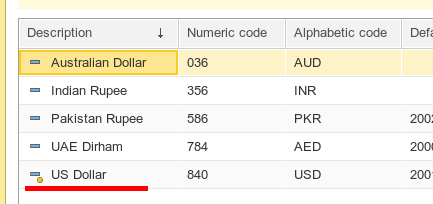
We'll use these names to match currencies from the website to currencies in 1C.
Go back to Designer and add the following code to the form module:
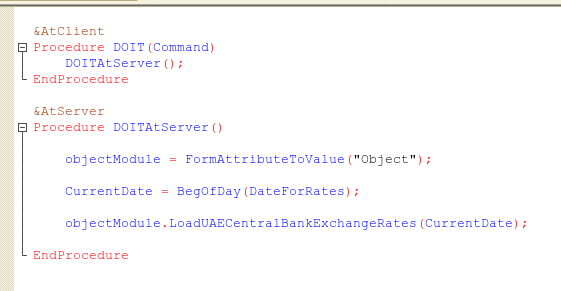
As the screenshot shows, the form only provides a date input. All the actual processing happens in the object module. Here is the code for the object module:
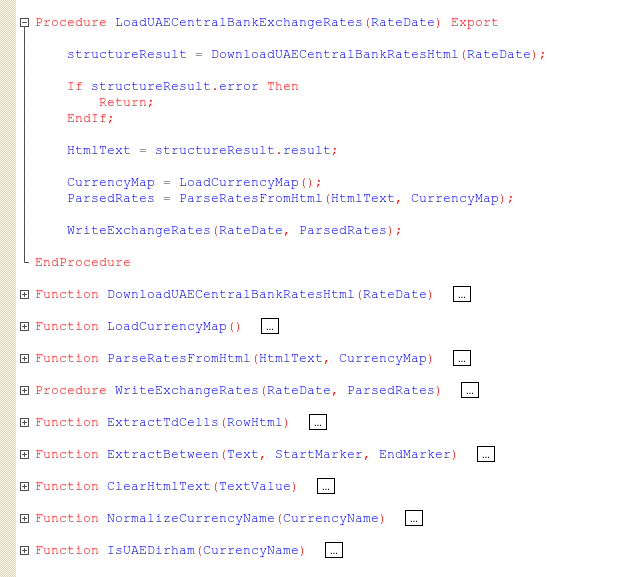
The algorithm has three steps. First, the DownloadUAECentralBankRatesHtml(RateDate) procedure retrieves the current exchange rates for the given date. Then ParseRatesFromHtml cleans up the received data. Finally, WriteExchangeRates saves the rates to the information register.
There is no need to walk through every line of code here, since the complete data processor is attached and can be reviewed separately. The one procedure I want to highlight is DownloadUAECentralBankRatesHtml(RateDate), because it is the most critical part of the entire data processor. Everything else depends on its successful execution.
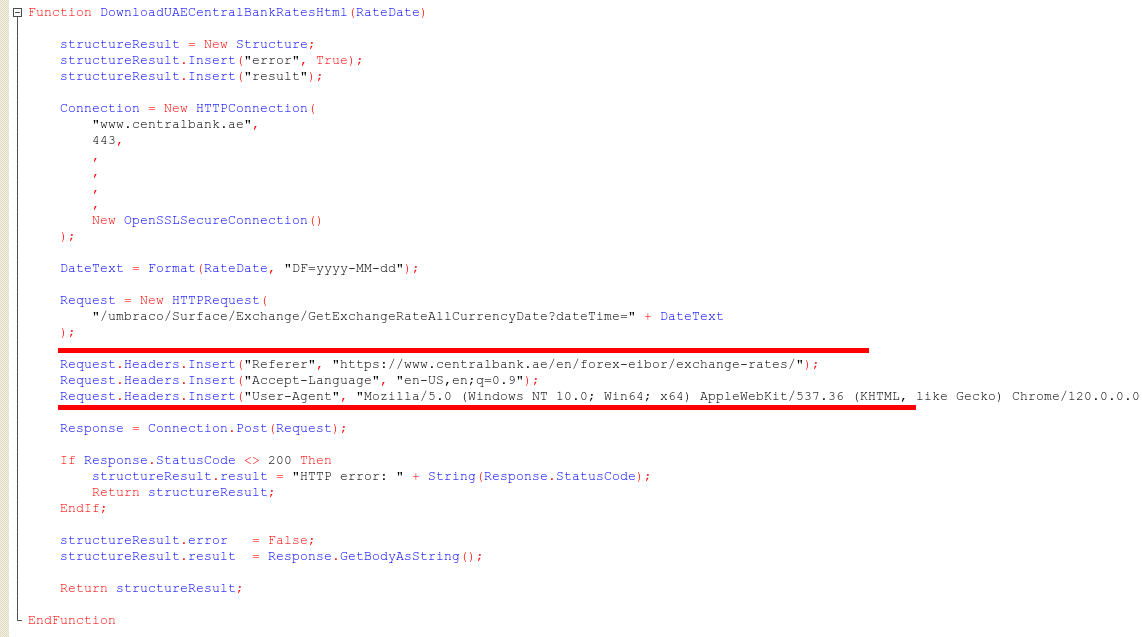
As the code shows, this is a fairly standard POST request followed by response processing. But pay attention to how the request headers are configured. We're mimicking a browser from within 1C so that the website does not detect that a program, rather than a browser, is requesting the data.
We also pass the preferred language in the headers. Without this, the site returns data in Arabic.
Save the data processor, open 1C in user mode, and run the data processor after selecting a date:
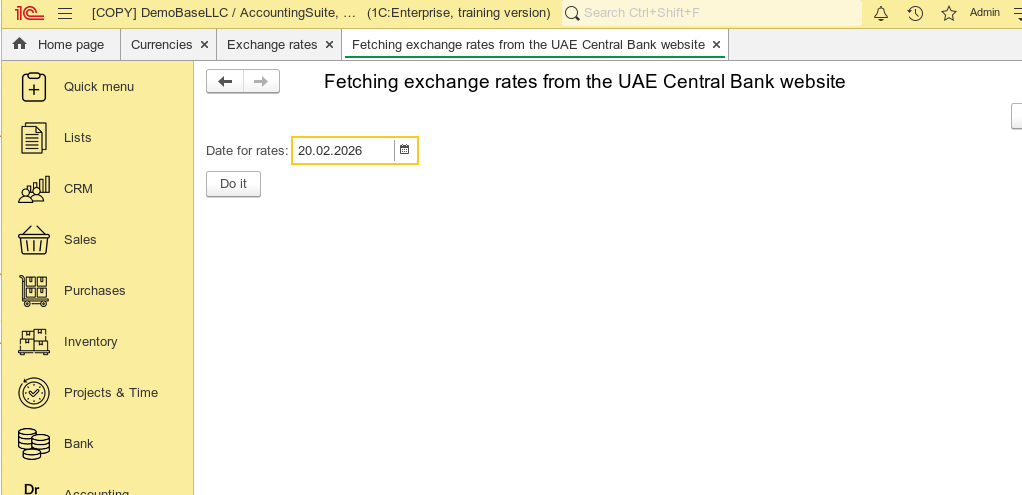
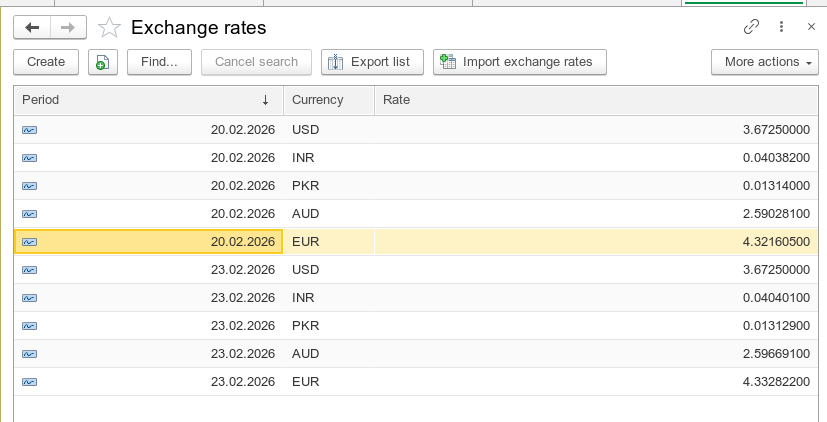
Click Do it, wait for the code to complete, and then open the Exchange Rates information register:
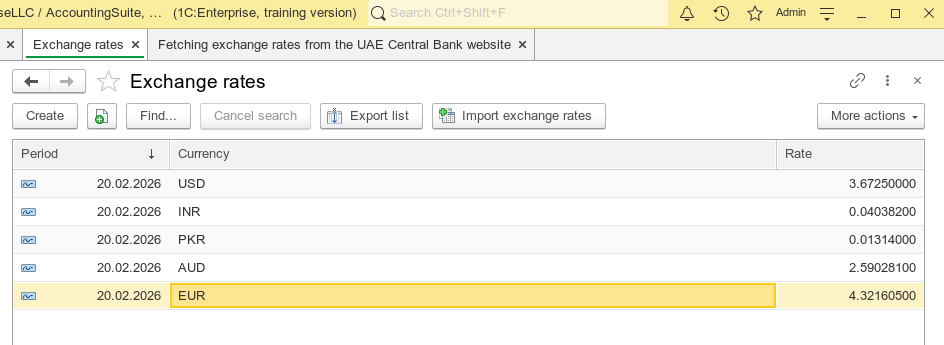
The register now contains exchange rate data for the selected date. Data appears only for currencies that exist in the Currencies catalog:
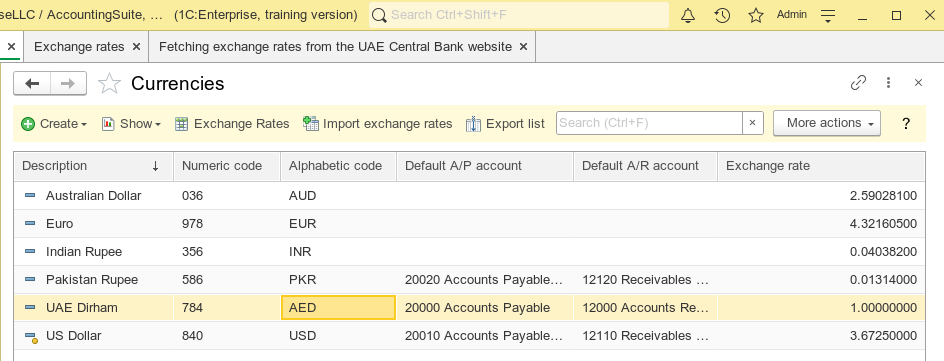
We don't download data for the UAE dirham because it is the base currency and its rate is always 1.
That completes the first part: we now have a mechanism that retrieves exchange rates from the UAE Central Bank website.
Part 2: Integrating the Data Processor Using SSL
Now let’s bring in a little 1C:SSL magic and integrate our data processor into the configuration
Of course, we could simply open the external data processor through the File > Open menu:
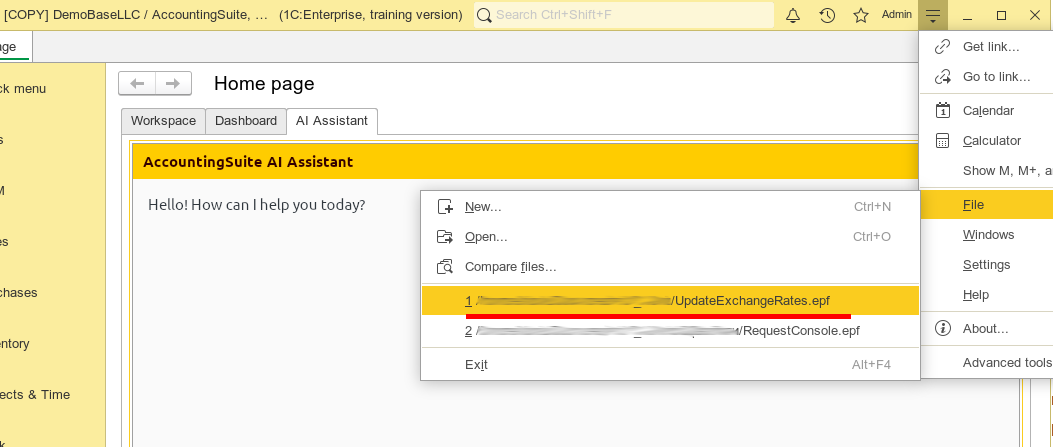
But if the configuration uses 1C:SSL and the external files module is enabled, it's much more practical to load the external data processor directly into the configuration. This way, it doesn't need to be stored somewhere on disk, and it can always be launched directly from within 1C. There are additional benefits to embedding the data processor, and we'll see them shortly.
How can we tell if a configuration supports external files? Look for the Additional reports and data processors menu item, as shown in the screenshot below:
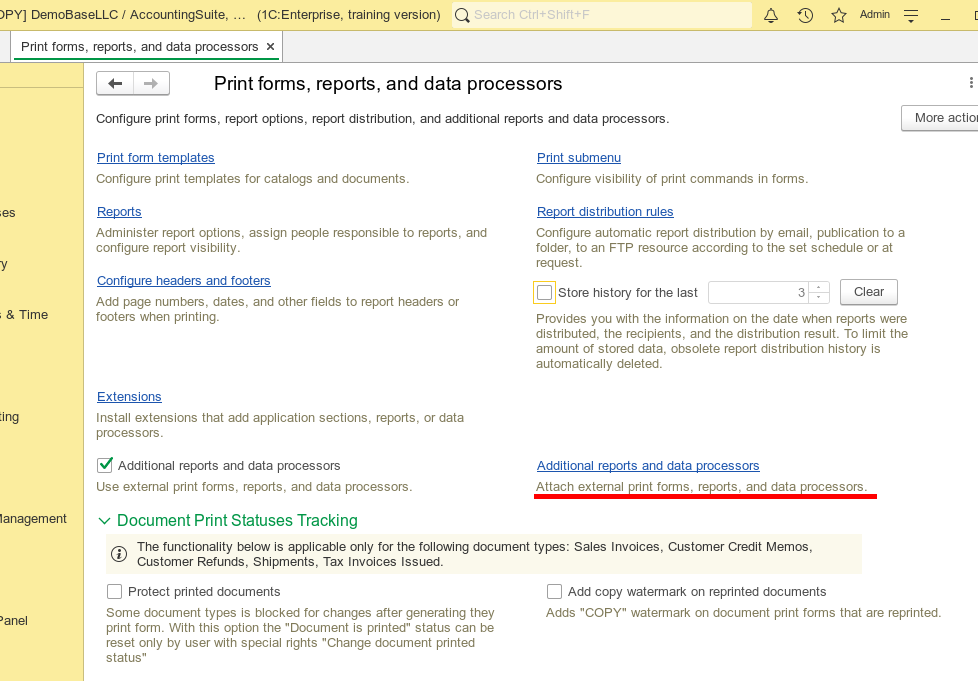
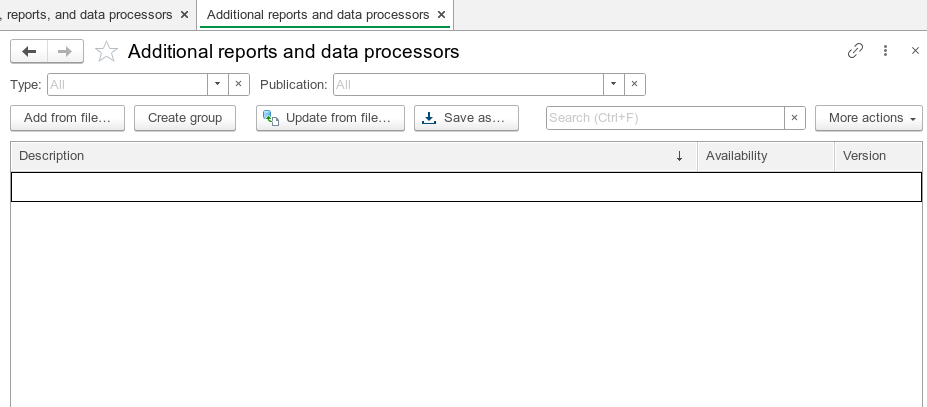
This is where we need to add our data processor:
The required change is fairly small. We need to create a special procedure with the predefined name ExternalDataProcessorInfo in the object module.
Once that procedure is added and filled in correctly, the data processor can be loaded directly into the running configuration.
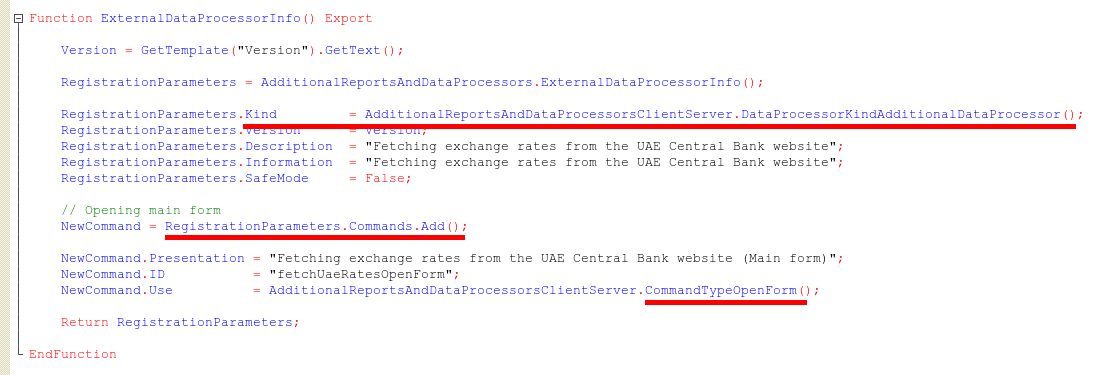
We must specify the Kind of the external file. In our case, it is DataProcessorKindAdditionalDataProcessor.
We also need to create a command that opens the data processor form. The command is created with the following code:
NewCommand = RegistrationParameters.Commands.Add();
And its type is set to: CommandTypeOpenForm().
Save the data processor, switch to 1C user mode, open Additional reports and data processors, and click Add from file...:
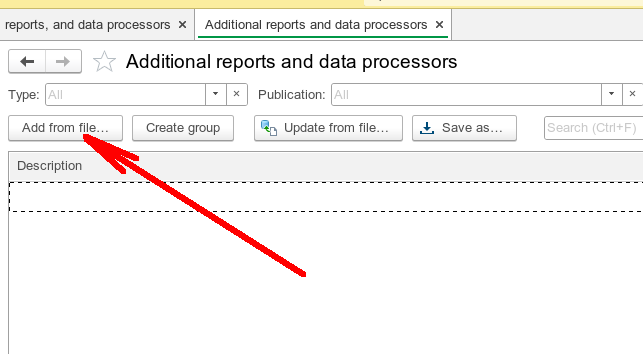
If the code has no errors, the data processor loads successfully:
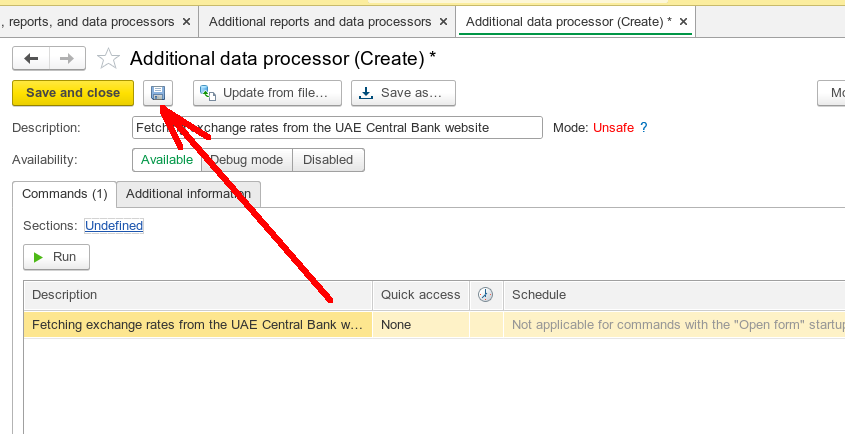
Save it by clicking the Save icon. After that, it's ready to use.
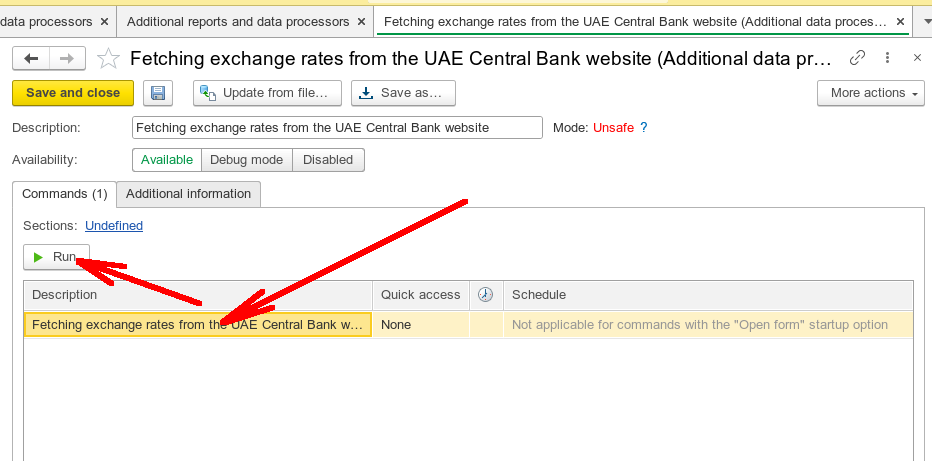
Select the row with the data processor name at the bottom of the form and click Run. The data processor form opens:
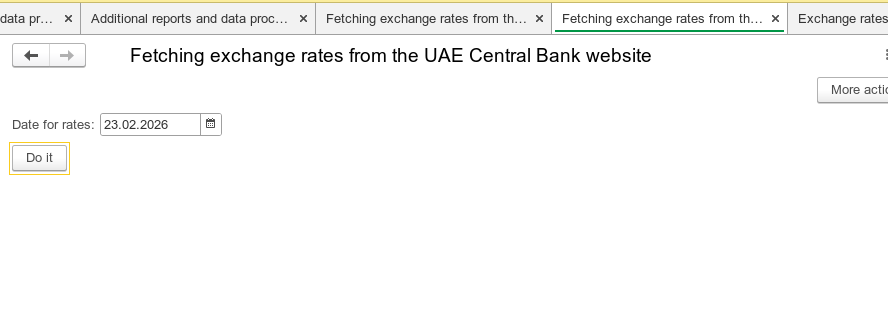
We can specify a different date, for example 02/23/2026, and retrieve exchange rates for that date:
Part 3: Adding Scheduled Execution
Let's take this a step further. Suppose we want the exchange rates to update automatically, without any user interaction. Is that possible?
If the 1C configuration uses SSL, this is very easy to implement. Go back to Designer, open the object module of our data processor, and add one more command to the ExternalDataProcessorInfo procedure:
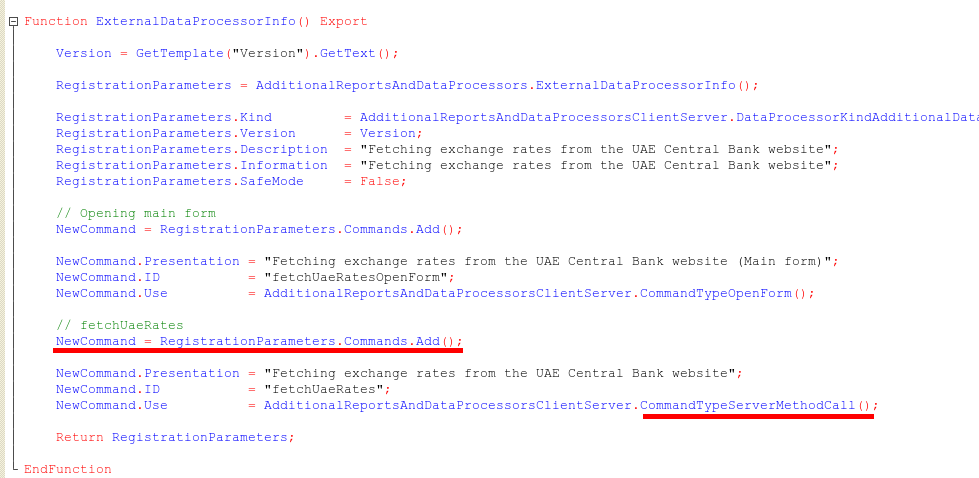
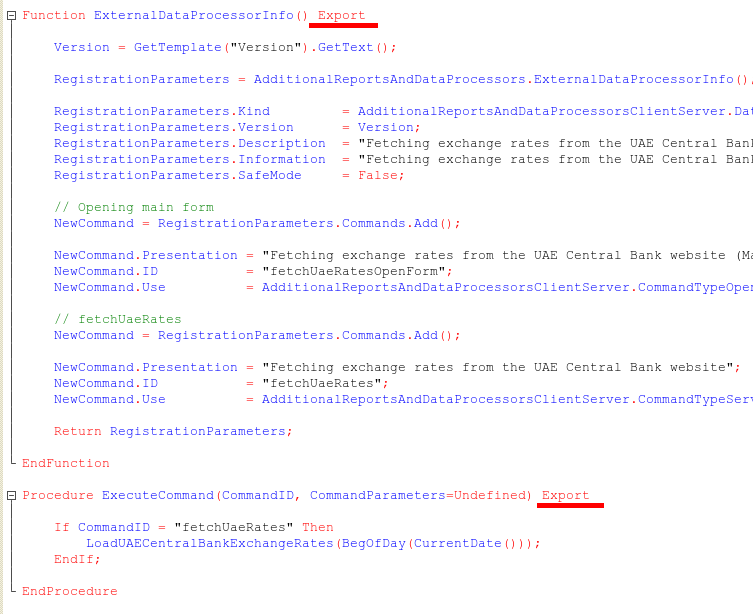
The type of this command is different from the first one: CommandTypeServerMethodCall. When this command is triggered, it calls the server method ExecuteCommand. We also need to create a procedure in the object module to handle this method:

The code is straightforward. When ExecuteCommand is called, it receives the command ID as a parameter. We check the ID, and if it matches the expected value, we call the previously created LoadUAECentralBankExchangeRates procedure, passing the current date as a parameter.
In other words, when this command fires, 1C loads exchange rates for the current date.
Also note that both ExternalDataProcessorInfo and ExecuteCommand must be exported procedures.
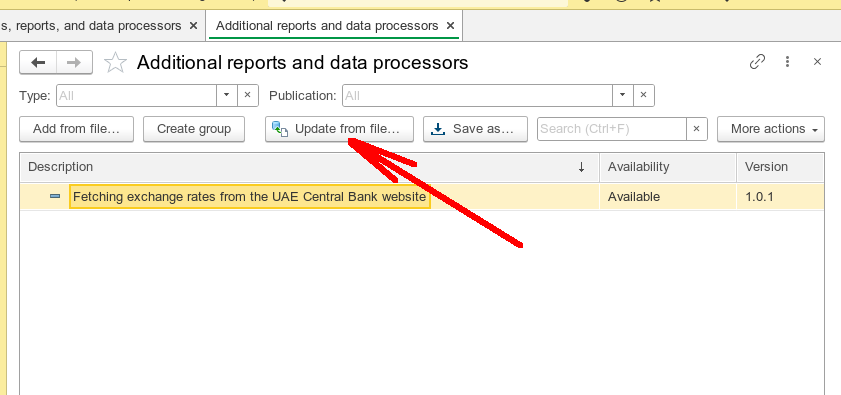
Save the data processor and switch back to 1C user mode. Open Additional reports and data processors, but this time click Update from file... instead of Add from file...:
After the update, we can see the new command that we just added:
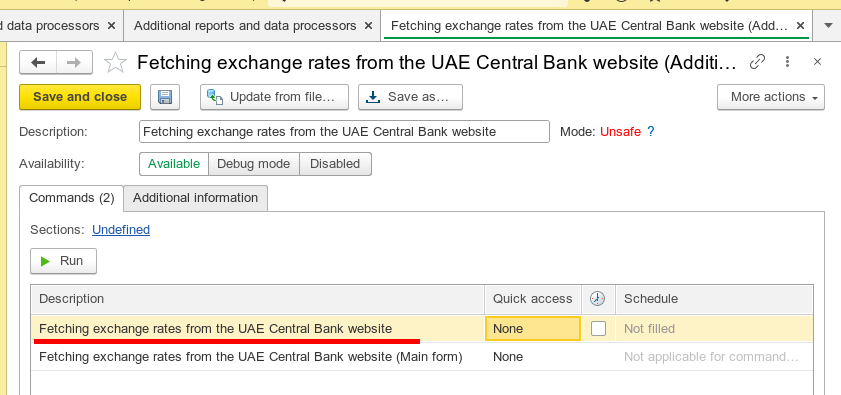
For this newly added command, we can now create an execution schedule:
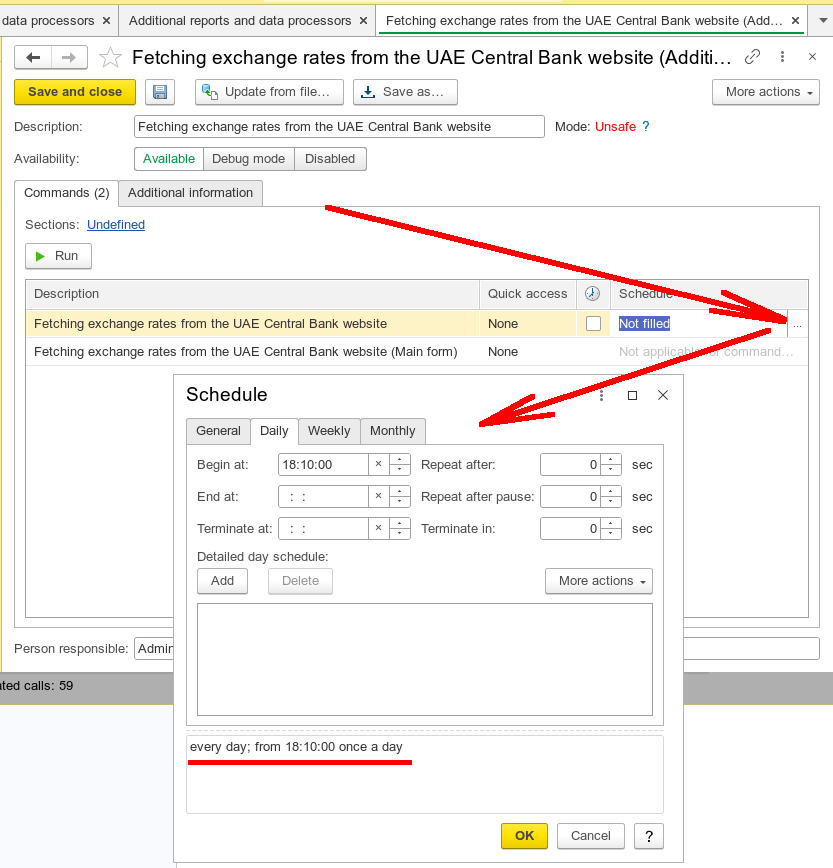
A Schedule dialog opens where we can configure a detailed execution schedule. Since the UAE Central Bank updates its exchange rates daily at 18:00 (except Saturdays and Sundays), we set the launch time to 18:10.
The Schedule dialog has many settings, but they are all self-explanatory. I'll leave it to you to explore the tabs and see how everything is configured.
After setting the schedule, click OK to return to the data processor settings form:
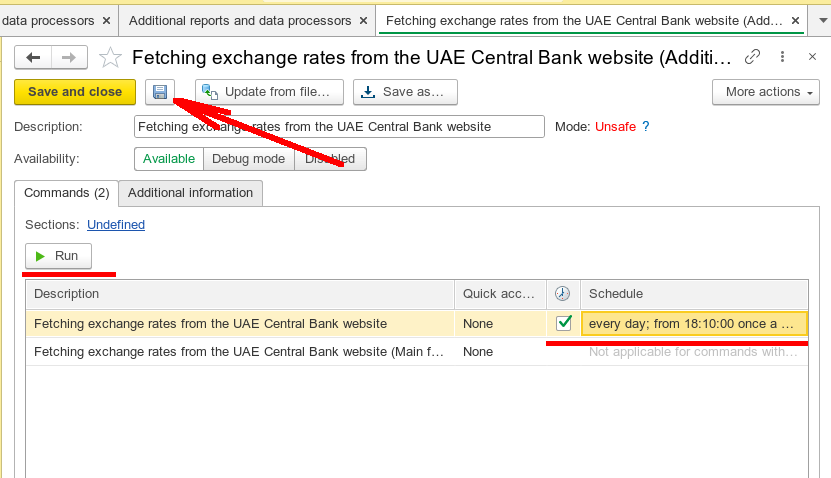
We can see that the schedule is now attached to the command we just created. 1C will execute this command according to that schedule.
We can also run the command manually by clicking Run. Just make sure to save all settings first.
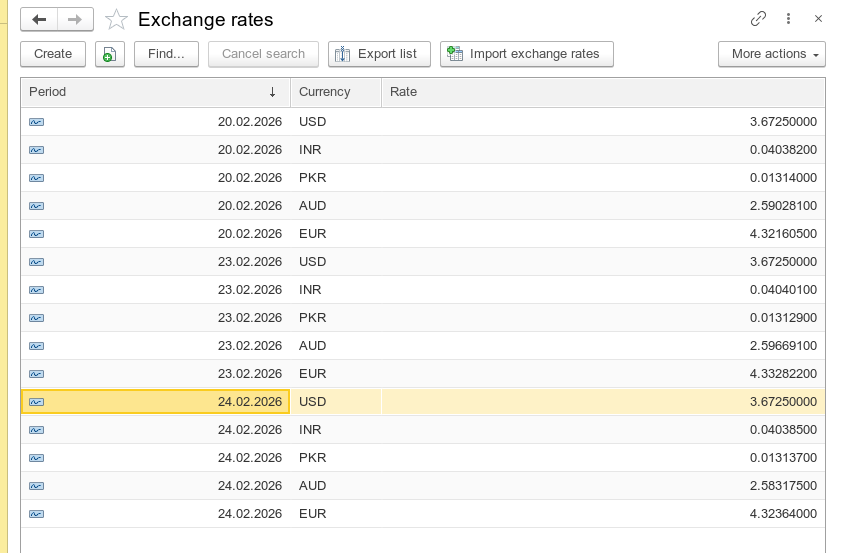
Click Save, then Run. After that, open the Exchange Rates information register and confirm that all data has been loaded:
Summary
In this article, we built an external data processor for 1C that connects to the UAE Central Bank website and retrieves exchange rate data.
We then modified it so that it can be registered directly in a 1C configuration and set to run automatically on a predefined schedule, loading exchange rates without any user interaction.
Our accountant can now rest easy, knowing that the latest exchange rates are always available in the system.
The complete source code of the data processor is attached.

Writen by
1C Developer
20+ years of experience in the software industry in Russia, UAE and Germany. My main fields of expertise are developing and implementation of business applications (Retail, CRM, WMS, and Accounting) and integration of software with POS equipment and web portals.