AI for AccountingSuite users
AccountingSuite AI Assistant
Understand your business data in the workspace you already use
Ask questions, review reports and work with attachments using AI tools built into AccountingSuite.
 Reports, records and attachments
Less Routine Work in a Familiar Workspace
Less Time Searching for Help
Ask the documentation chatbot about AccountingSuite functions and workflows without searching through the user guide.
Clearer Reports and Documents
Get summaries of reports and attachments, explore key figures and identify information that needs a closer look.
AI That Fits Your Workflows
Choose a cloud provider or local model, reuse prompts for common tasks and review AI usage history.
AI Support for Everyday Accounting Tasks
Documentation Chatbot
Get guidance based on the official user documentation. Questions outside its scope are reported as unavailable.
Business Data Insights
Ask about customers and related records to bring details and financial context into one conversation.
Report Analysis
Request explanations, summaries and potential anomalies. Analyze a custom dataset prepared with Universal Report.
Attachment and Print Form Review
Discuss PDFs, spreadsheets and print forms to extract key information or identify items to check.
Tables and Charts
Request structured summaries and graphical views of the data supplied for analysis.
Receipt Recognition
Extract dates, amounts and vendor details. Check the output and transfer the values manually; document autofill is not currently supported.
VIDEO DEMONSTRATION
Watch AccountingSuite AI Assistant in Action
Take a closer look at the assistant in this video from AccountingSuite Academy, then explore the interface examples below.
See the Assistant in AccountingSuite
Original screenshots from the AccountingSuite documentation. Open an image to inspect the interface.
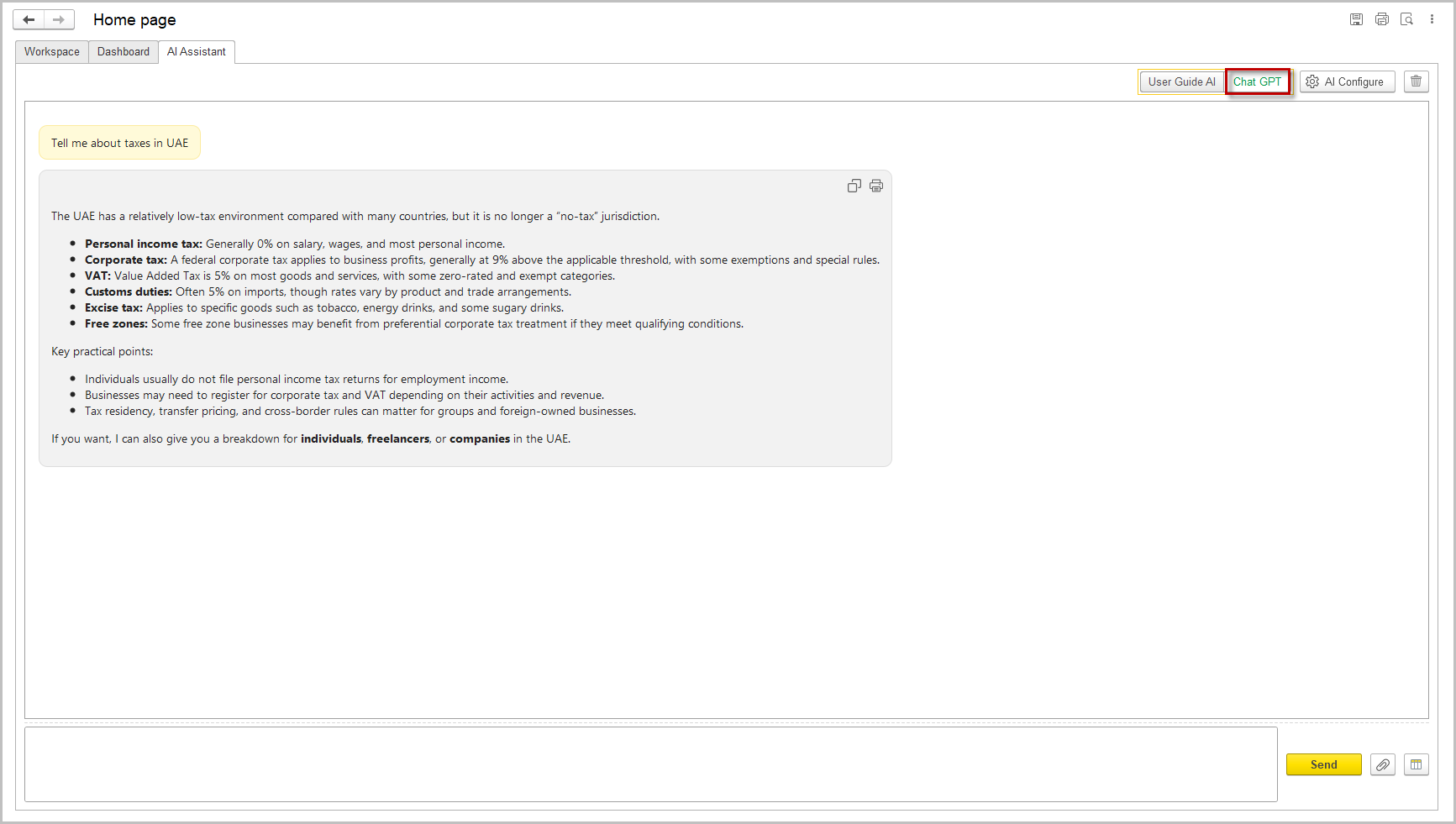
Help Inside Your Workspace
Ask about AccountingSuite functions without leaving the application.
Enlarge screenshot →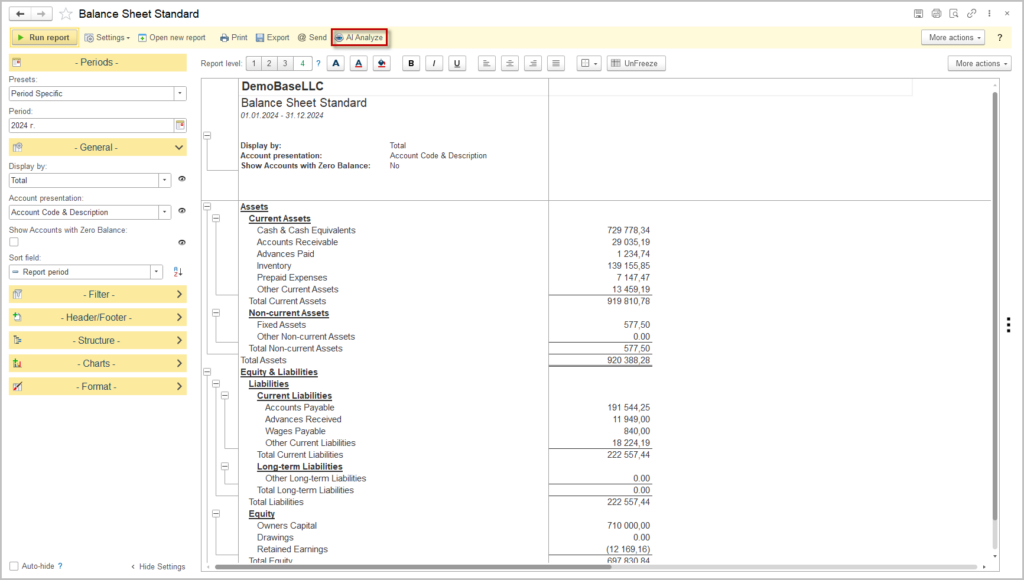
Understand a Report
Use AI Analyze from the report command bar and confirm before the report is sent.
Enlarge screenshot →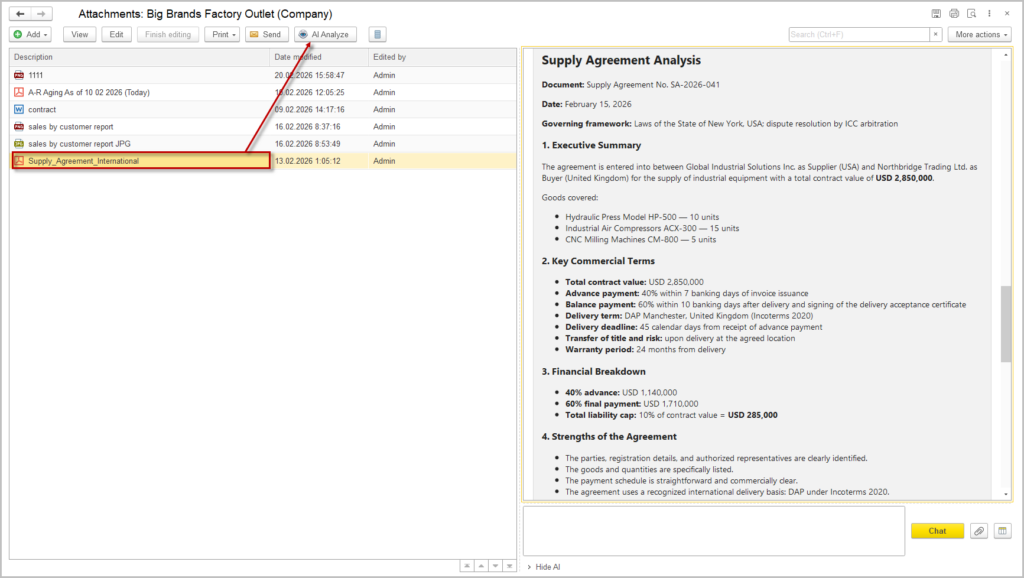
Read Business Attachments
Discuss a spreadsheet or PDF and request a focused summary.
Enlarge screenshot →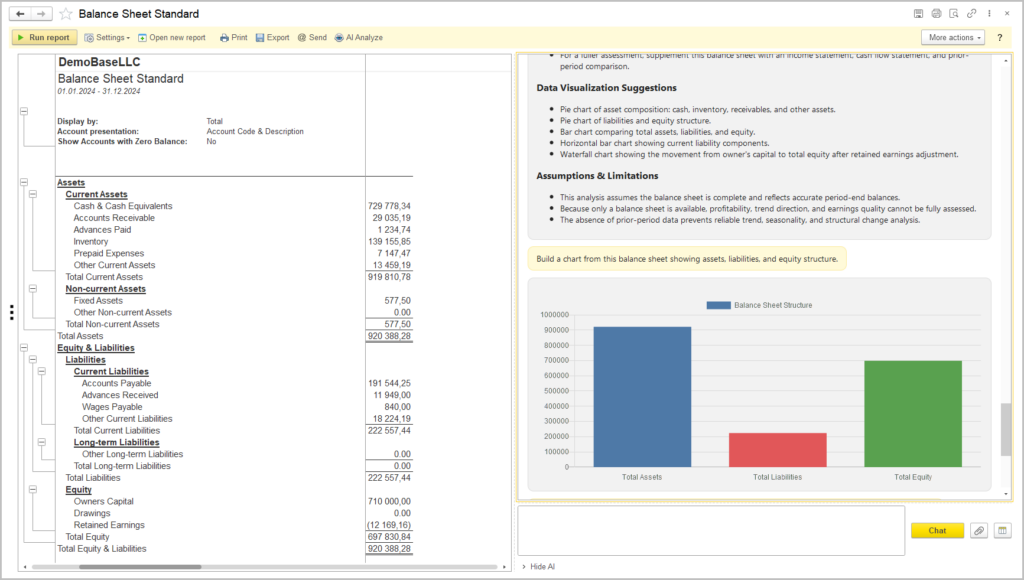
Explore Tables and Charts
Request a tabular summary or chart to make report findings easier to compare.
Enlarge screenshot →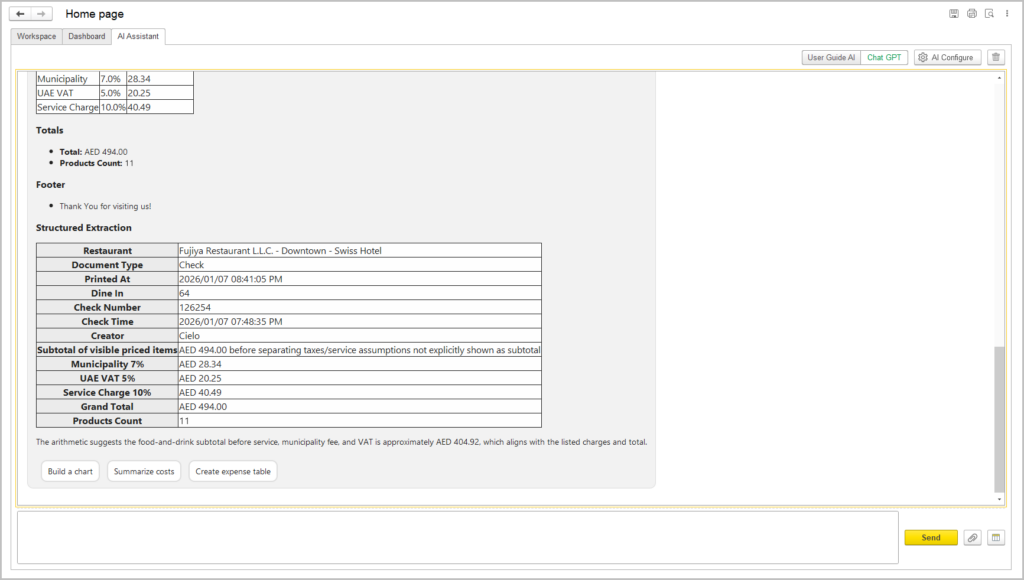
Extract Receipt Details
Review recognized values and enter them into the relevant document manually.
Enlarge screenshot →
Choose Your AI Connection
Select a provider in AI Configure or connect a local model through OpenAI Compatible.
Enlarge screenshot →Choose How Your AI Runs
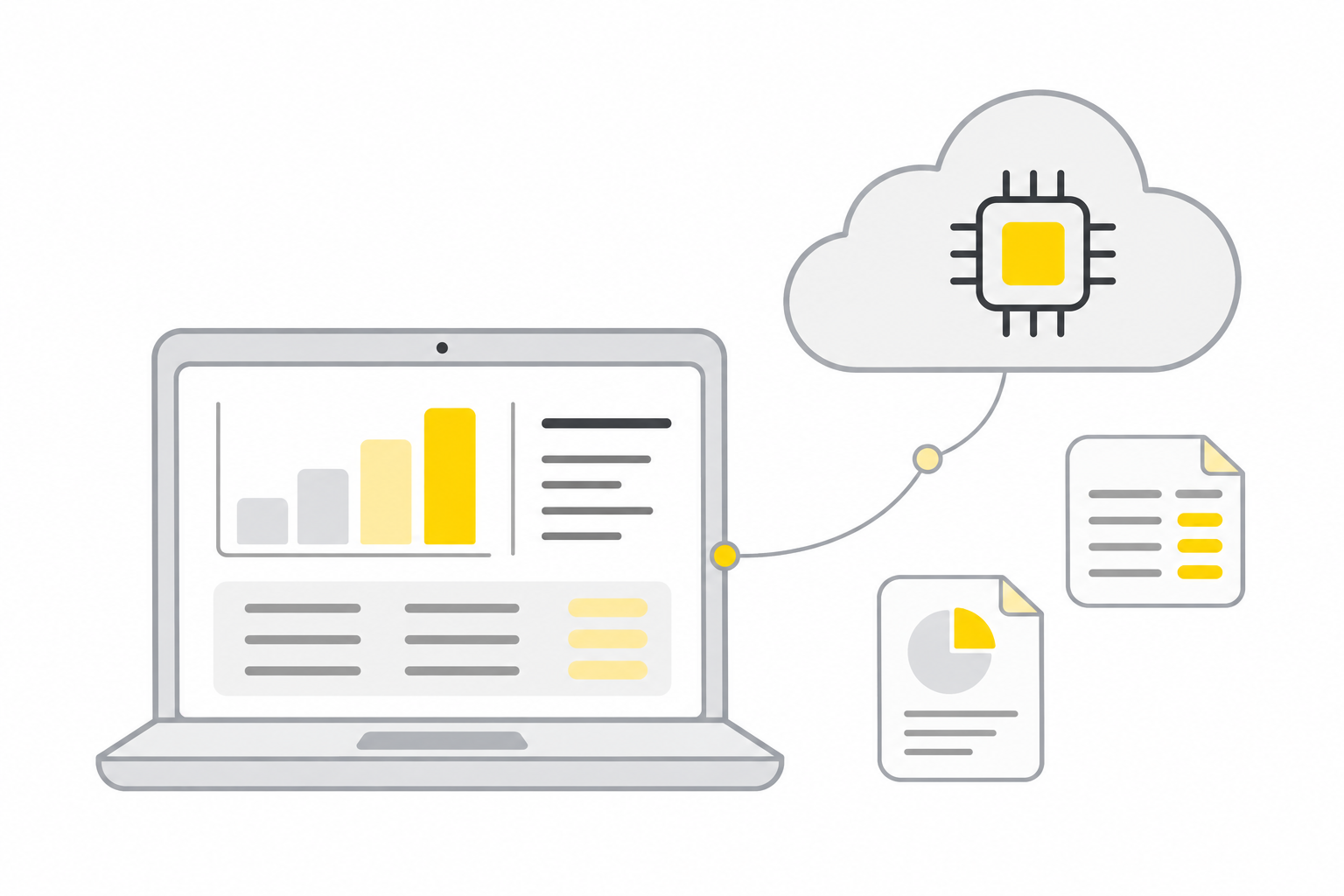
Cloud Providers
Connect ChatGPT, Claude, Gemini or Grok, or use models available through OpenRouter. Availability and supported tasks depend on your provider and model.
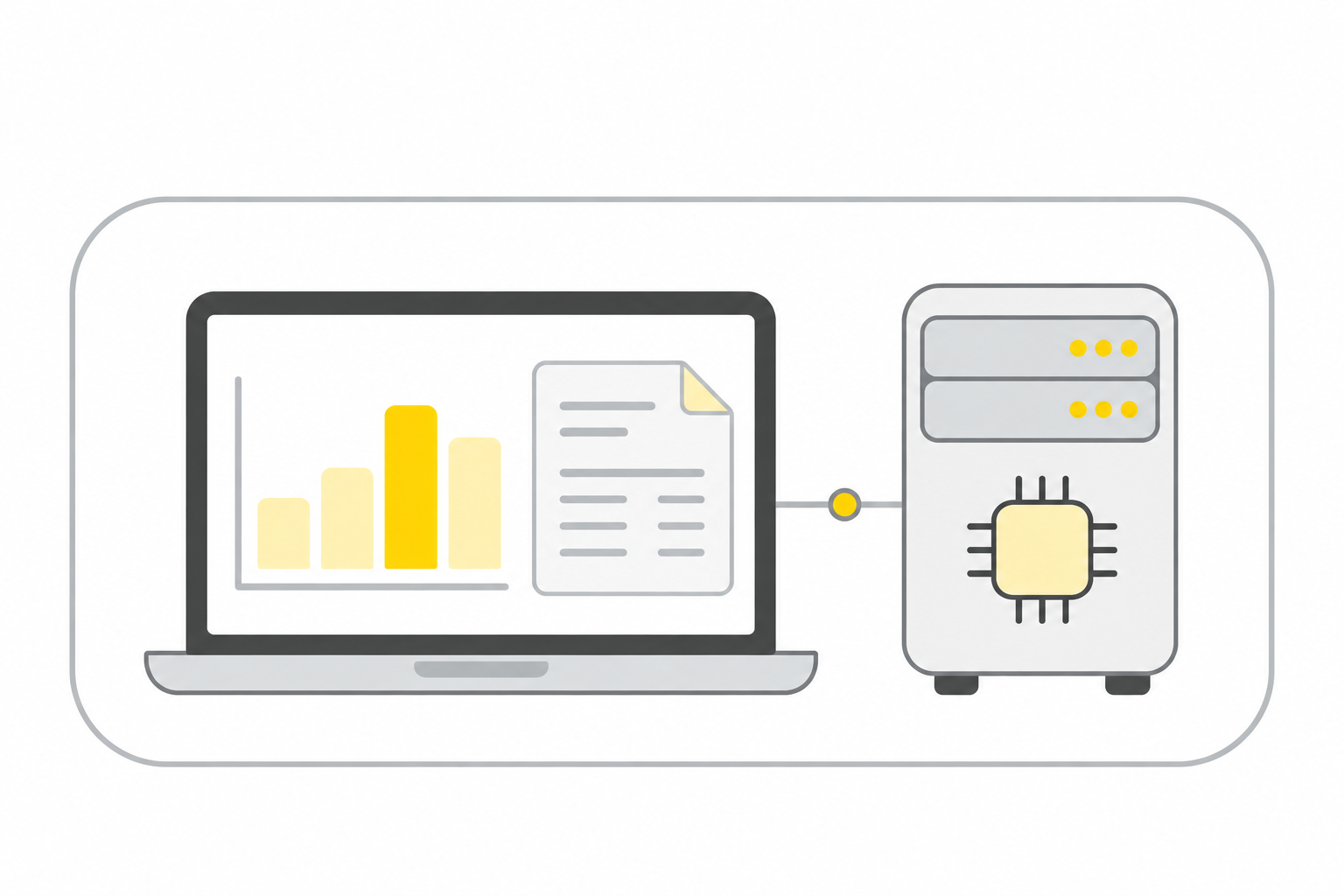
Local Models
Choose OpenAI Compatible to connect a local inference server, including Ollama, LM Studio or vLLM. Enter the server address, configure authentication if required and select an available model.
Cloud requests send selected content to the configured provider. A local deployment can keep processing within your infrastructure when the connection and model services are configured accordingly. Review AI output before using it.
From a Question to a Reviewed Result
AccountingSuite
Select a report, attach a file or ask a question in the application.
Configured AI Model
Process the request through the cloud provider or local server chosen by your organization.
User Review
Inspect the response, compare it with the source data and decide how to use the result.
The documentation chatbot provides product guidance from its own knowledge base.
Shared Settings for Consistent Work
Configure reusable instructions, control request and response sizes, and review how AI is used. Shared settings help administrators adapt the assistant to everyday AccountingSuite tasks.
Prompts Matched to the Task
Give recurring requests a consistent starting point. Administrators define the prompt description and instructions, then choose where those instructions apply.
- By interaction type. Prepare separate instructions for Chat, File and Report tasks.
- By application object. Link prompts to specific entities, such as a company, bank transfer, cash receipt or report.
- When needed. Enable or disable a prompt with the Use setting as workflows change.
Response Limits and Usage Review
Adjust the size of requests and responses to suit the selected model, then review past interactions to refine the configuration.
- Response length. Set Max output tokens to limit the length of generated answers.
- Attachment size. Use Max files size to cap the total size of files included in one request.
- Interaction history. Review previous AI usage to support monitoring, auditing and improvements to prompts.
“Summarize the key figures, highlight unusual changes and list the items that need a closer review.”
Apply the prompt to Report tasks and check the output against the source figures.
Getting Started with AccountingSuite AI Assistant
Start with one workflow and choose the AI connection that fits your organization. Configure the assistant, then check the results with your own reports and documents.
- 01
Choose the Use Case
Start with a report, attachment or business question where AI assistance will help most.
- 02
Connect an AI Model
Open AI Configure on the Home Page. Choose a cloud provider or an OpenAI-compatible local server and enter the connection details.
- 03
Configure the Assistant
Select a model, set response and file size limits, and prepare prompts for your common tasks.
- 04
Test with Your Data
Check responses against the source information. Confirm before sending a report and review recognized values before entering them manually.
Questions Before You Start
Is the documentation chatbot the same as an external AI model?
The documentation chatbot provides product guidance from the official knowledge base. Connected models support broader analysis of the data and files supplied to them.
Can recognized receipts create documents automatically?
No. Recognized values must currently be checked and entered manually. Automatic document creation is described as a future capability.
Can I use AI alongside an open report?
Yes. Use AI Analyze and continue in chat. The More actions menu also lets you open AI Chat in separate window.
Do I need a cloud provider?
For AI tasks you can also connect a locally hosted model through an OpenAI-compatible API. The selected model must support the required task.
Discuss AI for Your AccountingSuite Workflows
Tell us which reports, documents or daily tasks you want to simplify.
Request AccountingSuite AI AssistantExplore AccountingSuite for accounting, inventory and everyday business operations.
Learn more about AccountingSuiteCapabilities depend on the AccountingSuite version, configuration and selected AI model.
