5.1 What Are Run and Debug Configurations
5.2 Viewing and Editing Configurations
5.3 Setting Up Users for Testing
5.4 Managing Favorite Configurations
5.5 Running and Testing Configurations
In 1C:EDT, you can create and save different configurations for running or debugging your projects. This is helpful when you need to test your application under various conditions, such as with different user roles, infobases, or languages.
5.1 What Are Run and Debug Configurations
A run configuration defines how the application is launched, including which project, user, client type, and platform version are used. A debug configuration includes additional settings for running the application in debug mode.
These configurations allow you to quickly switch between testing scenarios without having to re-enter settings each time.
When you first run or debug a project, EDT automatically creates a configuration based on the settings you used. Later, you can edit, duplicate, or create new ones.
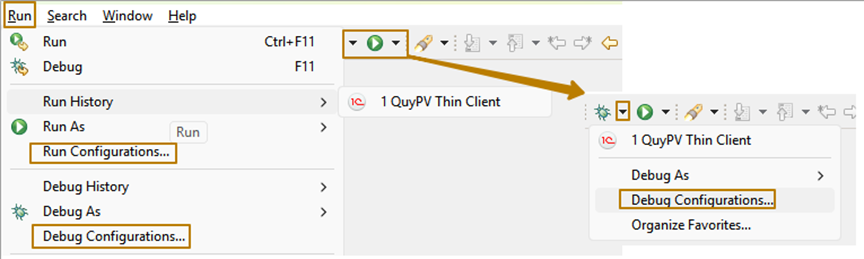
You can access saved configurations from the Run menu or by clicking the Run and Debug buttons on the toolbar. Each button has a submenu that lists recent and favorite configurations.
5.2 Viewing and Editing Configurations
To view or modify your configurations: 1. Open the Run menu and select Run Configurations or Debug Configurations. 2. In the window that opens, select 1C:Enterprise Clients in the list on the left. 3. You will see one or more existing configurations. Select one to view its settings.
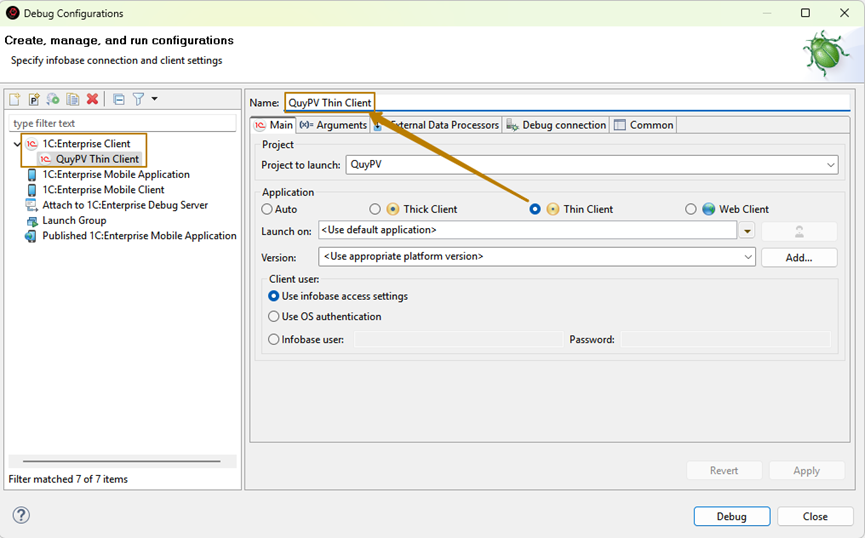
The configuration window includes several tabs with different parameters.
Main Tab Here you can specify: - Project: choose which project to run or debug. If multiple projects are open, select the one you need.
-
Application Type: select the client mode. To run in Web Client mode, you must first publish the infobase on a web server.
-
Launch On: choose which application to use (for example, one connected to a file database or one that uses a client-server setup).
-
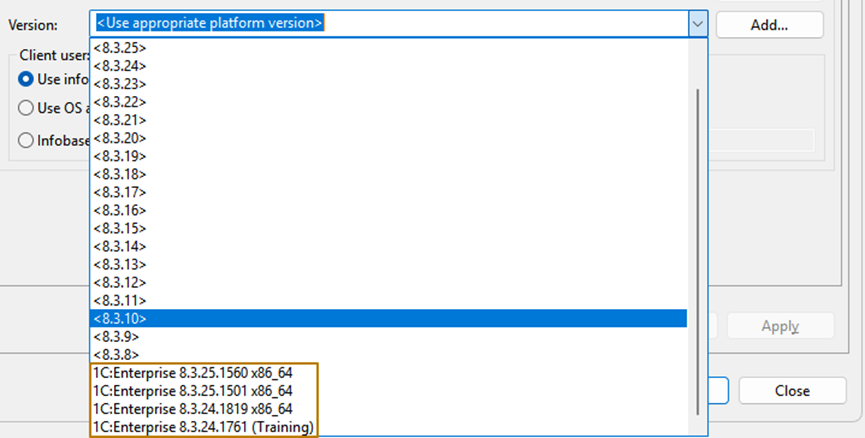
Version: specify which platform version to use, such as 8.3 or 8.3.24.1819. You can also select the training version of the platform.
-
Client User: define which user account will be used to log into the application.
-
5.3 Setting Up Users for Testing
Let’s create two user accounts to test the configuration under different access levels.
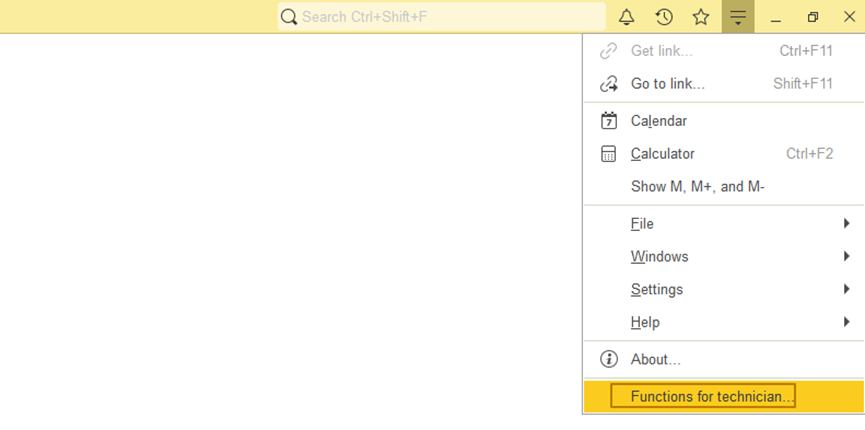
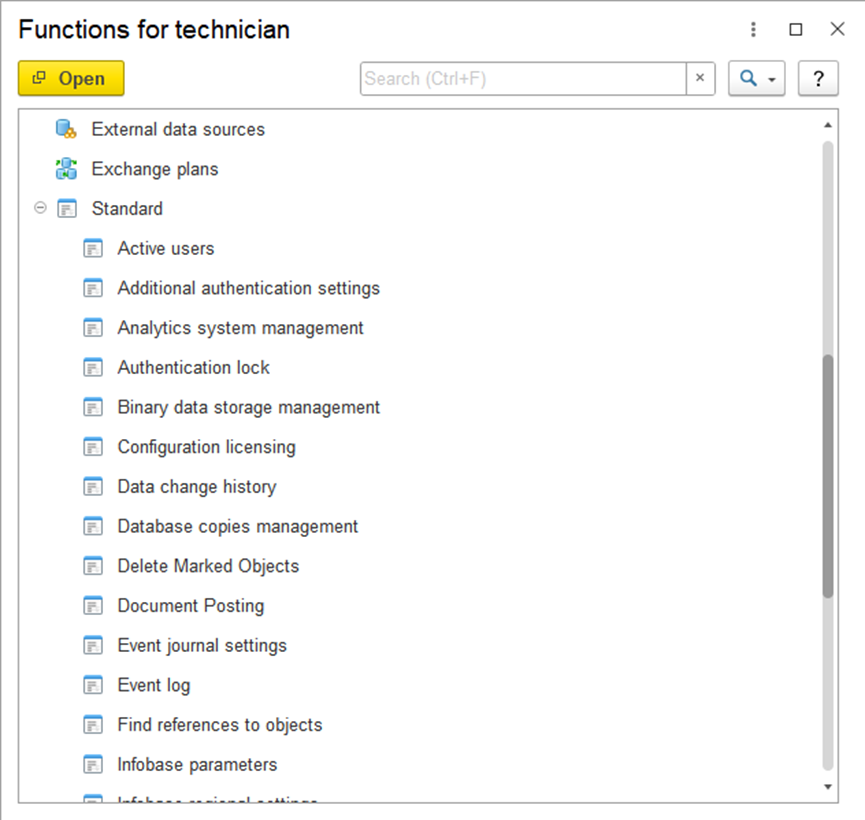
- Launch the application and go to Functions for Technician.
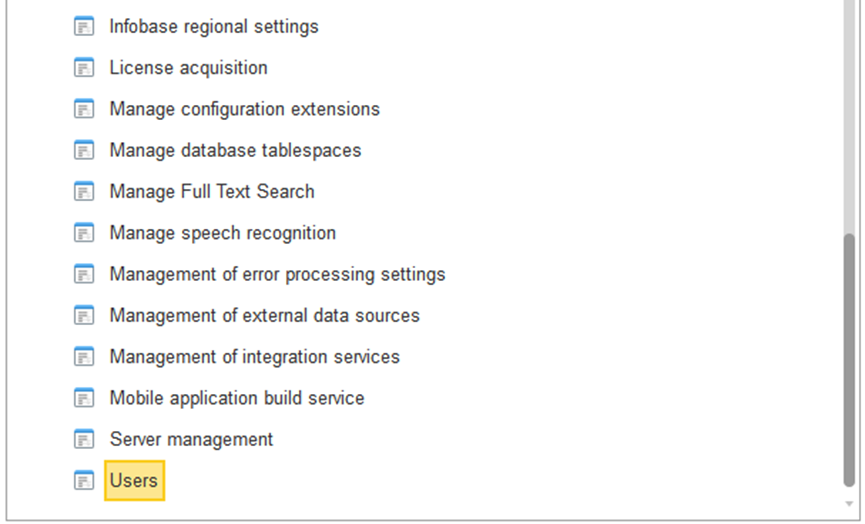
- Open Standard Functions > Infobase Users.
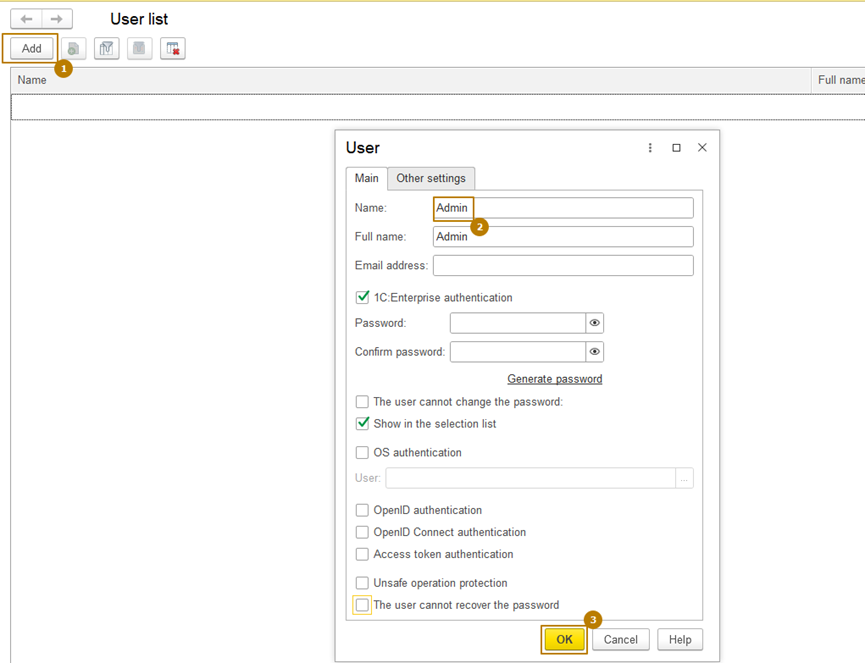
- Create two users:
- Admin with the role FullAccess.
- ReadOnly with the role ReadOnly.
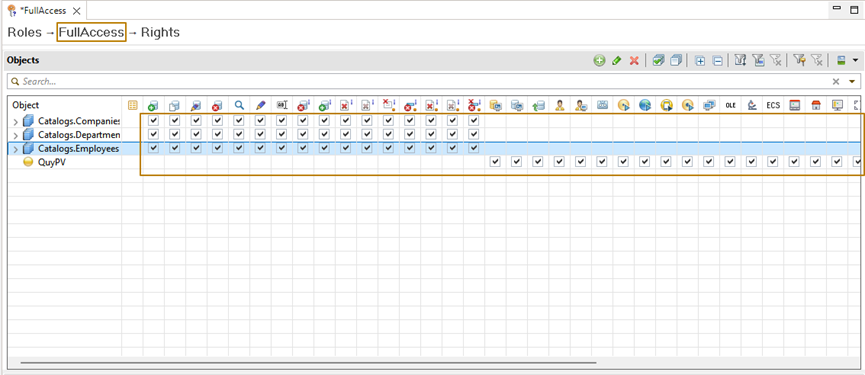
You can assign roles on the Other Settings tab of the user form.
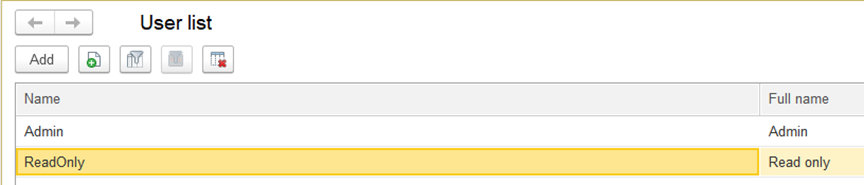
Now, return to EDT and create two new configurations for running under these users.
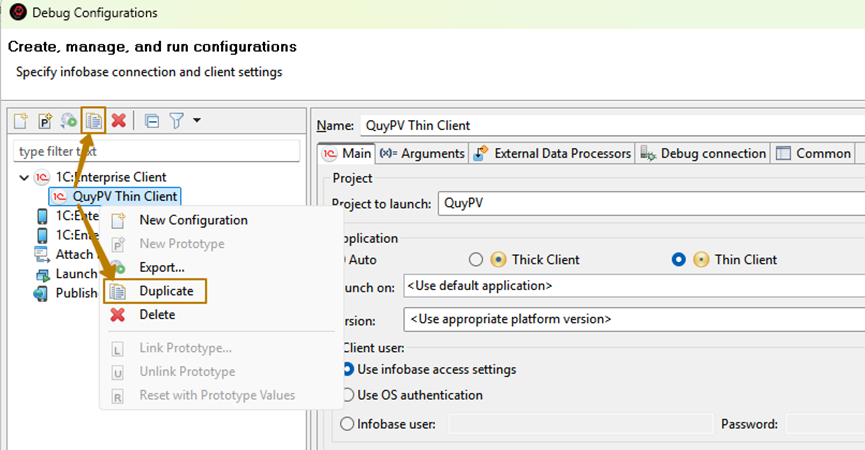
To duplicate an existing configuration: 1. Open Debug Configurations. 2. Select an existing configuration and click Duplicate.
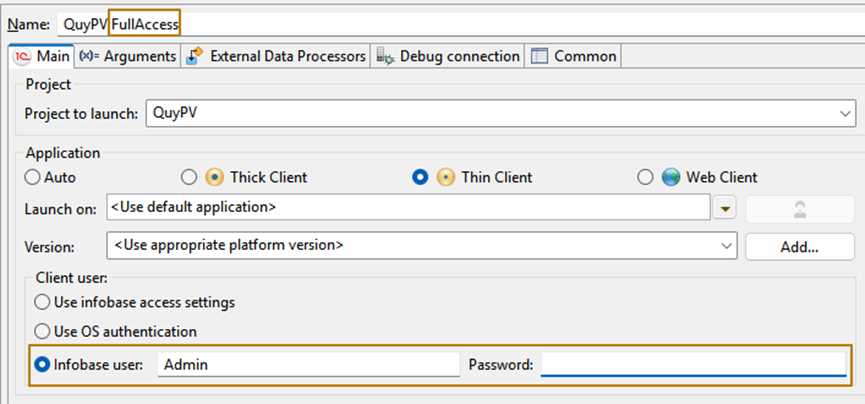
In the new configuration: - Change the configuration name. - In the Infobase User section, specify the username and password for the account you want to use.
Repeat the same process to create a configuration for the ReadOnly user.
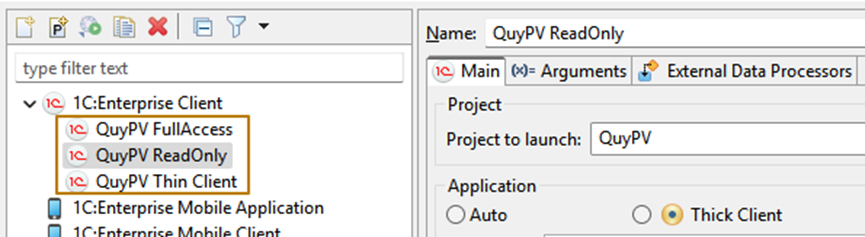
5.4 Managing Favorite Configurations
Only the most recently launched or marked configurations appear in the quick access submenu under the Run and Debug buttons.
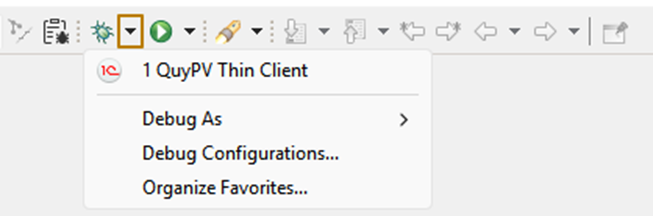
If you want a configuration to always appear in the list, you can mark it as a favorite. There are two ways to do this:
-
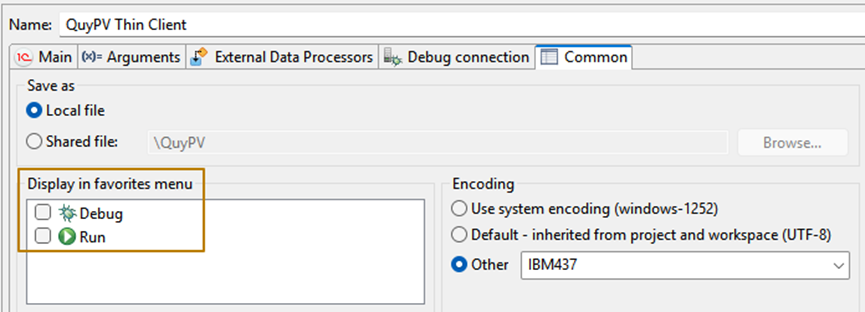
While editing a configuration, go to the Common tab and select where to display it in the favorites menu.
-
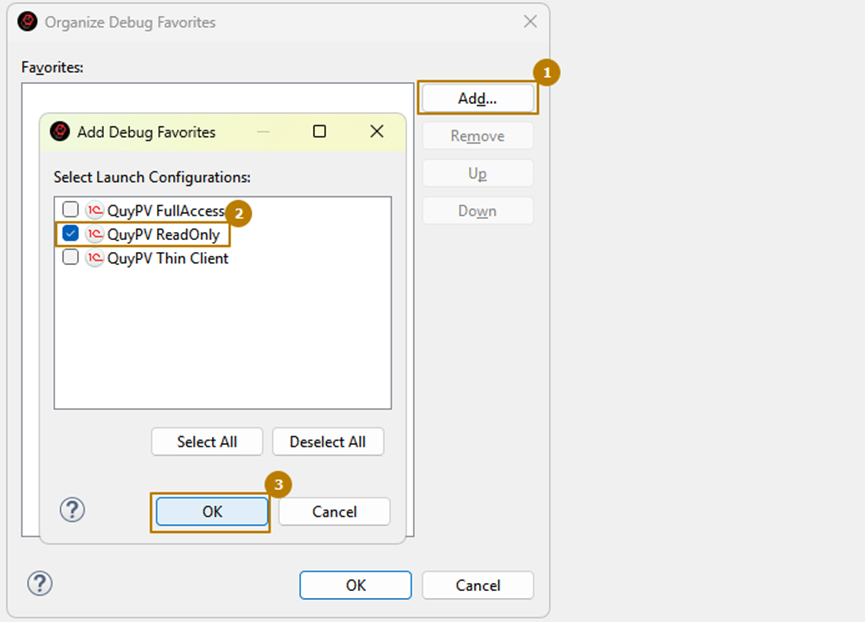
In the Run or Debug submenu, click Organize Favorites. In the window that opens, you can add or remove configurations, as well as change their order.
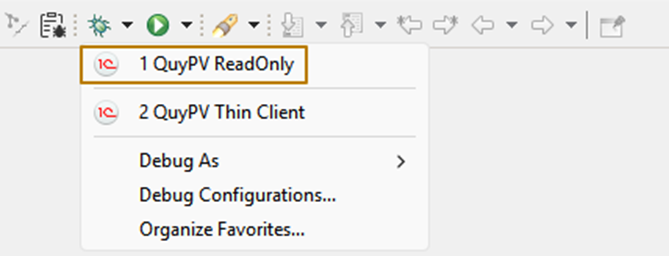
Once marked as a favorite, the configuration will always appear at the top of the list.
5.5 Running and Testing Configurations
After saving your configurations, open the Debug submenu. You will see your saved options, with favorites displayed first.
Select the configuration you want to test, for example, the one for the ReadOnly user. EDT will launch the application in debug mode using the specified parameters.
Once the application opens, verify that the correct user is logged in and that their access rights match expectations. In this case, the ReadOnly user should be able to view data but not create or edit objects.
✅ Next Steps:
In the following section, we will explore how to migrate existing development projects to EDT and connect them to new remote Git repositories for team collaboration.-