7.1 Configuring Keyboard Shortcuts
7.2 Adjusting Colors and Fonts
7.3 Restoring or Transferring Settings
1C:EDT offers a flexible and customizable interface so you can adapt the development environment to your personal preferences. You can change keyboard shortcuts, color themes, and font styles to make your workspace more comfortable and efficient.
7.1 Configuring Keyboard Shortcuts
If you are used to working with specific key combinations in 1C:Enterprise Designer or another development environment, you can easily configure similar shortcuts in EDT.
-
Open the main menu and select Window > Preferences.
-
In the settings tree, go to General > Keys.
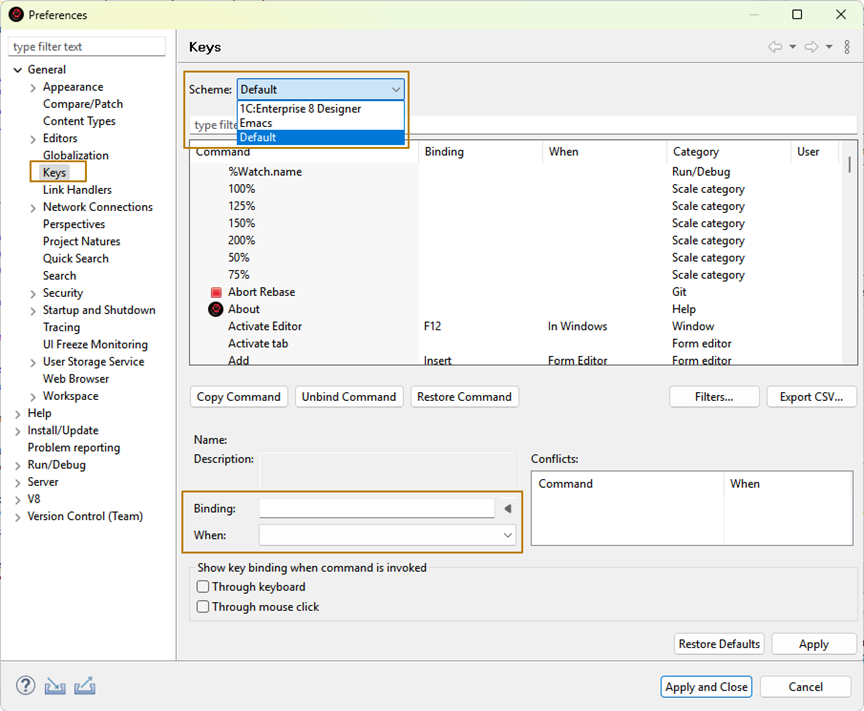
In this section, you can: - Choose a key binding scheme in the Scheme field. The default scheme applies to new projects automatically. - Select 1C:Enterprise Designer if you prefer shortcuts similar to those in Designer. - Manually assign hotkeys to commands using the Binding field. - Specify when a shortcut is active using the When field. For example, some shortcuts only work during debugging or while editing text.
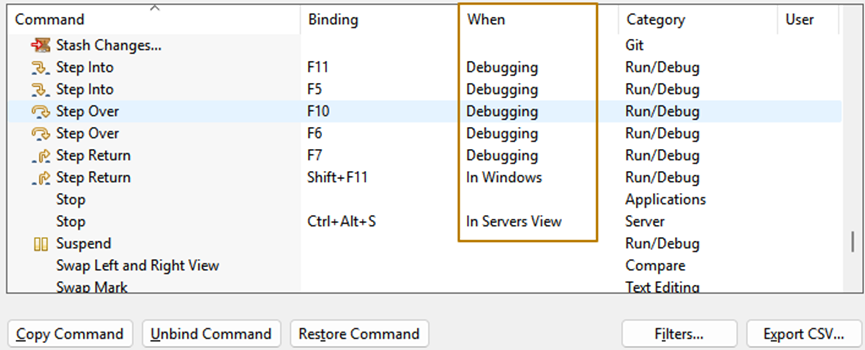
Tip: You can experiment with different schemes or customize individual keys until you find the combination that best suits your workflow.
7.2 Adjusting Colors and Fonts
To personalize the appearance of the EDT workspace, you can modify color schemes and font settings.
-
In the Preferences window, expand the General > Appearance branch.
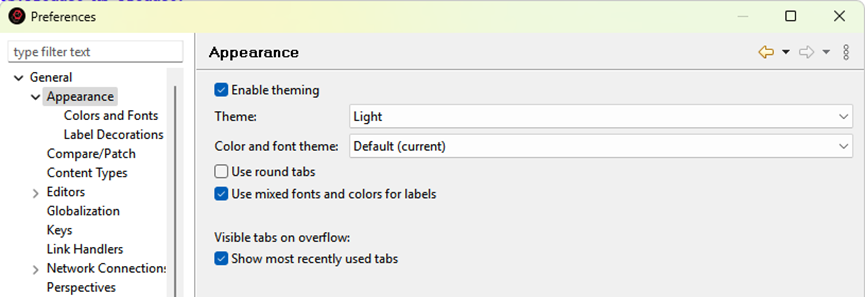
-
Select Colors and Fonts.
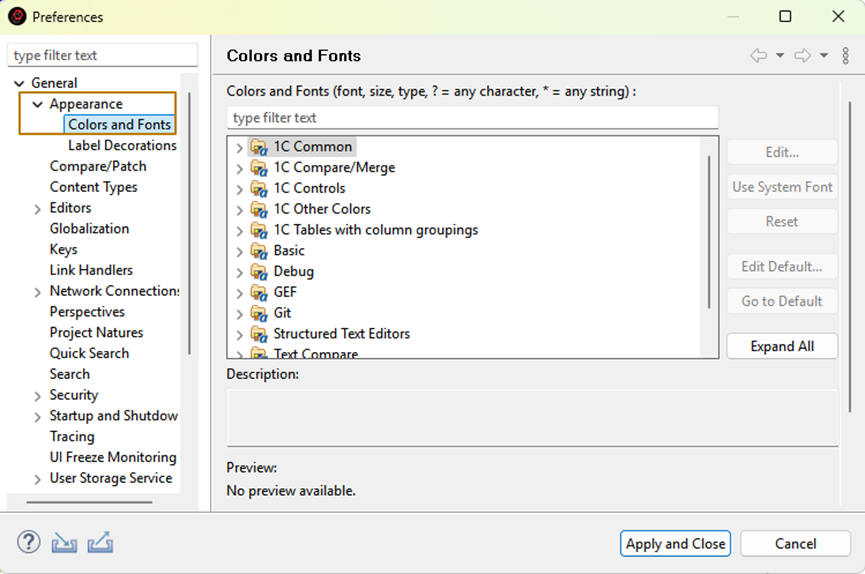
Here you can adjust how text and interface elements are displayed. To see your changes immediately, open any module that contains code. #### 7.2.1 Changing the Code Font
-
Expand the Basic category.
-
Select Text Font.
-
Click Edit and choose a font style and size that are comfortable for you.
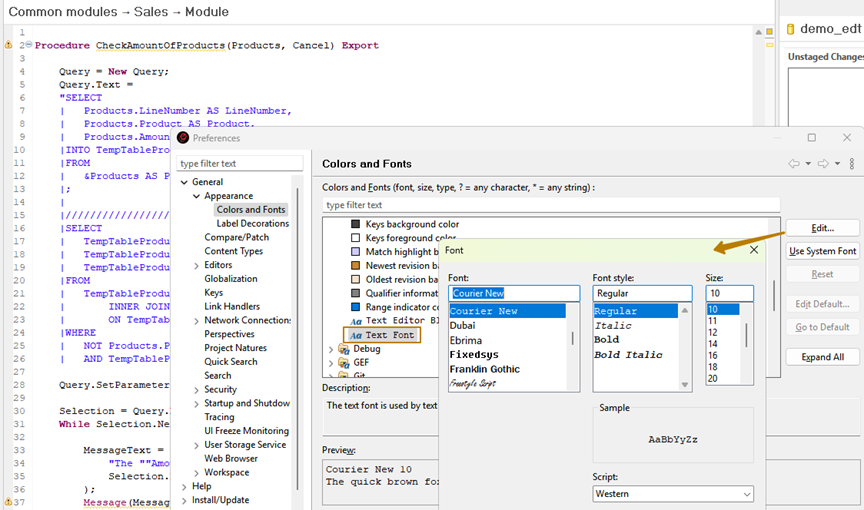
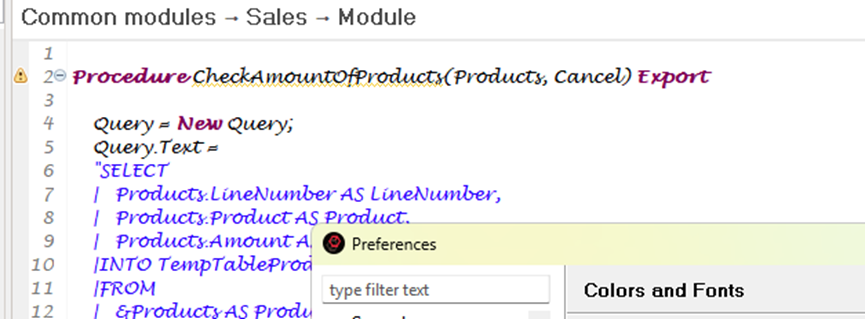
I used a noticeably different font to demonstrate the effect of the change.
7.2.2 Changing the Font for Configuration Trees
-
In the same window, expand Views and Editors.
-
Find the Tree and Table Font for Views option.
-
Click Edit to change the font.
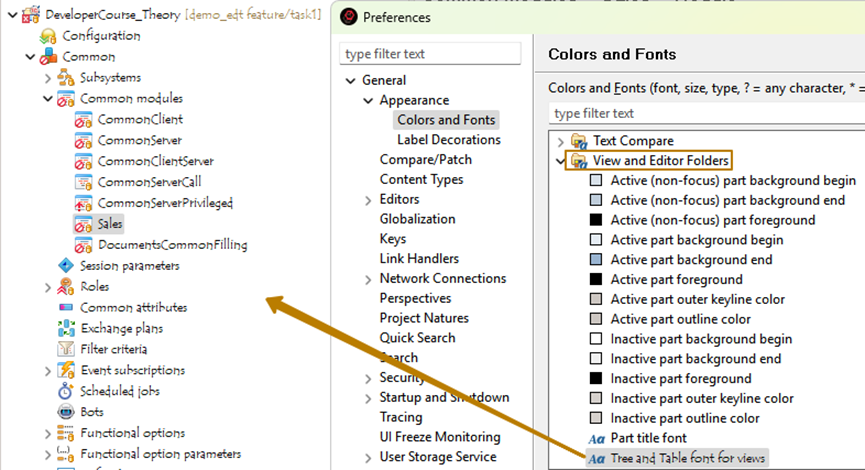
Your new settings will apply immediately, allowing you to preview the results directly in EDT.
7.3 Restoring or Transferring Settings
If you want to return to the default appearance or reuse your settings in another environment:
- Click Reset next to a specific parameter to restore only that item.
- Click Restore Defaults to reset all settings in the window.
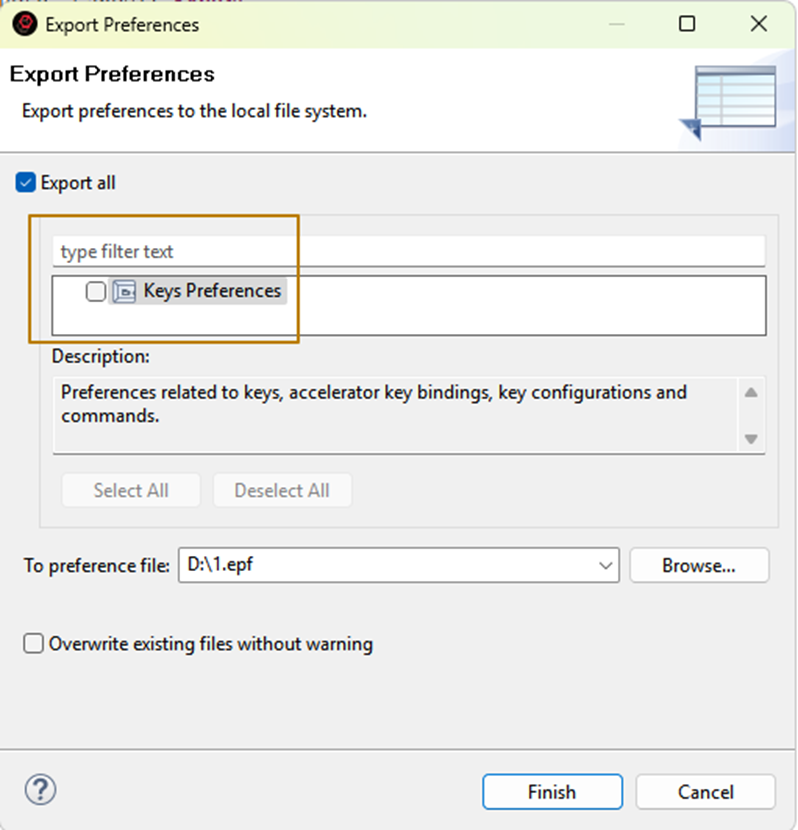
You can also export your settings to a file and import them later. This is useful for: - Applying the same configuration to other EDT projects. - Transferring your workspace preferences to a different computer.
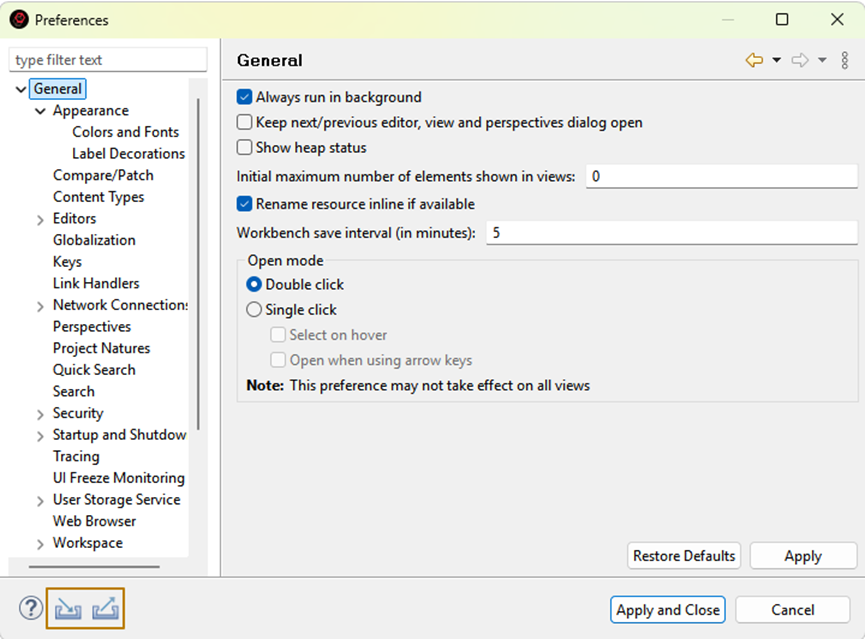
When exporting or importing, you can choose whether to process all settings or only specific ones.
✅ Next Steps:
In the final section, we will review the icon legends and indicators used throughout 1C:EDT, helping you quickly recognize project statuses, errors, and version control states.